

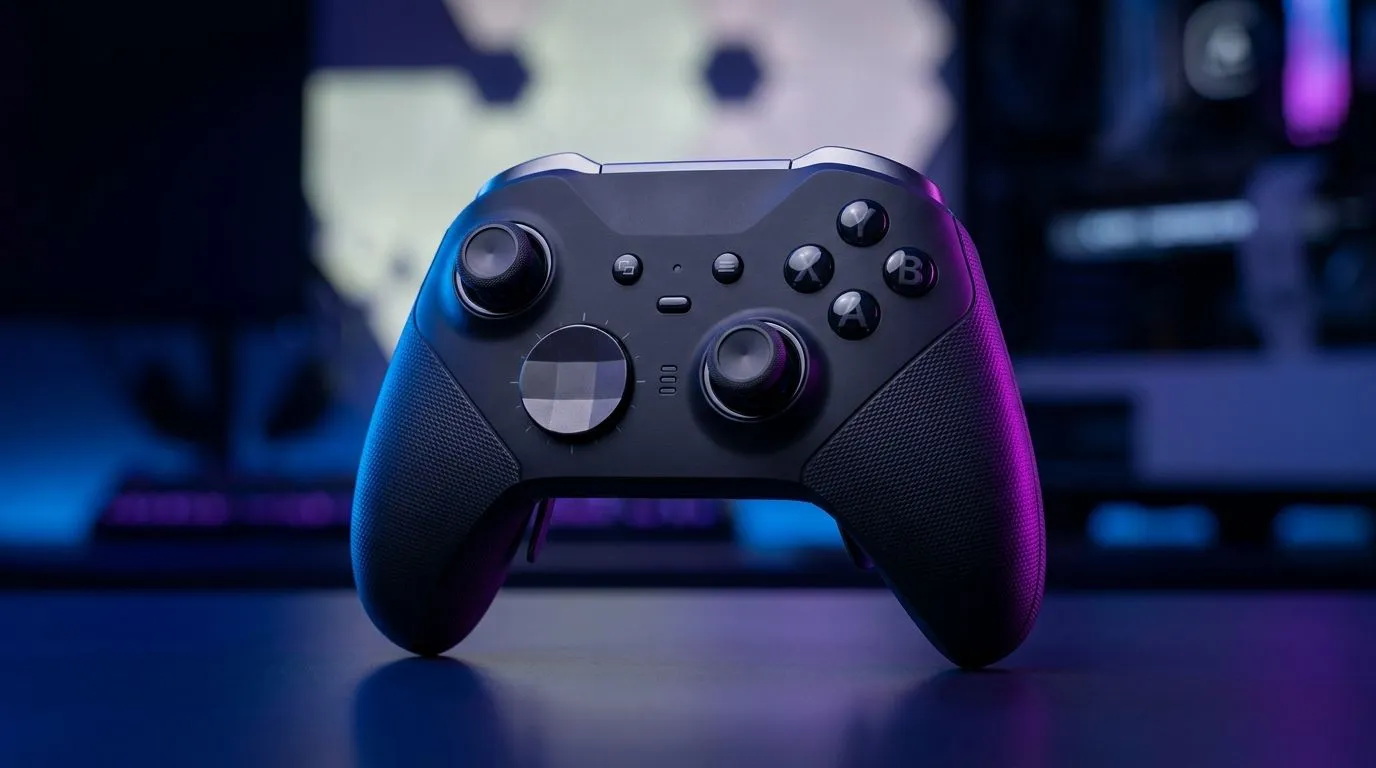
Gamepad Audio Integration for Voice Chat Mic Functions (Why it matters in SA)
If your squad chat is echoing, cutting out, or sounding “tinny”, you’re not alone. In South Africa, load shedding and unstable networks already make voice chat tricky. Then you add mismatched audio modes on PC… and suddenly you’re the problem, not your ping. 🎧
This guide walks you through Gamepad Audio Integration for Voice Chat Mic Functions so your controller headset (or gamepad audio) works reliably for Discord, in-game chat, and party systems. No guesswork. Just clean steps and practical settings.
Gamepad Audio Integration for Voice Chat Mic Functions (What’s happening under the hood)
Most modern controllers can act like a USB audio device. That means your PC may detect a new “Headset” output, and sometimes a “Microphone” input too. When the wrong device is selected, you’ll hear:
- your own voice echoed back
- teammates not hearing you
- mic input routed to speakers or monitor audio
The fix usually comes down to one thing: correct input and output selection in Windows and the chat app. 🔧
Gamepad Audio Integration for Voice Chat Mic Functions (Windows setup for mic reliability)
Start with Windows settings so you’re not fighting your chat app later.
Step 1: Pick the correct mic and output device
- Right-click the speaker icon (bottom-right).
- Select Sound settings.
- Under Input, choose the controller’s microphone (often named something like “Gamepad” or the controller model).
- Under Output, choose the controller headset/output.
Step 2: Disable “hands-free” mode issues (when needed)
Some devices switch between stereo and hands-free profiles, and hands-free can sound weaker. If you notice low volume or distorted voice, switch output to the “Stereo” option if available.
Productivity Pro Tip ⚡
On Windows, open Sound settings and set the controller as default for both Input and Output when you plan to use voice chat. Then, switch back to your headset after matches to avoid accidental mic routing in the next Discord call.
Gamepad Audio Integration for Voice Chat Mic Functions (Discord and in-game chat)
Even after Windows is correct, Discord can keep its own selections.
Discord
- User Settings → Voice & Video
- Confirm Input Device is your controller mic
- Confirm Output Device matches your controller/headset
In-game voice chat
Some titles use Windows devices. Others use an in-game audio pipeline. Check these settings:
- Voice input device (mic)
- Voice output device (headset)
- Push-to-talk vs open mic
Pro tip: test with a friend. Ask them to confirm clarity for 30 seconds, then adjust mic gain in Discord if needed.
Gamepad Audio Integration for Voice Chat Mic Functions (Choosing the right controller for audio)
Not every controller is equally good at acting as an audio device. If you want fewer setup headaches, start with a controller known for clean wired/wireless audio support and sensible mic handling.
If you’re shopping, Evetech has great options. For example, check out the Razer Wolverine V3 Tournament Edition deal here: Explore the Razer Wolverine V3 Tournament Edition at Evetech
And if you want to compare controller types and features (including audio-related support), browse: Buy gaming controllers from Evetech
Looking specifically for Razer models? Here you go: View Razer gaming controllers
Gamepad Audio Integration for Voice Chat Mic Functions (Quick troubleshooting checklist)
When voice chat goes wrong mid-match, run this fast order:
- Confirm the right Windows Input and Output devices
- Confirm Discord Input Device and Output Device
- Toggle push-to-talk (helps diagnose open mic routing)
- Restart voice chat after changing devices
- If audio is echoing, set your output to headset mode, not “speaker” mode
Do these steps once, and you’ll stop losing fights because your mic sounds like it’s underwater. 🎮✨
Ready to Find Your Perfect Match? The Mac vs Windows debate is complex, but for maximum power, choice, and value in South Africa, Windows is hard to beat. Explore our massive range of laptop specials and find the perfect machine to conquer your world.











