

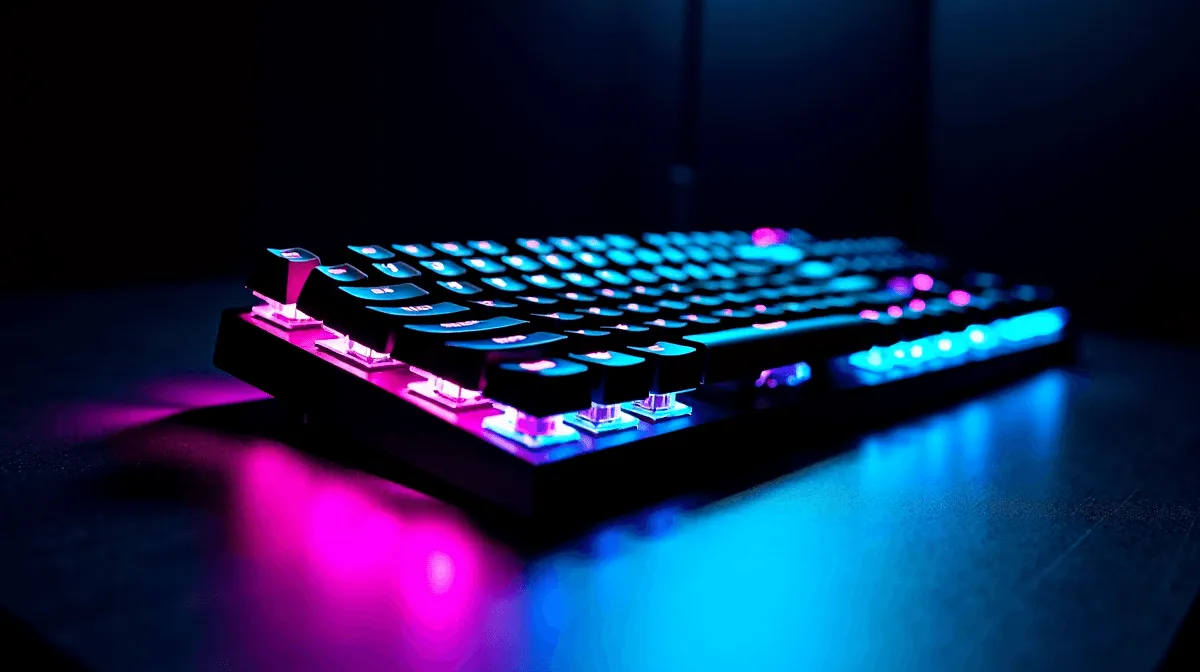
We’ve all been there. You’re in the final circle in Warzone, the tension is thick, and suddenly… your ‘W’ key sticks. That split-second hesitation costs you the win. Whether it’s NikNaks dust, a spilled cooldrink, or just the Highveld dust settling in, your keyboard takes a beating. Proper gaming keyboard maintenance isn't just about hygiene; it's about performance. Neglecting it is like running a marathon in worn-out vellies… you’re just asking for trouble.
Why Gaming Keyboard Maintenance is Crucial
Think of your gaming keyboard as a high-performance engine. A little bit of grime can seriously impact its responsiveness, leading to missed inputs, ghosting, or that dreaded sticky key feeling. Regular cleaning preserves the satisfying tactile feedback of your switches and ensures every press registers instantly.
Beyond performance, it's about protecting your investment. A quality mechanical keyboard can set you back a fair few Rands. Consistent care extends its lifespan dramatically, saving you money in the long run. Even if you start with an affordable gaming keyboard, looking after it properly will make it feel premium for years.
Your Essential Keyboard Cleaning Toolkit 🔧
Before you start, gather your supplies. Having the right tools makes keyboard care quick and effective. You don’t need a fancy lab, just a few simple items:
- Keycap Puller: Essential for mechanical keyboards. Trying to pry off keycaps with a screwdriver is a recipe for disaster.
- Compressed Air or Air Blower: Perfect for blasting out dust and crumbs from hard-to-reach places.
- Isopropyl Alcohol (70% or higher): A must-have for cleaning the keyboard deck and keycaps without leaving residue.
- Cotton Swabs & Microfibre Cloth: For detailed cleaning and a final polish.
- A Small Bowl: For soaking your keycaps during a deep clean.
Many gamers who buy new custom keycaps often grab a cleaning kit at the same time to keep their new set looking fresh.
Pro Tip: Brush It Off
No compressed air? A clean, soft-bristled paintbrush or makeup brush works wonders for gently sweeping away surface dust from between the keys without needing to unplug anything.
The Quick Clean Routine (5 Minutes, Weekly)
This is your basic weekly upkeep. Consistent, quick cleaning prevents major build-up and keeps your setup feeling fresh and responsive.
- Unplug Your Keyboard: Safety first! Always disconnect your gear before cleaning.
- Turn & Shake: Hold it upside down over a bin and give it a gentle shake to dislodge any loose debris. You’ll be surprised what comes out.
- Blast It: Use your compressed air to blow out anything left between the keys. Work from top to bottom.
- Wipe Down: Lightly dampen a microfibre cloth with water or a bit of isopropyl alcohol and wipe down the keycaps and frame.
Don't forget the surrounding area. A clean desk mat and a comfortable, clean ergonomic wrist rest complete the experience and reduce dust transfer.
The Deep Dive Clean (Every 3-6 Months) 🧼
For a truly satisfying refresh, a deep clean is necessary a few times a year. This process restores your keyboard to a near-factory state.
Step 1: Document Everything
Before you pull a single key, take a clear photo of your keyboard layout on your phone. Trust us on this one… you will thank yourself later.
Step 2: Remove the Keycaps
Using your keycap puller, gently lift each keycap straight up. Place them in your small bowl. For larger keys like the spacebar or shift, be mindful of the stabiliser bars underneath.
Step 3: Clean the Board
With the keycaps off, you’ll see the true horror. Use compressed air to blow out all the loose gunk. Then, dip a cotton swab in isopropyl alcohol and meticulously clean the keyboard deck and around each switch. This is your chance to inspect for any damage. If you find a switch that feels gritty or unresponsive even after cleaning, it might be time to look into some replacement keyboard switches to bring it back to life.
Step 4: Wash the Keycaps
Fill your bowl with warm water and a drop of dish soap. Let the keycaps soak for about 30 minutes, then give them a gentle scrub. Rinse them thoroughly and lay them out on a towel to air dry completely. Do not use a hairdryer, as the heat can warp the plastic.
Step 5: Reassemble
Once everything is bone-dry, carefully press each keycap back onto its corresponding switch, using your photo as a guide. The final click of the spacebar is one of the most satisfying sounds for any PC gamer. If you've just performed this whole process on an older keyboard, you might find yourself thinking about upgrading your whole setup with a fresh keyboard and mouse combo for that complete "new gear" feeling. ✨
Ready for a Flawless Upgrade? If your keyboard is past the point of rescue, don't let it hold your K/D ratio hostage. Explore our massive range of high-performance keyboards and feel the difference a truly responsive board makes. Check out the best gaming keyboard deals at Evetech and get back in the game, stronger than ever.











