Quick Answer
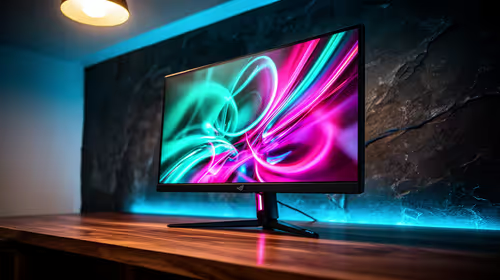
Configuring your gaming monitor correctly can dramatically improve image quality, reduce input lag, and protect your eyes during long sessions. The key settings to tune are refresh rate, response time, colour profile, and HDR mode.
A brand-new gaming monitor straight out of the box is rarely optimised for competitive or immersive play. Default factory settings are calibrated for showroom brightness and generic use - not for the fast-paced demands of gaming. Spending fifteen minutes on proper configuration can transform your visual experience and give you a measurable edge.
Step 1: Set the Correct Refresh Rate and Resolution
Always begin in Windows Display Settings (or your OS equivalent). Navigate to Advanced Display Settings and confirm your monitor is running at its native resolution and maximum refresh rate. A 144Hz panel running at 60Hz is leaving half its potential on the table. Enable FreeSync or G-Sync in both the monitor OSD (On-Screen Display) and your GPU driver panel to eliminate screen tearing without capping frames. Confirm the setting is active - some monitors require it enabled in both places independently.
Step 2: Tune Brightness, Contrast, and Colour Temperature
Factory brightness levels are typically set between 250–350 nits for showroom visibility - far too high for a dimly lit gaming setup. Reduce brightness to around 120–150 nits for comfortable extended play. Set contrast to roughly 70–75% and avoid crushing shadow detail, which hides enemies in dark game environments. Colour temperature of 6500K (sRGB) is the industry standard for accurate representation. Warmer settings (lower Kelvin) reduce blue light if you game at night.
Step 3: Configure Response Time and Overdrive
Response time presets - often labelled Normal, Fast, or Fastest - control pixel transition speed. Setting overdrive too aggressively causes inverse ghosting, visible as bright halos trailing fast-moving objects. The sweet spot is typically the middle preset (Fast or Medium). Test this in a fast-paced game and look for ghosting artefacts. If halos appear, dial back one level. For competitive shooters, prioritise the lowest response time your panel can achieve without visible artefacts.
Frequently Asked Questions
Q: Should I enable HDR on my gaming monitor? A: Only if your monitor supports DisplayHDR 400 or higher and the game has native HDR support. Most entry-level HDR panels produce washed-out results - disable HDR unless your display is genuinely HDR-capable.
Q: What is the best colour profile for gaming? A: The sRGB colour profile is the safest baseline for accurate, consistent colour. Game-specific modes like ''FPS'' or ''Racing'' on some monitors can oversaturate colours and skew competitive visibility.
Q: Does monitor calibration software make a difference? A: Yes, hardware calibration tools produce measurable improvements in colour accuracy, but for gaming the OSD adjustments above deliver the majority of practical benefit without additional hardware cost.