

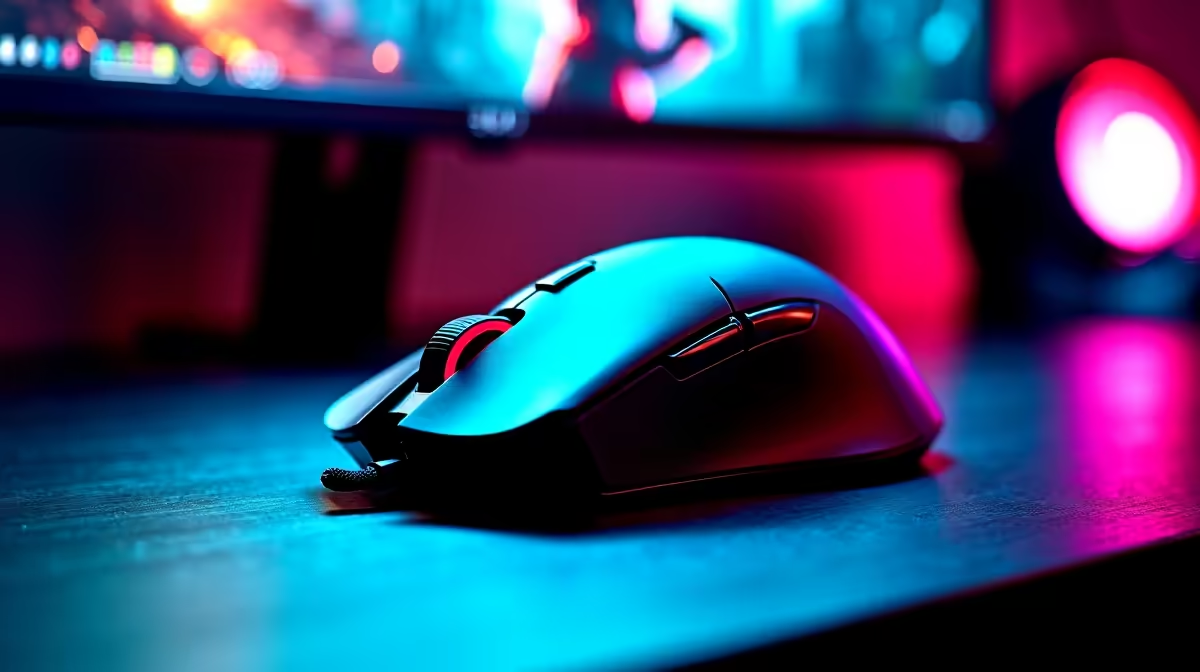
So, you’ve finally ascended. That glorious ultrawide monitor is on your desk, filling your vision with immersive, panoramic visuals. But after your first session of Apex Legends or Valorant, your arm aches. Why? You’re experiencing the ultrawide workout: the massive increase in gaming mouse travel distance. Suddenly, that comfortable DPI setting you perfected on your old 16:9 screen feels like you're dragging your mouse through mud across a football pitch. Let's fix that.
Understanding Gaming Mouse Travel Distance on an Ultrawide Monitor
When you upgrade to an ultrawide, you're not just getting a wider screen; you're getting more pixels. A standard 1440p monitor has about 3.7 million pixels, while a 34-inch 1440p ultrawide boasts nearly 5 million. Your mouse cursor has to travel across all that extra digital real estate. If your DPI (Dots Per Inch) is too low, the physical gaming mouse travel distance required to move your cursor from one edge to the other becomes enormous. ⚡
This isn't just about comfort; it's about performance. In a fast-paced shooter, snapping to a target on the far edge of your screen needs to be instant, not a frantic series of swipes. Finding the right balance is key to unlocking the competitive advantage your new display offers. If you're still searching for that perfect panoramic view, exploring the best PC monitor deals in South Africa is a great place to start.
How to Optimise Your Mouse Settings for an Ultrawide
Getting your settings dialled in is less about a magic number and more about a methodical approach. What works for a pro might not work for you, but the principles are the same. Forget your old settings and get ready to recalibrate for your new, wider world.
Finding Your New DPI Sweet Spot
Your mouse's DPI determines its hardware sensitivity. On an ultrawide, a higher base DPI is generally recommended to reduce physical arm strain.
- Start Higher: Set your mouse DPI to a higher baseline than you're used to, perhaps around 1600 DPI. This immediately reduces the physical effort needed.
- Adjust In-Game Sensitivity: Launch your favourite game and head to the practice range. Now, lower your in-game sensitivity to compensate for the higher DPI.
- The Swipe Test: The goal is to find a setting where a comfortable, single swipe across your mousepad allows you to turn 180 or 360 degrees in-game. On an ultrawide, you might need to find a new balance that feels responsive without being uncontrollably fast.
This process takes patience, but it's the most crucial step to mastering your gaming mouse travel distance on an ultrawide monitor. The perfect setup feels like an extension of your thoughts. Whether you're a competitive esports player or a casual adventurer, you can explore our wide range of PC monitors to find the canvas that suits your playstyle.
Pro Tip: Disable Pointer Acceleration
For consistent and predictable mouse movement, always turn off "Enhance pointer precision" in your Windows mouse settings. This feature adjusts your cursor speed based on how fast you move your mouse, which is terrible for building muscle memory in games.
Does Your Gear Match Your Display? 🔧
While you can adapt almost any modern gaming mouse, certain features make managing an ultrawide display much easier. A mouse with a high-precision sensor and a dedicated DPI-shift button allows you to switch between a high DPI for traversing the screen and a lower one for precise aiming on the fly. Lightweight mice can also reduce fatigue during long sessions.
The beauty of PC gaming is customisation. Your monitor is the centrepiece, and the right peripherals complete the experience. Many gamers find that the immersion of curved monitors perfectly complements the wide field of view, making the entire setup feel more cohesive. Ultimately, you want gear that doesn't fight you. Check out the specs on all our gaming monitors to see what resolutions and refresh rates are available.
Beyond DPI: Resolution and Ergonomics
Your monitor's resolution plays a huge role. Moving a cursor across a massive 49-inch G9 is different from a 34-inch display. The higher pixel density of a 5K or 4K monitor means your mouse has even more ground to cover, making DPI adjustments even more critical. ✨
Don't forget your physical setup! A large, high-quality mousepad is non-negotiable for ultrawide gaming. It gives you the physical space you need for those wider flicks and turns. You can even create a powerful, flexible setup by combining your main screen with one of the latest portable monitors for Discord or streaming stats. Finally, ensure your screen is at the right height and angle using proper monitor accessories like a VESA mount to prevent neck strain.
Ready to Conquer the Screen? Your ultrawide monitor is an investment in immersion and performance. Pair it with the perfect settings and peripherals to truly dominate the game. Explore all gaming monitors at Evetech for performance that leaves the competition behind.











