

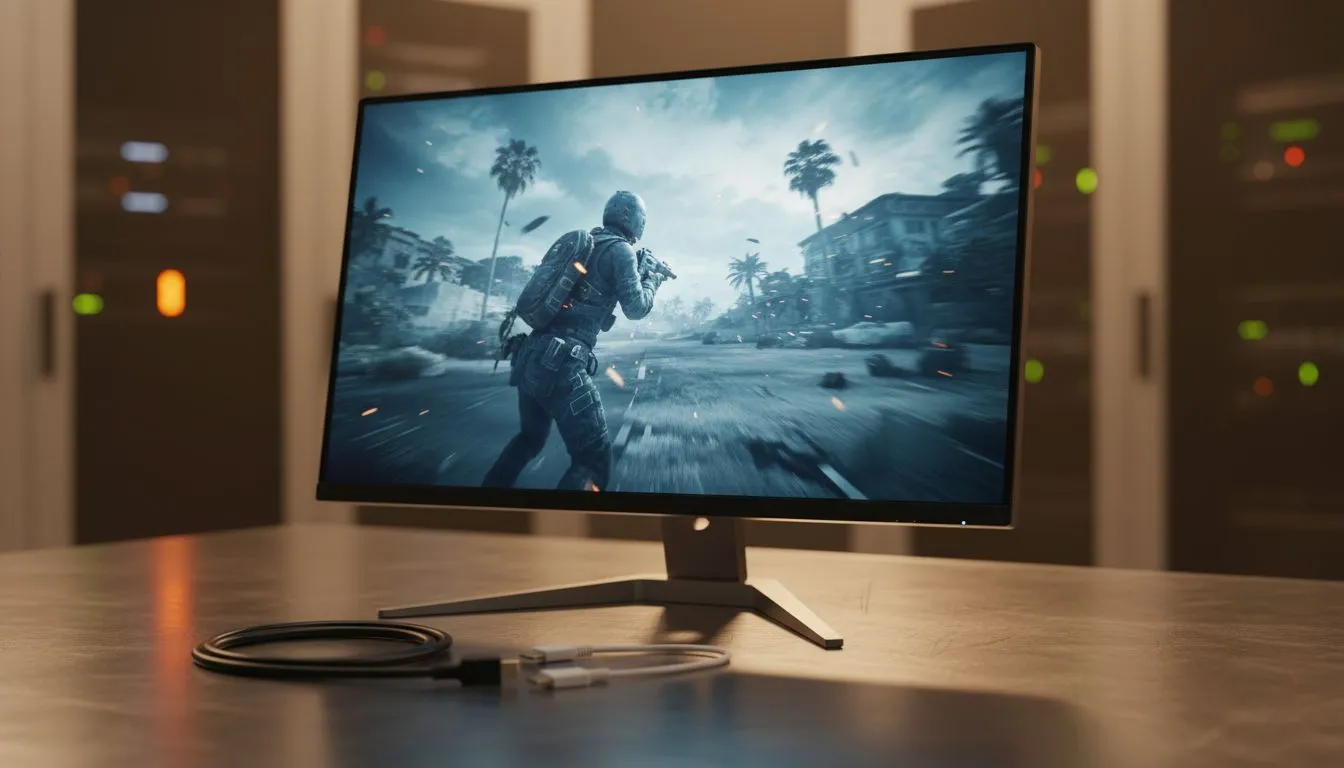
Why Your Office Screen Might Be Holding You Back ⚡
You finish your work day in Johannesburg or Cape Town. You fire up Apex Legends or Valorant. But something feels off. Is it your skill... or is it that standard screen? Gaming on an office monitor involves balancing refresh rate and response time against your budget. Most office panels are built for spreadsheets... not high-speed action. Understanding these specs will help you decide if your current gear is enough.
Refresh Rate: The Secret to Smooth Motion
Refresh rate is measured in Hertz (Hz). It tells you how many times a screen updates per second. Most office units stick to a basic 60Hz. This is fine for emails... but it feels sluggish during a firefight. If you want fluid movement, you should browse our comprehensive range of PC monitors to find something significantly faster.
A higher refresh rate means less motion blur. It makes tracking enemies much easier. If your PC can push 144 frames per second, a 60Hz screen is wasting that power. You only see 60 of those frames. Upgrading is the easiest way to improve your reaction speed.
Response Time and Panel Technology 🔧
Response time is about pixel speed. It measures how fast a pixel changes from one colour to another. Slow pixels cause "ghosting". This looks like a blurry trail behind moving objects. Office monitors often have 5ms or higher response times. Competitive gamers usually aim for 1ms.
For the best balance of speed and vibrant colour, many local gamers choose high-quality IPS panels. These used to be slow... but modern tech has made them incredibly fast. They offer great visuals without the annoying lag found on older office hardware.
Gaming Pro Tip ⚡
"Always check your Windows Display Settings after buying a new screen. Many high refresh rate monitors default to 60Hz when first plugged in. Right-click your desktop, go to Display Settings, then Advanced Display, and ensure your Refresh Rate is set to the maximum available value."
Eliminating Screen Tearing with Sync Tech
Screen tearing is a nightmare for any gamer. It happens when your GPU and monitor are out of sync. You might see a horizontal "split" in the image. To fix this, look for Adaptive Sync technology. This helps your screen match your frame rate perfectly.
If you use an AMD graphics card, you should look for FreeSync monitors. NVIDIA users will get the best results from G-Sync compatible displays. These features are rarely found on standard office equipment... making them a vital upgrade for a smooth experience.
Choosing the Right Shape for Your Setup ✨
Does the physical shape of the screen matter for your desk? Traditionalists often prefer flat screen monitors for their consistent lines and professional look. They are excellent for both work and play.
However... modern curved monitors can provide a more immersive experience. The curve matches the natural arc of your eyes. This can reduce eye strain during long gaming sessions or late-night shifts. Whether you want a flat panel for precision or a curve for immersion, moving away from a basic office screen will change how you play.
Ready to Find Your Perfect Match? Gaming on an office monitor might work for a while, but for the best experience in South Africa, a dedicated display is essential. Explore our massive range of monitor specials and find the perfect screen to conquer your favourite games.











