



PCIe 5.0 vs PCIe 4.0 for Video editing in 4k in SA
PCIe 5.0 vs PCIe 4.0 for video editing in 4k is mainly about fit, features, compatibility, cost, and upgrade path, not one automatic winner. SA buyers should match the choice to the setup.
Read moreGIMP Beginner's Guide: Complete Tutorial. Clear setup instructions with SA-specific considerations, troubleshooting tips & recommended components.
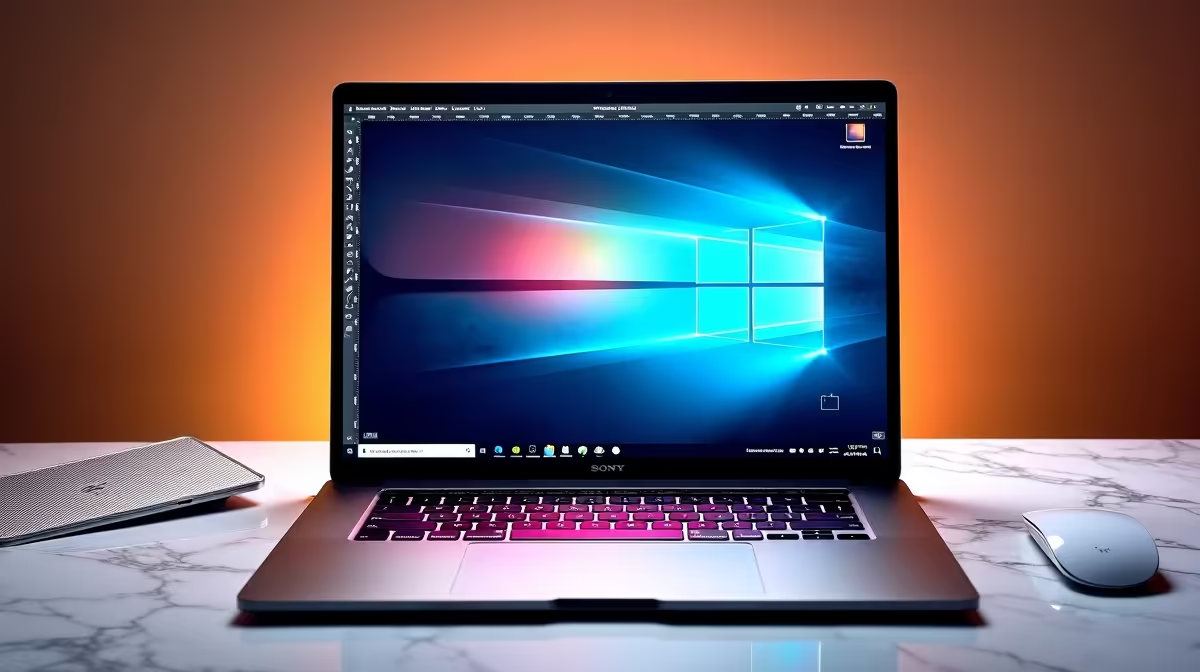
GIMP is the free open-source Photoshop alternative that runs on any modern Windows, Mac, or Linux PC. SA beginners can install it in 5 minutes, learn layers, selections, and the basic tool palette in under an hour, and edit photos for varsity projects, social media, or content creation without paying a single Rand for software.
Head to gimp.org and download the latest stable build (GIMP 2.10 or 3.0 depending on release cycle). Windows installer sits around 250MB. Run it, accept defaults, and you're up in under 5 minutes. GIMP runs fine on any PC with 4GB RAM and a dual-core CPU, but for smooth performance with 4K photos use 8GB+ RAM and an SSD.
If you're on a NSFAS-funded laptop with a Ryzen 5 or Core i5 and 8GB RAM, GIMP will fly. On older Core i3 with 4GB RAM, expect lag on big files. SA loadshedding makes a UPS handy if you're saving large XCF projects, since power loss mid-save can corrupt files. Most modern Evetech laptops handle GIMP without any tuning needed.
The first launch takes 30-60 seconds while GIMP builds its font cache and configures plug-ins. Pin it to your taskbar afterwards for one-click access. The startup time drops to 5-10 seconds on subsequent launches.
GIMP opens as three floating windows by default. Switch to Single-Window Mode under the Windows menu for a cleaner Photoshop-like layout. The Toolbox sits left with selection, paint, transform, and colour tools. The right panel holds Layers, Channels, Paths, and history.
Spend 10 minutes hovering over each tool to read tooltips. Shortcut keys are mostly logical: B for paintbrush, E for eraser, M for move, S for clone, R for rectangle select. Right-click on the canvas brings up the full menu, which is handy on smaller laptop screens common at SA varsities. Customise the toolbox order via Edit > Preferences > Toolbox to match your workflow.
The status bar at the bottom shows your current zoom level, image dimensions, and active layer. Useful when you're zoomed deep into pixel-level edits and lose track of scale.
Layers are the foundation. Every edit should sit on its own layer so you can tweak or delete without losing work. Add layers via Layer > New Layer or Shift+Ctrl+N. Lock the background layer first to prevent accidental edits. Layer masks let you hide parts of a layer without deleting pixels, which is essential for non-destructive editing.
Selections matter for everything from cropping to colour correction. Master the rectangle (R), ellipse (E), and free select/lasso (F) tools first. The Fuzzy Select (U) is GIMP's magic wand for picking similar colours. Use Select > Feather to soften edges before pasting or filling. Combine selections with Shift (add) and Ctrl (subtract) to refine complex shapes.
Save your work as XCF (GIMP's native format) to preserve layers. Export to JPG, PNG, or WebP via File > Export As. This trips up every beginner. File > Save only writes XCF, never JPG. Keep an XCF master copy and export web-ready versions separately.
Saving with File > Save expecting a JPG and getting an XCF that won't open in WhatsApp or Instagram. Always use File > Export As for shareable formats. Forgetting to flatten layers before exporting which makes file sizes balloon to 50MB+ when 500KB would do.
Working at full resolution on a slow laptop with the History feature wide open. GIMP keeps every undo step in RAM, so a 200-step edit on a 4K photo can hit 4-6GB RAM use. Limit history under Edit > Preferences > Environment to 50 levels and 256MB.
Editing the original file instead of a duplicate. Always File > Save As your project copy first. Loadshedding mid-edit on an unsaved big file is a soul-destroying experience that a UPS or laptop battery prevents. Set Auto-Save under Preferences if available in your GIMP version.
GIMP is free, full-featured, and runs on modest hardware. Master layers, selections, and the export workflow first. Spend an hour with the official GIMP documentation or YouTube tutorials and you'll handle 90% of beginner tasks. The community plug-in registry adds Photoshop-style filters for free.
Confusing Save with Export As, working with too much undo history on slow PCs, and editing originals without backups. Also installing third-party plugin packs from sketchy sites which can break the install. Stick to the official GIMP plugin registry and trusted sources only.
No special tools. GIMP runs on any modern PC bought from Evetech. A graphics tablet (Wacom, Huion) helps for digital art and starts at R899-1,499 locally. A second monitor speeds up workflow for content creators and varsity design students who want toolbox on one screen and canvas on the other.
Ready to Find Your Perfect Match? Get a PC build that runs GIMP, Photoshop, and creative apps smoothly with SA delivery. Shop Pre-Built PC Deals
GIMP Beginner's Guide: Complete Tutorial available at Evetech.co.za with local warranty and fast delivery.
GIMP Beginner's Guide: Complete Tutorial - check Evetech for latest stock and SA pricing.
Depends on your use case. GIMP Beginner's Guide: Complet offers good value at current Rand pricing.
PCIe 5.0 vs PCIe 4.0 for video editing in 4k is mainly about fit, features, compatibility, cost, and upgrade path, not one automatic winner. SA buyers should match the choice to the setup.
Read more
Wi-Fi 7 vs Wi-Fi 6e for competitive esports comes down to router support, latency goals, device compatibility, and coverage. SA buyers should match the choice to the real network setup.
Read more
ATX 3.1 vs ATX 3.0 for mMO and live-service games buyers - what changes is mostly about compatibility, budget, upgrade path, and setup fit. SA buyers should check device support and real needs before expecting a clear win from either option.
Read more
LGA 1851 vs LGA 1700 can affect Twitch and YouTube streaming when gaming and encoding share CPU resources. For SA creators, the real-world difference depends on encoder choice, memory support, motherboard cost, thermals, and upgrade plans.
Read more
X870E vs X670E for aaa single-player gaming is mainly about fit, features, compatibility, cost, and upgrade path, not one automatic winner. SA buyers should match the choice to the setup.
Read more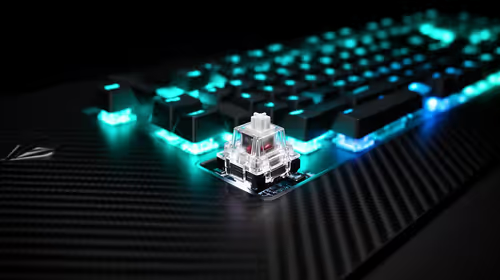
Hall Effect switches vs Mechanical switches for mMO and live-service games is mostly about compatibility, budget, upgrade path, and setup fit. SA buyers should check device support and real needs before expecting a clear win from either option.
Read more
A fake 113GB GTA VI ISO reportedly used empty padding around a small malware payload. SA gamers should delete unofficial builds, keep Windows security active and wait for official channels.

Wi-Fi 6E vs Wi-Fi 6 matters for 4K video editing when files move across a network. The real-world difference between Wi-Fi 6E and Wi-Fi 6 for video editing in 4K depends on NAS access, cloud uploads, router range, and SA creator workflows.

The difference between PCIe 5.0 and PCIe 4.0 for SA gamers is mostly bandwidth headroom. Compare GPU slot needs, NVMe speed, motherboard support, and upgrade timing before paying extra for a newer platform.

Gaming PC stuck pixel checks in South Africa should confirm the monitor fault first. Use colour tests, screenshot comparison, cable swaps, display menu checks, and clear photos before deciding on support.

Shokz OpenFit Air 2 earbuds weigh 7.2g each and use a redesigned dual-driver open-ear layout. SA buyers should choose them for comfort and awareness, not maximum isolation.

AMD's current driver now lists a Radeon RX 9050 4GB, while product coverage details a narrowed memory system. SA buyers should weigh the low VRAM ceiling against current local Radeon options.

Samsung Display has demonstrated a 16-inch 2.5K OLED laptop panel running at 300Hz. SA buyers should wait for a named notebook, full panel specifications and a local price before planning an upgrade.

Microsoft says some Windows 11 game crashes after recent updates are linked to RGB-related drivers. Affected SA gamers should confirm the update and driver before using the published registry workaround.
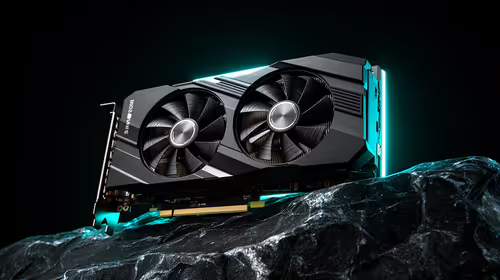
RTX 5090 on a 650W PSU is a tight pairing with very limited headroom. For SA gaming PCs, focus on total system draw, PSU quality, connector support, CPU choice, and avoid OC plans unless the full build is carefully power-limited.
PCIe 5.0 vs PCIe 4.0 for video editing in 4k is mainly about fit, features, compatibility, cost, and upgrade path, not one automatic winner. SA buyers should match the choice to the setup.
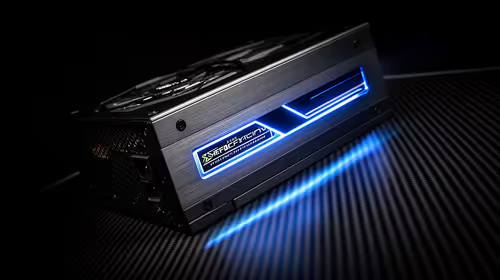
850W PSU safety for RTX 5090 is plausible with a quality unit and balanced parts. In SA, confirm connector support, CPU power draw, case airflow, PSU age, and spare capacity before building around 850W.
Wi-Fi 7 vs Wi-Fi 6e for competitive esports comes down to router support, latency goals, device compatibility, and coverage. SA buyers should match the choice to the real network setup.