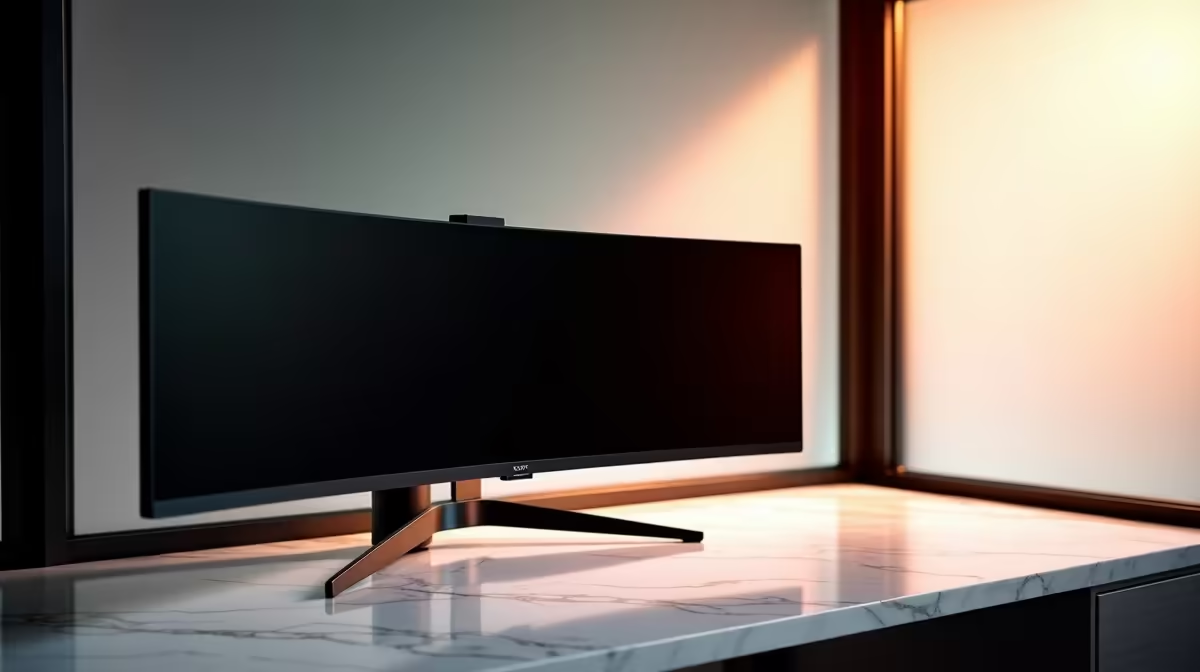
You’ve spent big on a brilliant HDR monitor for those breathtaking moments in Cyberpunk 2077 or Elden Ring. The vibrant colours and deep blacks are incredible. But what happens when you switch from Night City to Microsoft Excel? That same “game-ready” setting might be slowing your PC down and hurting your eyes. The truth is, HDR is not needed for office apps, and turning it off for work is one of the smartest tweaks you can make.
Why Your Office Apps Don't Need HDR
High Dynamic Range (HDR) is designed to make visuals pop by expanding the contrast ratio and colour palette. It’s fantastic for media that supports it… think blockbuster movies and AAA games. Office applications like Word, Outlook, and Teams, however, are built for the standard sRGB colour space.
When you force them into an HDR container, things can get weird. Text can lose its sharpness, whites can appear blindingly bright or have a strange grey tint, and colours can look oversaturated. Essentially, you're using a powerful, specialised tool for a simple job it wasn't designed for, and the results are often worse. Getting the basics right starts with choosing from a solid range of PC monitors that fit your primary needs.
The Sneaky Performance Cost of Always-On HDR
While you might not notice a massive FPS drop, running HDR in Windows isn't "free." It requires your GPU to constantly process and map the display output, consuming a small but steady slice of resources. ⚡
For high-end rigs, this is barely a blip. But for more modest setups, it’s an unnecessary background process that can introduce tiny bits of lag or sluggishness into your daily workflow. Why waste precious performance rendering a spreadsheet with cinematic colours? Disabling HDR for productivity ensures your system's power is reserved for the tasks that actually need it, like compiling code or, more importantly, your after-hours gaming session on one of our incredible gaming monitors. Even the most stunning 5K and 4K monitors benefit from using the right colour mode for the right task.
Quick-Toggle HDR 💡
No need to dig through settings every time. In Windows 10 & 11, just press Win + Alt + B to instantly toggle HDR on or off. It’s the perfect shortcut for switching between work and play mode.
Reduce Eye Strain for a More Comfortable Workday
Ever finish a day of work feeling like you’ve been staring into a spotlight? Your HDR setting could be the culprit. The intense brightness levels that make explosions look epic in-game can cause significant eye strain when you’re reading black text on a white background for hours.
Turning HDR off for office work allows your screen to return to a more natural and comfortable brightness level. This simple change can make a massive difference to your end-of-day eye fatigue. For maximum comfort, many professionals find that curved monitors help reduce eye movement and create a more immersive, less strenuous workspace. You can even expand your screen real estate without the strain by adding one of the latest portable monitors to your setup.
Optimise Your Display, Optimise Your Day ✨
The key takeaway is simple: use your tech smartly. HDR is a phenomenal feature for entertainment, but it's not a one-size-fits-all solution. By disabling it for general productivity, you reclaim a little performance, improve visual clarity for text, and most importantly, give your eyes a well-deserved break.
A truly optimised setup goes beyond just software settings. Investing in proper monitor accessories like an adjustable arm can also improve ergonomics and comfort, completing your perfect work-and-play station.
Find Your Perfect Work & Play Monitor
Ready to find a display that makes your games pop and your work comfortable? Check out the best PC monitor deals in South Africa and get the perfect screen for your setup.