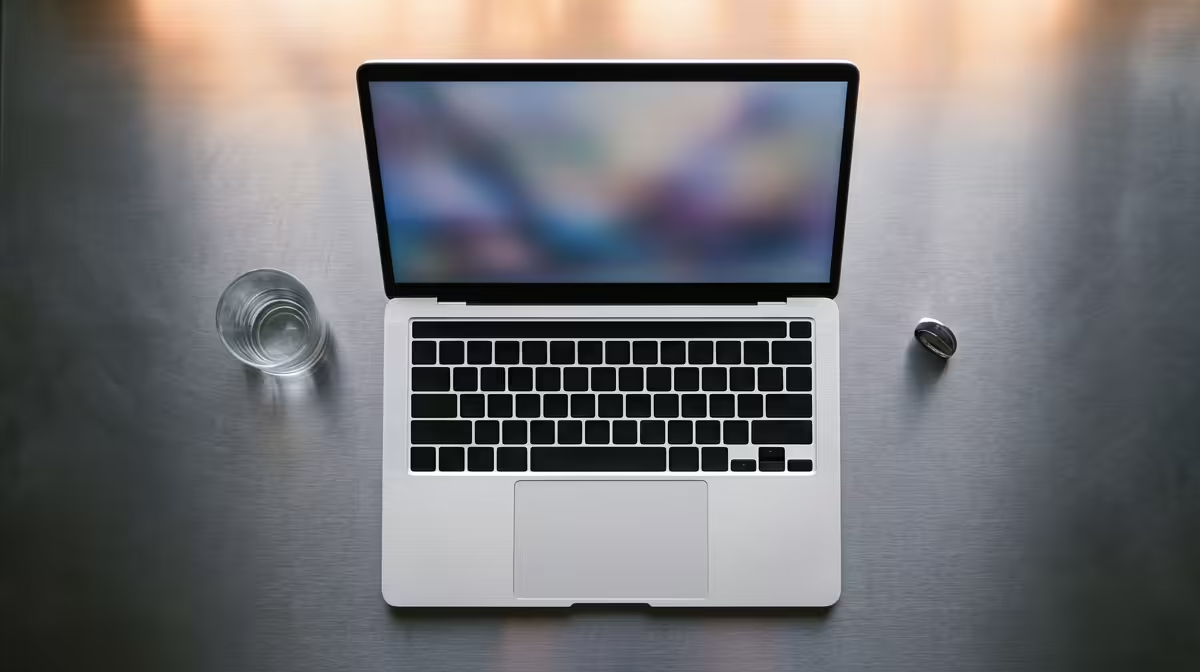
Is your corporate laptop looking a bit… well, lived-in? Crumbs in the keyboard, fingerprints on the screen, and a fan that sounds like it’s preparing for take-off from OR Tambo. A grubby, slow machine doesn’t just hurt your productivity; it looks unprofessional. This complete maintenance guide will show you exactly how to clean your corporate laptop, transforming it from a grimy gadget back into a sleek, efficient workhorse. Let’s get it looking brand new. ✨
Why Corporate Laptop Maintenance Matters
Before we grab the cleaning supplies, let's quickly cover why this is so important. A regular clean-up isn't just about aesthetics.
- Performance: Dust buildup in vents and fans causes overheating. When a laptop gets too hot, it throttles its performance to protect the components, meaning everything slows down.
- Longevity: Keeping your machine free of dust and grime reduces wear and tear on moving parts like fans and keyboard switches, extending its lifespan.
- Professionalism: Showing up to a client meeting with a sticky, dusty laptop isn't a great look. A clean device signals attention to detail.
- Hygiene: Keyboards can harbour more bacteria than a toilet seat. Need we say more? 🧼
Your Toolkit: The Dos and Don'ts of Cleaning
To properly clean your corporate laptop, you need the right tools. Using the wrong stuff can cause permanent damage.
Here’s what you need:
- Two or three soft, lint-free microfiber cloths.
- A can of compressed air.
- Isopropyl alcohol (70% solution is ideal).
- Cotton swabs or specialised cleaning swabs.
- A soft-bristled brush (an old, clean toothbrush works).
And here's what to AVOID:
- Harsh chemical cleaners like ammonia or bleach.
- Abrasive paper towels or tissues that leave lint behind.
- Spraying any liquid directly onto the laptop.
- Using a vacuum cleaner, which can create static electricity and fry your components.
The Physical Deep Clean: A Step-by-Step Guide
First things first: shut down your laptop completely, unplug it from the power source, and remove any connected peripherals.
### Exterior and Vents
Start with the outside. Lightly dampen a microfiber cloth with your isopropyl alcohol solution (or a 50/50 mix of alcohol and distilled water). Wring it out thoroughly—it should not be dripping. Gently wipe down the lid, base, and palm rest areas.
For the vents, hold the can of compressed air upright and use short, controlled bursts to blow dust out. Aim the air away from the laptop's interior to prevent pushing dust deeper inside.
### The Screen
Never spray cleaner directly onto your screen. Instead, lightly spray a clean microfiber cloth with a screen-safe cleaning solution or distilled water. Wipe the screen gently from top to bottom in one direction to avoid streaks. Use a second, dry microfiber cloth to buff away any remaining moisture.
### Keyboard and Trackpad
This is where the real grime lives. Turn the laptop upside down and gently tap it to dislodge any loose crumbs or debris. Use your can of compressed air (with the straw attached) to blow out anything stuck between the keys. For sticky keys or smudges, use a cotton swab lightly dipped in isopropyl alcohol. This is a crucial step for any work machine, from basic work-from-home setups to high-performance Intel laptops on special that see heavy daily use.
Keyboard Cleaning Pro Tip 🔧
For a really deep clean, you can use a small, soft-bristled brush to gently scrub around the edges of each key. This lifts stubborn grime that compressed air and swabs might miss. Just be gentle to avoid scratching the plastic.
Digital Declutter: Optimising from the Inside Out
A clean laptop isn't just about the hardware. A cluttered digital space can slow you down just as much as a dusty fan. Performing a digital tune-up is essential for keeping modern machines running smoothly, whether they are powered by the latest AMD processors or their competitors.
- Uninstall Bloatware: Go through your installed programs and remove any software you no longer use. It frees up disk space and system resources.
- Clean Up Your Desktop: A desktop cluttered with hundreds of files can actually slow down startup times. Organise files into folders and clear out your recycle bin.
- Manage Startup Programs: Too many applications launching at startup can make your laptop feel sluggish. Use the Task Manager (Ctrl+Shift+Esc) in Windows to disable non-essential startup programs.
- Update Everything: Ensure your operating system, drivers, and key software are all up to date. These updates often include critical performance improvements and security patches.
When Cleaning Isn't Enough
Sometimes, even after a thorough physical and digital clean, an old laptop just can't keep up with modern demands. If your machine still struggles with basic tasks, freezes frequently, or has a battery that lasts less time than it takes to get through an unexpected outage, it might be time for an upgrade. The performance leap to a new device, like one of the best gaming laptop deals (whose power easily translates to demanding work tasks), can be staggering.
Is It Time for an Upgrade?
A clean laptop is a happy laptop, but sometimes, no amount of maintenance can beat the raw power and efficiency of a brand-new machine. If your old workhorse is still lagging, explore our massive range of laptop specials and find the perfect upgrade to boost your productivity.