Cut the Cord: Seamlessly Pair Your TWS Earbuds 🎧
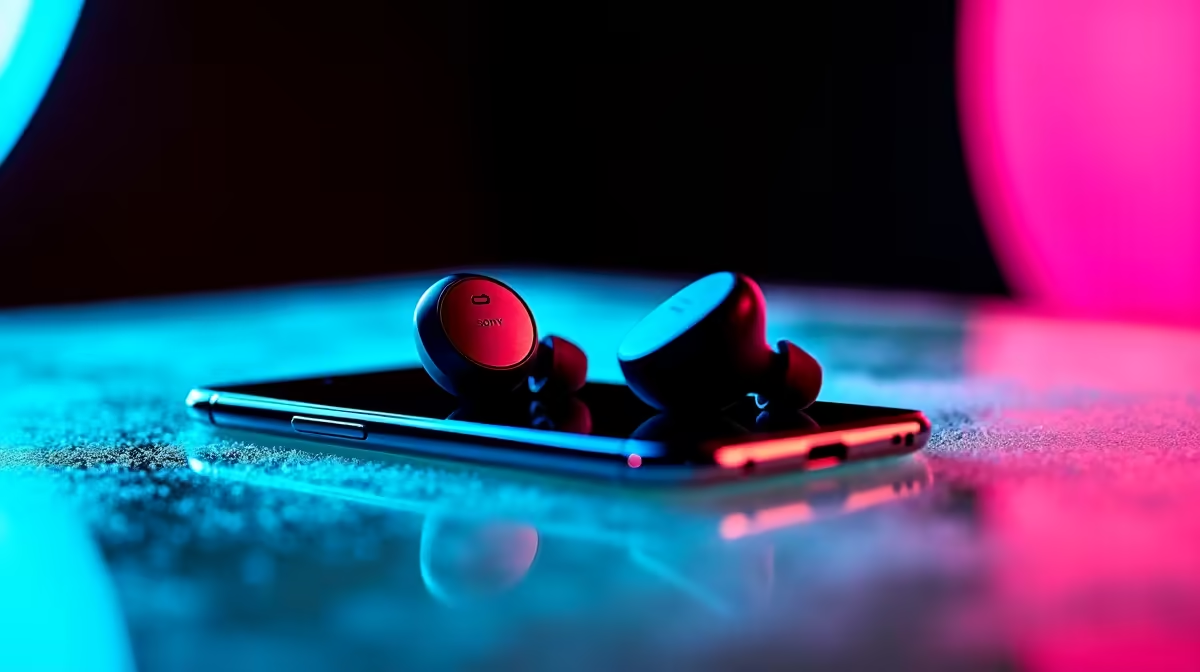
Tired of tangled cables ruining your vibe, especially when you’re mid-grind on your favourite game or just trying to enjoy some killer tunes on the go? You've invested in the freedom of True Wireless Stereo (TWS) earbuds, but sometimes, getting them connected feels like a tech boss battle. Don't sweat it, Mzansi! This guide will walk you through exactly how to pair TWS earbuds to Android, iPhone, Windows, and Mac devices, making your audio experience smooth sailing from the first beat.
The Magic of TWS: Why Go Wireless? ✨
Before we dive into the "how," let's appreciate the "why." TWS earbuds offer unparalleled convenience, crystal-clear audio, and an untethered experience perfect for workouts, commutes, or just chilling at home. Whether you're a casual listener or an audiophile, finding the right pair and knowing how to connect TWS earbuds to all your gadgets is key. If you're still exploring options, Evetech has a fantastic selection of TWS earbuds to suit every budget and style.
Essential Steps Before Pairing Any TWS Earbuds
Regardless of your device, a few universal tips will make the pairing process smoother:
- Charge Them Up: Ensure your TWS earbuds are fully charged. Low battery can sometimes cause connection issues.
- Reset if Needed: If you've had trouble pairing before, try resetting your earbuds. Most TWS models have a reset function (often by holding a button on the case or earbuds for several seconds). Check your specific model's manual.
- Disable Other Bluetooth: Turn off Bluetooth on any nearby devices that your earbuds might try to connect to automatically.
- Proximity: Keep your earbuds close to the device you're trying to pair them with.
Quick Pairing Tip ⚡
Always remove both earbuds from their charging case simultaneously when attempting to pair for the first time. This often ensures they enter pairing mode together, ready to connect as a stereo pair.
How to Pair TWS Earbuds to Android Devices
Connecting your TWS earbuds to an Android phone or tablet is straightforward:
- Activate Pairing Mode: Take your TWS earbuds out of their case. They should automatically enter pairing mode (often indicated by a flashing LED light). If not, consult your earbud's manual for specific instructions.
- Open Bluetooth Settings: On your Android device, swipe down from the top of the screen to open the Quick Settings panel, then long-press the Bluetooth icon, or navigate to
Settings > Connected devices > Bluetooth. - Scan for Devices: Ensure Bluetooth is toggled "On." Your device will start scanning for available Bluetooth devices.
- Select Your Earbuds: Look for your TWS earbuds' name in the list of "Available devices" and tap on it.
- Confirm: You might be prompted to confirm the pairing. Once connected, your earbuds should show as "Active" or "Connected."
Enjoy your favourite music or podcasts with seamless audio from your wireless headset.
How to Pair TWS Earbuds to iPhone & iPad
Apple devices make connecting TWS earbuds incredibly intuitive:
- Enable Bluetooth: Go to
Settings > Bluetoothon your iPhone or iPad and ensure Bluetooth is toggled "On." - Activate Pairing Mode: Remove your TWS earbuds from their case. They should automatically enter pairing mode.
- Select Your Earbuds: Your iPhone will automatically scan for nearby Bluetooth devices. Look for your TWS earbuds under "Other Devices" and tap their name.
- Confirm: A confirmation pop-up might appear. Tap "Pair."
- Connected: Once successfully paired, your earbuds will move to the "My Devices" list and show as "Connected."
It's that simple to get crisp, clear sound on your iOS device, perfect for calls or immersing yourself in mobile games. For a broader range of audio solutions, check out Evetech's Bluetooth headset options.
How to Pair TWS Earbuds to Windows PCs
Connecting TWS earbuds to your Windows 10 or 11 PC is essential for gaming, online meetings, or enjoying multimedia without disturbing others.
- Activate Pairing Mode: Take your TWS earbuds out of their case and ensure they are in pairing mode.
- Open Bluetooth Settings: On your Windows PC, click the
Startbutton, thenSettings > Bluetooth & devices. - Add Device: Ensure Bluetooth is "On." Click
Add device(or the+icon for Windows 11). - Select Bluetooth: In the "Add a device" window, choose
Bluetooth. - Select Your Earbuds: Your PC will scan for devices. Select your TWS earbuds from the list.
- Confirm: Click
Connect. Windows will notify you once the connection is successful.
Sometimes, after pairing, you might need to select your TWS earbuds as the default audio output device. Right-click the speaker icon in your taskbar, select Sound settings, and choose your earbuds from the output device dropdown.
How to Pair TWS Earbuds to Mac Devices 🚀
Pairing your TWS earbuds with a MacBook, iMac, or Mac mini is just as straightforward as with other devices:
- Activate Pairing Mode: Remove your TWS earbuds from their case, ensuring they are in pairing mode.
- Open Bluetooth Preferences: Click the Apple menu () in the top-left corner, then
System Settings(orSystem Preferenceson older macOS versions), and thenBluetooth. - Enable Bluetooth: Make sure Bluetooth is "On."
- Select Your Earbuds: Your Mac will scan for nearby devices. Find your TWS earbuds in the list and click
Connect. - Confirm: Once connected, your earbuds will appear under "Devices" with a "Connected" status.
For a truly immersive desktop audio experience, consider pairing your TWS earbuds for personal listening, or even complementing them with a powerful 2.0 / 2.1 speaker system for when you want to fill the room with sound.
Troubleshooting Common TWS Pairing Issues
Sometimes, tech just decides to be difficult. If your earbuds aren't pairing, try these solutions:
- Restart Everything: Turn off and on both your earbuds and the device you're trying to connect to.
- Forget Device: If your earbuds were previously paired but won't reconnect, "forget" or "unpair" them from your device's Bluetooth settings, then try pairing from scratch.
- Interference: Move away from other wireless devices (Wi-Fi routers, microwaves) that might cause signal interference.
- Update Drivers (Windows/Mac): Ensure your computer's Bluetooth drivers are up to date.
- Earbud Specifics: Always refer to your TWS earbud's user manual for model-specific pairing and troubleshooting steps.
Your Audio Freedom Awaits!
Mastering how to pair TWS earbuds across all your devices unlocks a world of convenience and high-quality audio. Whether you're an Android enthusiast, an Apple loyalist, or a PC gamer, getting your true wireless sound connected should never be a headache. With these steps, you're now equipped to enjoy your music, calls, and games without the fuss.
Ready to Elevate Your Sound? From the latest TWS earbuds to powerful gaming headsets and home audio systems, Evetech has everything you need to perfect your audio setup. Explore our full range of audio solutions today and find the perfect match for your ears and your wallet!