

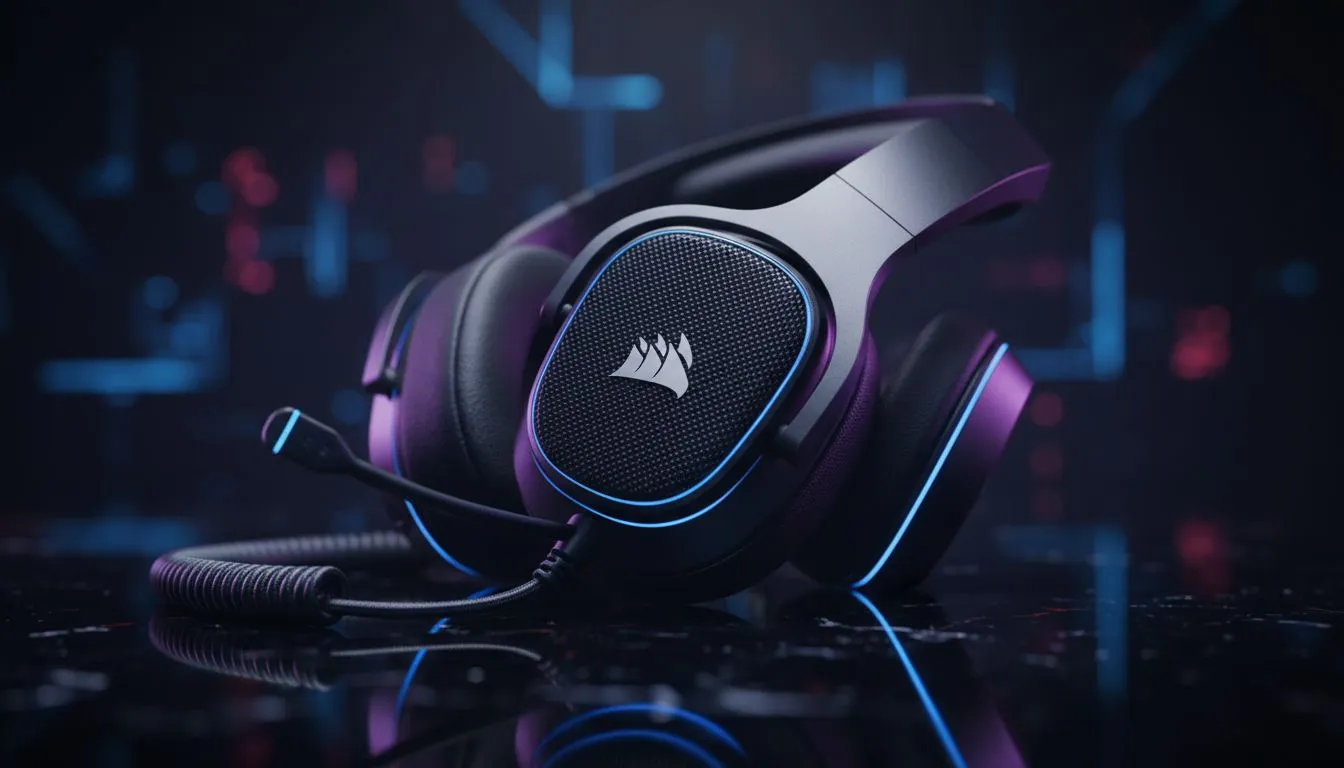
Optimise iCUE HS65 settings for surround sound 🔧✨
Want clearer footsteps in Apex Legends and a wider soundstage in single‑player epics? South African gamers can squeeze far more from Corsair headsets by tuning iCUE. This guide walks you through practical iCUE HS65 settings to unlock immersive surround sound, reduce positional blur and balance chat with game audio — fast. Read on for step‑by‑step tips and small tests you can run tonight.
iCUE HS65 checklist before you configure
Before you tweak profiles, get basics right for Corsair iCUE and HS65 compatibility:
- Update iCUE to the latest build from Corsair’s site and ensure headset firmware is current.
- Plug via USB or USB‑DAC for full virtual surround; USB usually exposes iCUE features.
- Close conflicting audio apps (VoIP, other audio managers).
Need a quick alternative headset option while you tune? Check the Razer Barracuda X Chroma wireless headset for a different wireless profile and pricing that Evetech lists. Razer Barracuda X Chroma wireless headset — best deal
Optimise Corsair iCUE settings for clearer surround
Step through each iCUE HS65 settings page while wearing the headset:
- Open iCUE and select your HS65 device.
- Enable Corsair’s surround or 7.1 virtual surround toggle if present. If you prefer OS spatial tech, toggle that off so iCUE handles processing.
- Set sample rate and bit depth to match Windows sound device (48 kHz recommended for games).
- Use iCUE’s EQ presets as starting points; choose “FPS” or “Shooter” for competitive play then tweak lows/mids for clarity. Small change: +2 to +4 dB around 2–4 kHz pushes footsteps forward without muddying bass.
iCUE HS65 settings: pro mixing tips for chat and game
Dialling in your mix matters, especially on LANs or while streaming:
- Use iCUE’s mixer or Corsair software sliders for chat/game balance. Keep voice at a level that remains intelligible at peak game volume.
- Turn on mic sidetone moderately — you don’t want full monitoring, just enough to avoid shouting. If you’re browsing headsets or exploring alternatives, Evetech’s headphones category can help you compare models and features. Explore Razer headphones & headsets
Quick EQ Tip ⚡
saving two iCUE profiles: one “Competitive” with tightened mids and boosted 2–4 kHz, and one “Immersive” with fuller bass and gentle high frequency lift. Switch with a keyboard macro between matches and single‑player sessions.
Troubleshooting iCUE surround problems on HS65
If surround feels off or flat:
- Confirm iCUE is the default audio device in Windows sound settings.
- Disable “Exclusive Mode” in Windows playback device properties; it can prevent iCUE from applying effects.
- Reinstall iCUE clean if profiles persist; corrupt settings are surprisingly common.
- Test with a surround demo or a known surround game to compare spatial cues.
Fine tune for South African gamers: latency and voice comms
Low latency matters for local LANs and online play. Prefer wired USB when you need absolute consistency. For voice clarity during tournaments, prioritise a slightly lower gain and brief noise gate; that prevents clipping on excited callouts. If you want other headset options or accessory swaps, Evetech’s broader headphone and headset section is a good place to compare spec sheets and find deals. Browse headphone & headset components 🎧
Quick setup template for iCUE HS65 settings
- Firmware and iCUE updated
- Set device as default, 48 kHz, 24‑bit where available
- Enable iCUE surround, pick “FPS” EQ, +3 dB at 3 kHz, -2 dB at 250 Hz
- Set chat/game slider to 60/40 or adjust by ear
- Save profiles: Competitive, Immersive, and Flat (for streaming)
Ready to Find Your Perfect Match? The Mac vs Windows debate is complex, but for maximum power, choice, and value in South Africa, Windows is hard to beat. Explore our massive range of laptop specials and find the perfect machine to conquer your world.











