

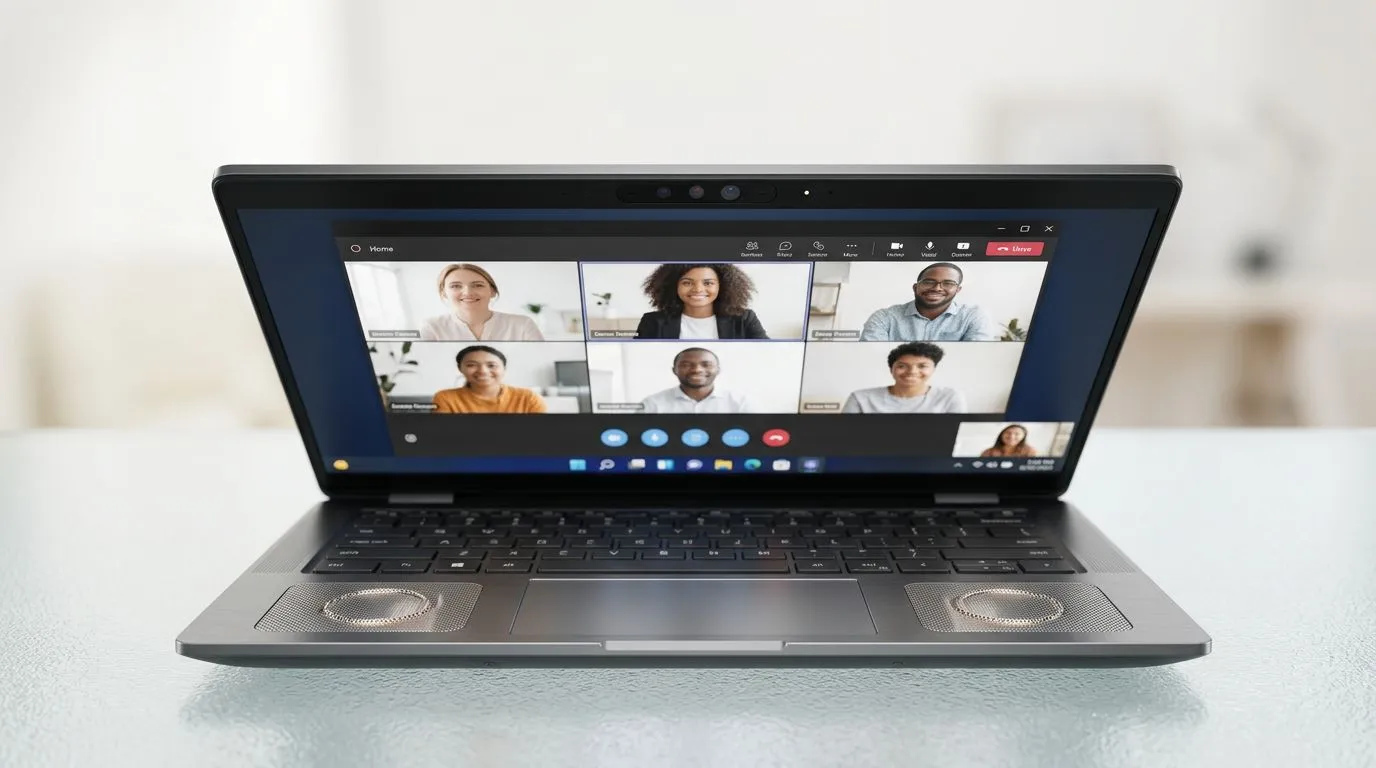
Improve Video Call Quality: Best Laptop Features Explained (South Africa Edition)
Sorting out blurry faces and laggy audio is frustrating… especially when you’re presenting to your team, catching up with family, or jumping into a hybrid work call after a weekend of ranked matches.
If you’ve ever thought, “This laptop is fine… why does it look like I’m calling from the moon?”, you’re not alone. The good news? You can dramatically improve video call quality by choosing the right laptop features… without buying a whole new system.
In this deep dive, we’ll break down the best laptop features you should look for to improve video call quality. We’ll also share practical setup tips you can apply today. 🇿🇦✨
Improve Video Call Quality: The CPU & Memory That Keep Calls Smooth
Video calls don’t just use your camera. They also encode video, compress audio, and handle effects like noise reduction.
Choose a modern CPU (and don’t skimp on headroom)
For smooth calls, you generally want a laptop with a modern multi-core processor. More cores help when your browser has multiple tabs open, or when you’re sharing screens. Less stutter usually means fewer dropped frames and less “freeze-then-catch-up” behaviour.
Get at least 16GB RAM for comfortable multitasking
If you’re running a video call plus a chat app plus a web browser, 16GB RAM is a sensible baseline. With less memory, you may see the call degrade when Windows (or your browser) starts swapping data. Swapping can cause audio glitches and video delays.
Quick Win for Better Calls 🔧
simple test: join a call, then open Task Manager and watch CPU and memory. If your CPU is spiking near 90–100% or memory is maxing out, your laptop will struggle. Upgrading to a laptop with 16GB+ RAM often stabilises both video and audio.
Improve Video Call Quality: Webcam Specs That Actually Matter
Many laptops ship with webcams that are “good enough”… until lighting gets tricky or your bandwidth isn’t great.
Look for higher-resolution webcams (and better sensors)
A higher webcam resolution helps capture more detail, especially in brighter environments. But resolution alone won’t save a call if the lighting is poor. If your room is dark, your camera often boosts gain, which increases noise.
Prioritise cameras with solid image processing
Even if the hardware is similar, image processing matters. Better processing reduces blur and improves clarity during motion.
Practical lighting beats “better camera” (most of the time) 🚀
Place a light in front of you, not behind you. Face a window, or use a desk lamp that illuminates your face. Even a budget setup can look noticeably sharper with better lighting.
Improve Video Call Quality: Wi-Fi, Ethernet, and Latency (The Real Culprits)
If your audio cuts out or your video goes blocky, it’s often the network, not the laptop.
Prefer Ethernet or strong 5GHz Wi‑Fi
Where possible, use an Ethernet cable. Wired connections reduce jitter and packet loss. If you must use Wi‑Fi, 5GHz is usually more stable than 2.4GHz for calls.
Router position matters more than people think
Put your router centrally, and avoid burying it under desks or behind thick walls. Also, keep your laptop closer during calls if the signal is weak.
Improve Video Call Quality: Display, Processing, and Thermals
Even if your connection is fine, overheating can hurt performance. Fans ramp up, CPU clocks drop, and your system can start struggling.
Choose a laptop with better sustained performance
Look for reviews and specs that suggest the laptop can maintain performance during longer workloads. For South African buyers, this often means picking a machine that’s built for consistent load, not only short burst performance.
Don’t ignore cooling
If your laptop runs hot during gaming, it may also run hot during calls, especially if you keep your camera and screen sharing on for long sessions.
Improve Video Call Quality: Audio Features for Clear Voice
Crisp calls are as much about audio as video.
Use a mic that reduces noise
Built-in mics can work, but they’re not always great in noisy rooms. A headset mic often gives cleaner speech and reduces echo.
Reduce room echo
Soft furnishings help. If your room is empty and echoey, your call quality can suffer even with a good microphone.
Audio Pro Tip ✨
Sit slightly closer to your microphone and avoid speaking toward a reflective wall. If you’re using earbuds, keep the mic near your mouth, not hanging off the side. This simple positioning often improves clarity more than chasing a “better” codec.
Improve Video Call Quality: Picking the Right Laptop (Deal-Friendly Guidance) 🇿🇦
Now for the practical part… what should you actually buy?
If you’re after smoother video calls with strong general performance, start with CPU capability and memory. Then make sure your laptop has a decent display and stable wireless options.
Here are some deal categories to explore, based on different buyer preferences:
- Intel-powered options that are often strong for everyday productivity and smooth multitasking: Intel laptops on special
- Ryzen laptop deals for solid performance-per-rand value: Ryzen laptop deals
- If you want strong horsepower that also handles video calls and streaming nicely: best gaming laptop deals
- For buyers who need value under a practical budget (often where you win the most on spec for ZAR): buy gaming laptops under R20k
- For creators who want extra GPU muscle for capture, effects, and heavier workflows: GeForce RTX gaming laptops on special
Choosing the right laptop is a lot easier when you match it to your call style. If you’re mostly doing work calls, prioritise CPU and 16GB RAM. If you’re also streaming, capturing content, or running design tools, consider a laptop with stronger graphics.
Improve Video Call Quality: Setup Checklist You Can Do Today
You don’t need fancy gear. Try this quick checklist before your next call:
- Close heavy apps before joining (browser tabs, downloads, overlays).
- Use wired internet when possible.
- Turn on noise reduction in your call software (if available).
- Test your mic and webcam in a short test call.
- Improve lighting with a lamp or window light in front of you.
- Position your camera at eye level for natural framing.
- Keep your laptop cool on calls: use a stand if airflow is blocked.
If you follow these steps, you’ll usually notice immediate improvement… even before you upgrade anything. 🔥
Improve Video Call Quality: Ready to Upgrade or Refine Your Setup?
If your calls still aren’t crisp after the checklist, that’s your signal to shop for features that match real-world usage: modern CPUs, at least 16GB RAM, stable Wi‑Fi or Ethernet, and better audio clarity.
Ready to Find Your Perfect Match? The Mac vs Windows debate is complex, but for maximum power, choice, and value in South Africa, Windows is hard to beat. Explore our massive range of laptop specials and find the perfect machine to conquer your world.











