

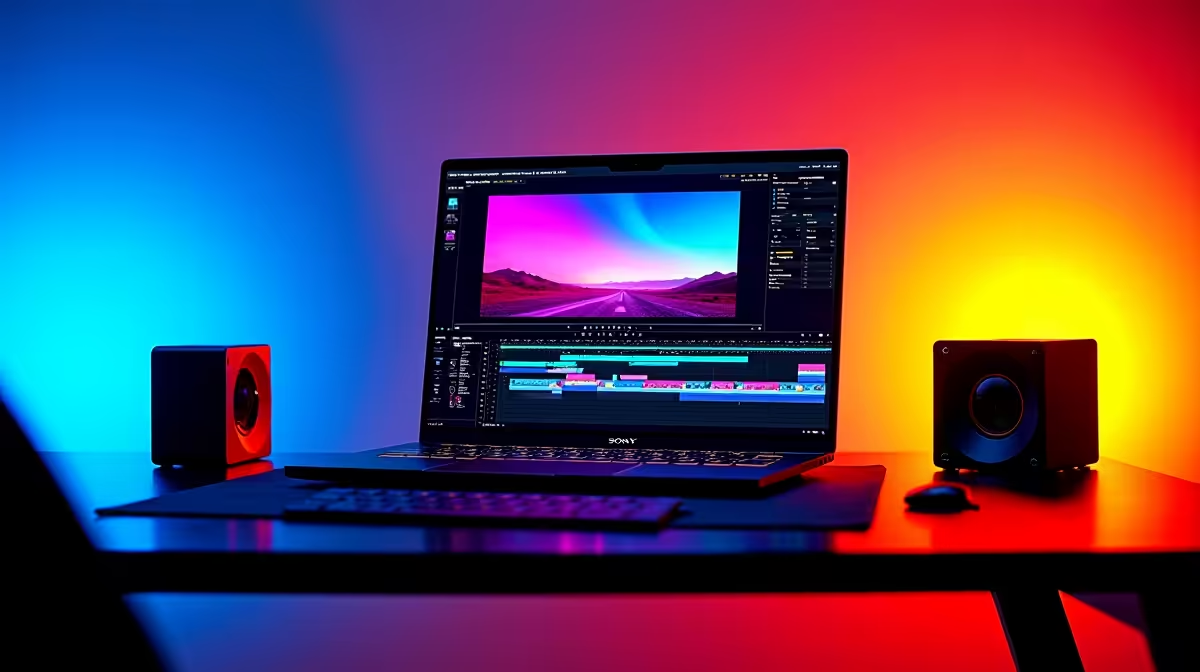
Starting your video editing journey shouldn't drain your wallet. If you want to cut epic gameplay clips without paying hefty monthly subscriptions, you are in the right place. Welcome to our Kdenlive beginner's guide. This complete tutorial will help you transform raw footage into polished content right here in South Africa. Let's get your creative journey started today.
Setting Up Your Workspace for Success 🚀
Before diving into the timeline, let's talk hardware. Video rendering can be incredibly heavy on your system. While Kdenlive is highly optimised, a smooth editing experience requires decent processing power. If your current rig stutters during playback, it might be time to upgrade.
Browse our best gaming PC deals for an instant performance boost. For around R15,000 to R20,000, you can secure a machine with a solid multi-core processor. This makes scrubbing through 1080p or 4K footage an absolute breeze.
Navigating the Kdenlive Interface
When you first open the software, the layout might look intimidating. Do not panic... the interface makes sense once you understand the basics. Our complete Kdenlive tutorial breaks it down simply. You have your Project Bin for media, Monitors for previewing, and the Timeline for cutting.
Customising your workspace is also highly recommended. You can drag and drop panels to suit your personal workflow. If you prefer a plug-and-play solution to start editing immediately, we have options. Checking out our pre-built PC deals ensures you get a balanced system ready for creative workloads.
Importing and Cutting Footage ✂️
Drag your video files directly into the Project Bin. From there, simply pull them down to the timeline. The Razor tool is your absolute best friend here. Press 'X' on your keyboard to activate it. Use it to slice out boring bits or audio mistakes.
Are you a creator who travels frequently? Editing from a coffee shop in Cape Town or a campus in Pretoria is easy. You just need the right portable machine. Explore our range of notebooks for sale to find a laptop that handles timeline scrubbing perfectly.
Editing Pro Tip ⚡
Use the 'J', 'K', and 'L' keys to navigate your timeline quickly. 'L' plays forward, 'J' plays backward, and 'K' pauses. Tap them multiple times to speed up playback. It saves hours when combing through long gaming sessions!
Adding Effects and Colour Correction ✨
Once your cuts are tight, it is time to add some flair. Kdenlive offers massive libraries of transitions and colour grading tools. You can tweak contrast, boost saturation, and give your gaming montage a cinematic look.
To truly see those vivid colours, you need a good display. Keep an eye on our tech specials for high-refresh-rate IPS monitors. Accurate colour reproduction makes a massive difference to your final export.
Exporting Your Masterpiece
The final step in this Kdenlive beginner's guide is rendering. Click the 'Render' button, choose MP4, and let your hardware do the heavy lifting. To speed up rendering times significantly, Kdenlive supports hardware acceleration. This means your GPU does the hard work.
If your render times are painfully slow, it is time to upgrade. You might want to buy graphics cards that support NVENC or AMD AMF encoding. It turns a 30-minute wait into a quick 5-minute coffee break.
Ready to Find Your Perfect Match? The Mac vs Windows debate is complex, but for maximum power, choice, and value in South Africa, Windows is hard to beat. Explore our massive range of laptop specials and find the perfect machine to conquer your world.











