

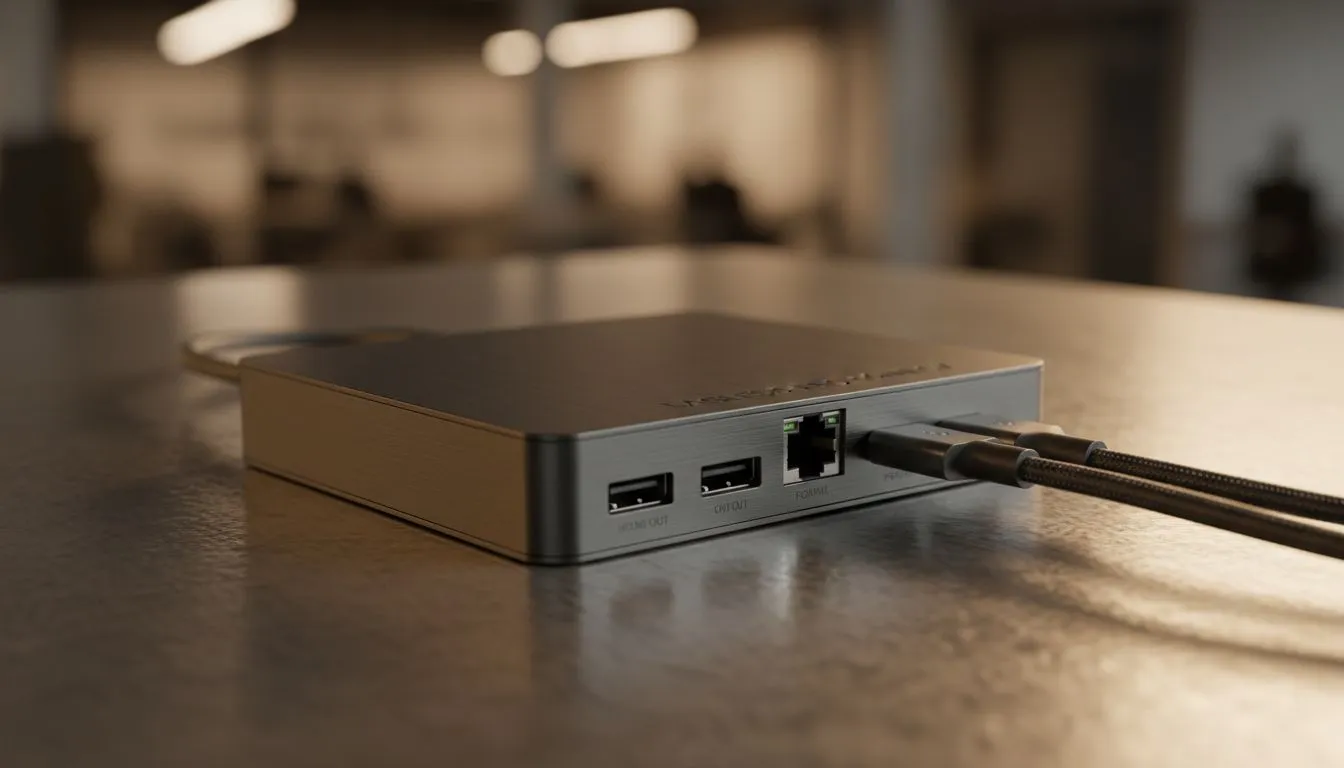
Why a direct connection matters for Lag-Free Presentations 🔧
South African gamers and tech buyers: ever watched your carefully timed clip stutter during a client pitch or stream? Lag-Free Presentations aren't a luxury; they're a practical need when every frame counts. Plugging straight into the display removes wireless buffering, packet retries and unpredictable latency — giving you smoother video and sharper input sync for demos and gameplay on stage.
How to set up a direct connection for Lag-Free Presentations
Start simple: use a single cable between your laptop or PC and the display. Avoid chaining dongles and hubs where possible. If you need adapters, pick quality options from trusted retailers to reduce signal conversion issues — you can browse a wide selection to buy gaming accessories here for compatible cables and adapters (prices in ZAR are visible on product pages).
Presentation Pro Tip ⚡
If you use Windows, set your display mode to 'Second screen only' for presentations to prevent background apps from rendering on the wrong monitor. For macOS, use Display Preferences to mirror or extend with consistent resolution matching.
Troubleshooting to keep presentations lag-free
If video skips or audio drifts, re-seat cables first. Then check the output port: DisplayPort and HDMI are both reliable. Wireless casting can look convenient but often adds jitter compared with a wired connection (see analyses on latency differences for wired vs wireless). If you need replacement cables fast, check current gaming accessories deals for affordable, tested options that won’t break your flow.
Optimise hardware and settings for Lag-Free Presentations ⚡
Graphics settings matter. Use the display’s native resolution and refresh rate where possible, and disable unnecessary overlays. Low-latency modes in GPU control panels cut input path time. For accessories and performance-focused peripherals, the Gaming Accessories category has items that help reduce bottlenecks and give you stable signal chains.
Quick micro-story: a Cape Town demo that didn’t fail
At a recent local meetup, a presenter switched from screen mirroring to a direct HDMI cable mid-demo. The stutter vanished instantly, the audience applauded, and the follow-up Q&A ran on time — all because a simple direct connection restored signal fidelity.
Final checklist before you step on stage 🚀
- Use one direct cable where you can.
- Match resolution and refresh rate to the display.
- Keep a tested spare cable in your kit.
- Buy quality adapters and leads from reputable listings to avoid surprises.
Ready to Find Your Perfect Match? The Mac vs Windows debate is complex, but for maximum power, choice, and value in South Africa, Windows is hard to beat. Explore our massive range of laptop specials and find the perfect machine to conquer your world.











