

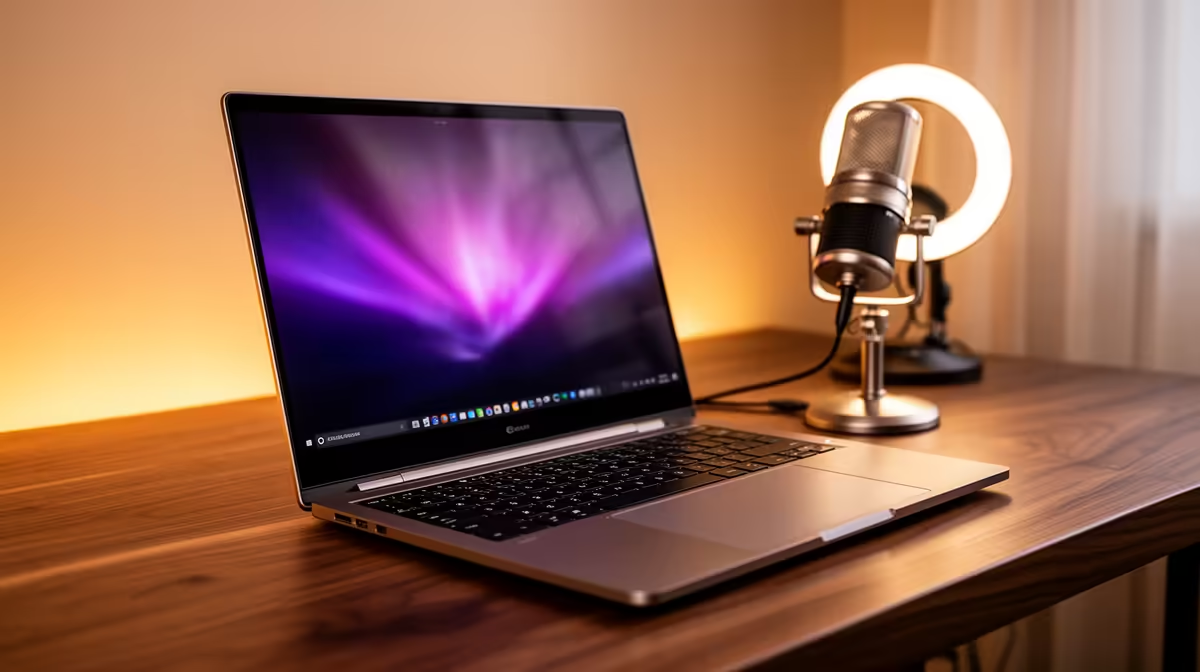
Dreaming of hitting that 'Go Live' button but think you need a massive desktop rig? Think again. In South Africa, a powerful gaming laptop is often the smartest, most versatile choice. Forget the complexity. This guide breaks down the ultimate, simplified laptop streaming setup to get you broadcasting your gameplay on Twitch or YouTube without breaking the bank or your brain. Let's get you from gamer to creator, fast. ⚡
Why Your Laptop is Already a Streaming Powerhouse
Modern gaming laptops are no joke. With powerful multi-core CPUs and, crucially, dedicated graphics cards from NVIDIA or AMD, they have built-in hardware encoders. This tech, like NVIDIA's NVENC, is designed to handle the heavy lifting of encoding your gameplay video with a minimal performance hit.
This means your laptop can run your game and stream it smoothly at the same time, a task that once required a second PC. A solid laptop streaming setup leverages this power, focusing on key peripherals to elevate your broadcast from good to great.
The Core Gear for Your Laptop Streaming Setup
You've got the engine... now let's build the chassis. A professional-sounding and looking stream comes down to three key areas: audio, video, and lighting.
🎤 Crystal-Clear Audio: Don't Neglect Your Mic
If your audience can't hear you clearly, they'll leave. It's that simple. Your laptop's built-in microphone is designed for calls, not for capturing rich, clear commentary over explosive in-game sounds. A dedicated USB microphone is the single most important upgrade you can make.
Look for a cardioid condenser mic. This type picks up sound directly in front of it, minimising background noise like your keyboard clicks or the aircon. You don't need a studio-level XLR setup to start; a high-quality USB mic is plug-and-play and delivers incredible results. Brands like Corsair have fantastic options that balance clarity and price, making them a go-to for any new quality Corsair microphones and headsets.
💡 Look Sharp: Webcam and Lighting Basics
Next up, visuals. While your gameplay is the main event, your facecam connects you with your audience. The built-in webcam on your laptop is a start, but a dedicated 1080p external webcam offers a massive leap in quality.
However, a great camera is nothing without good lighting. A simple ring light or a pair of small LED panels can eliminate shadows and make you look crisp and professional. Good lighting is the secret sauce that makes a R1000 webcam look like a R5000 one. For extra flair, you can add ambient lighting from brands like Cololight to add some colour and personality to your background.
OBS Pro Tip for Laptops
In OBS Studio, navigate to Settings > Output. Change the 'Output Mode' to 'Advanced'. Under the 'Streaming' tab, set your 'Encoder' to 'NVIDIA NVENC H.264 (new)' or the AMD equivalent. This shifts the workload to your GPU, freeing up your CPU for smoother gameplay. Start with a bitrate of 4500 Kbps for 1080p streaming on typical SA fibre.
Putting It All Together on a Budget
Creating a killer laptop streaming setup doesn't require a second bond. The goal is to make smart, impactful upgrades. Your priorities should be:
- Audio: A great USB Microphone.
- Lighting: A basic ring light or key light.
- Video: An external 1080p webcam.
You can get all the core components you need without spending a fortune. In fact, it's entirely possible to assemble a fantastic starter kit with a mic, webcam, and lighting for a reasonable price. With a bit of smart shopping, you can find a bundle of streaming essentials under R6000 to get you started on the right foot. ✨
Ready to Build Your Setup? You've got the knowledge, now it's time for the gear. Explore our curated collection of microphones, webcams, lighting, and more to build the perfect laptop streaming setup for your budget. Shop all streaming essentials at Evetech and start your creator journey today.











