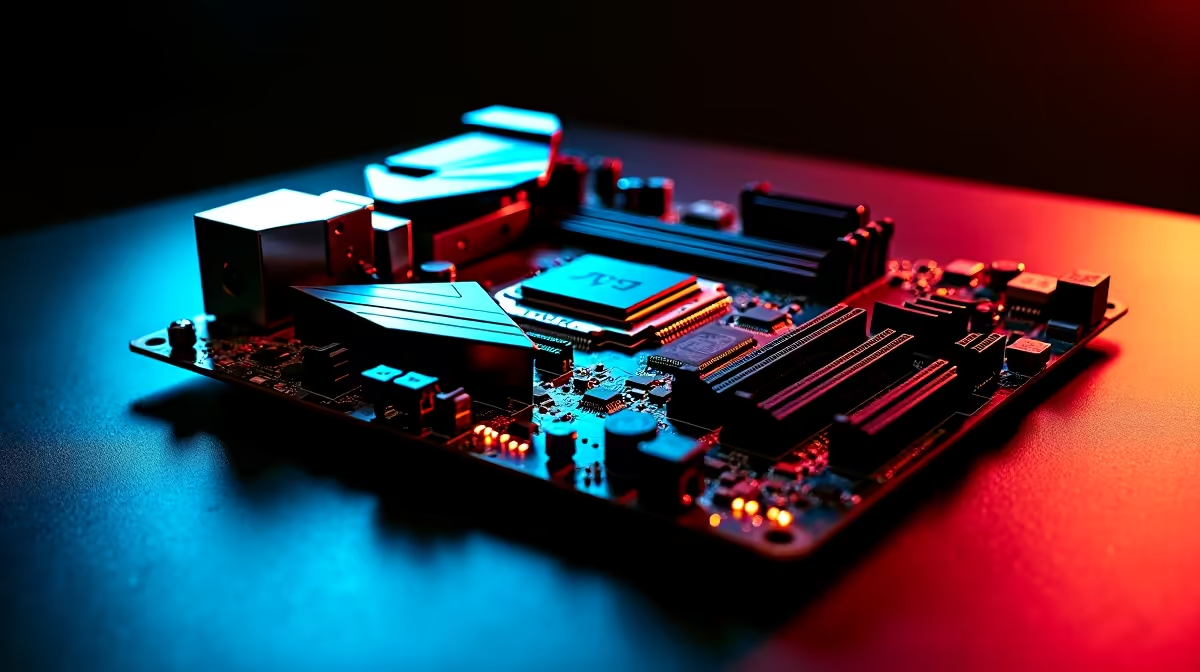
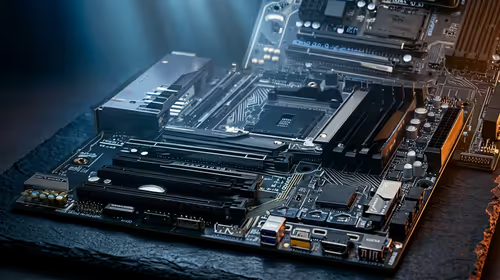
Motherboard debug LEDs are one of the most useful diagnostic tools built into modern gaming motherboards - and one of the most misunderstood. When your PC refuses to POST and you’re met with a solid red or amber light next to a VGA, DRAM, CPU, or BOOT label, that LED is telling you exactly where the boot process stopped. Understanding what each code means transforms a frustrating blank-screen situation into a structured troubleshooting process.
Quick Answer
What do motherboard debug LED codes mean? The four debug LEDs (CPU, DRAM, VGA, BOOT) illuminate in sequence during POST. Whichever LED stays lit when the system stops indicates the component or process that failed. CPU light = processor or power issue. DRAM = memory problem. VGA = GPU not detected. BOOT = storage or OS issue.
🔧 The Four Debug LED Codes Explained
Most modern motherboards from ASUS, MSI, and Gigabyte use the same four-LED diagnostic system, though label names may vary slightly (ASUS ROG uses “Q-LEDs”).
CPU LED (solid red/amber)
The boot sequence checks the CPU first. A stuck CPU LED typically indicates:
- CPU not seated correctly in the socket (bent pins on AMD AM5 are the most common cause)
- Incompatible CPU for the current BIOS version - common when installing a newer-generation CPU on a board that hasn’t received a BIOS update
- Insufficient CPU power - check that both the main 24-pin ATX connector and the 8-pin (or 4+4 pin) CPU power connector are fully seated
- Failed CPU or VRM damage from power surge
DRAM LED (solid red/amber)
After CPU, the board initialises memory. DRAM LED issues:
- RAM not fully seated - DIMMs need firm, even pressure until both latches click
- RAM installed in wrong slots - consult your manual for dual-channel pairing (typically A2 and B2 slots, not A1 and B1)
- Incompatible RAM speed or XMP profile causing instability
- One or both DIMM sticks physically faulty
VGA LED (solid red/amber)
After memory, the GPU initialisation is checked:
- GPU not fully seated in the PCIe x16 slot (the retention latch must click)
- PCIe power connectors not attached to the GPU
- GPU faulty or incompatible with the platform
- Integrated graphics conflict - try clearing CMOS and disabling iGPU in BIOS if GPU isn’t detected
BOOT LED (solid red/amber)
The last in sequence, BOOT LED indicates storage or OS problems:
- Boot drive not detected (check SATA or M.2 connections)
- Corrupted Windows installation
- Boot order incorrect in BIOS - system looking at wrong drive
- M.2 drive not properly screwed into standoff
📊 Step-by-Step Diagnostic Process
When you see a debug LED stuck on, work through this sequence before assuming component failure:
- Power off and disconnect from mains before any physical checks
- Re-seat the indicated component - remove and reinstall with firm pressure
- Check all power connectors related to the flagged component
- Test with minimal hardware - one stick of RAM, no GPU (if CPU has integrated graphics), no extra storage
- Clear CMOS by removing the motherboard battery for 30 seconds or using the CMOS reset jumper/button
- Try known-good components - test with a different RAM stick, GPU, or storage device if available
💡 Common Mistakes When Diagnosing Debug LEDs
The most frequent mistake is assuming component failure without ruling out seating and power issues first. In the majority of debug LED cases, the fix is a re-seat or a reconnected cable - not a dead component.
Another common error: not checking BIOS compatibility before installing a new CPU. On AMD AM4 and AM5 platforms especially, a CPU released after your board’s manufacturing date may require a BIOS update that can only be applied with a compatible older CPU. Some manufacturers include BIOS Flashback - the ability to update firmware via USB without a CPU installed - which is invaluable in this scenario.
❓ Frequently Asked Questions
All four debug LEDs flash quickly and then go off - is that normal?
Yes. During a normal POST, each LED illuminates briefly as the board checks each component, then turns off once that check passes. A system that boots normally will show all four LEDs light and extinguish in sequence within a few seconds.
My DRAM LED is on but my RAM passes when tested in another PC - what’s wrong?
The issue is likely slot compatibility or XMP settings. Try the RAM in different slot combinations, and load BIOS defaults (disable XMP) to test at standard JEDEC speeds. Some boards are sensitive to specific XMP profiles - running at rated speed requires the board to support that exact XMP revision.
Can a bad PSU cause debug LED errors?
Absolutely. Insufficient or unstable power delivery can trigger CPU, DRAM, or VGA debug LEDs even when those components are fine. If you’ve ruled out seating and BIOS issues, test with a different PSU or use a PSU tester to verify output voltages are within spec on the 12V, 5V, and 3.3V rails.
Evetech carries All CPUs & Processors and All Motherboards — check live stock and pricing before you buy.