

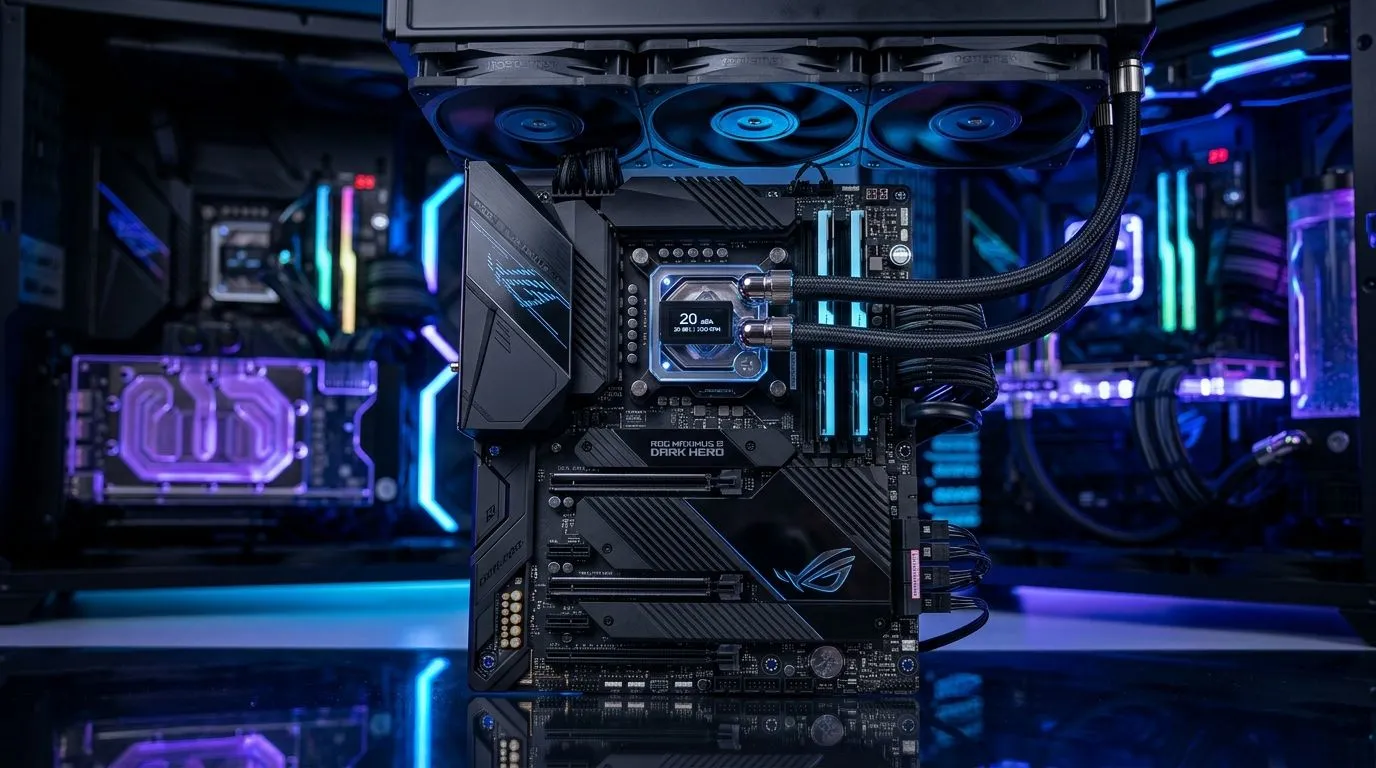
Motherboard PWM fan header settings for 20 dBA liquid cooling: the practical starting point
If you’re building a “quiet enough to hear your game audio” setup, the motherboard fan control matters as much as the AIO itself. In South Africa, where load shedding, dust, and warm rooms are real… getting your liquid cooling to sit around that “about 20 dBA” noise target is all about tuning PWM behaviour, not just buying a flashy radiator.
In this Deep Dive, we’ll walk through Motherboard PWM fan header settings for 20 dBA liquid cooling, using safe, repeatable steps that you can apply whether you’re running a 240mm or a 360mm AIO. 🔧
Motherboard PWM fan header settings for 20 dBA liquid cooling: PWM vs DC explained (quick and useful)
Most AIO pump and radiator fans are designed for PWM control. That means:
- PWM (4-pin) lets your motherboard vary fan speed by sending a control signal (not by changing voltage in the same way as DC).
- Your goal is usually stable low RPM at idle and a smooth ramp when CPU temps rise.
If you’ve ever heard “fan whine” at low RPM, you’re not alone. It often comes from an aggressive curve or powering fans in a mode they weren’t meant for. ⚡
Motherboard PWM fan header settings for 20 dBA liquid cooling: where to plug things in
Common setup patterns:
- Pump header (AIO_PUMP / PUMP / CPU_OPT): set for steady speed (or a controlled curve, depending on your AIO).
- Radiator fan headers (CPU_FAN / CHA_FAN): use PWM curves tied to CPU temperature.
Evetech stocks many liquid coolers here, which is a good place to confirm compatibility with your exact model:
Explore liquid AIO CPU coolers on Evetech
Motherboard PWM fan header settings for 20 dBA liquid cooling: recommended curve strategy that actually works
Because you’re chasing low noise, don’t jump straight to “0% to 100%”. Instead, aim for a curve with:
- A quiet idle zone
- A gentle mid-range ramp
- A decisive high-load response
A practical baseline for radiator fans:
- ~30% PWM at ~30-40°C
- ~40-50% PWM around ~50-60°C
- 60-70% PWM near ~70-80°C
- 80-100% PWM only when you truly need it
Your exact temperatures will vary by case airflow and ambient heat in SA. But the shape should be similar. ✨
For buyers, the AIO size changes how hard your fans need to work:
- 240mm often means slightly higher fan RPM for the same CPU load compared to 360mm, especially in warm rooms.
- 360mm gives more surface area, so you can often hold quieter fan speeds.
You can browse both options here:
Motherboard PWM fan header settings for 20 dBA liquid cooling: pump header guidance
The pump usually drives coolant movement, so it’s rarely the first thing you under-speed. Too low for too long can lead to higher CPU temperatures, which then forces your radiator fans louder anyway. In other words… “quiet” can become “loud and hot”.
For most setups, a good starting point is:
- Pump fixed at a moderate constant PWM (or a very flat curve)
- Radiator fans doing the heavy lifting of noise control
If you want to keep things consistent while tuning, start with a stable pump setting and only adjust the fan curve first. 🔧
Noise-Safe Tuning Tip ⚡
On a new build, set your radiator fans to a conservative curve first, then test for 10 minutes each at idle and after a short gaming session. If you hear a tonal “whine” at a specific RPM, reduce that PWM step and spread it across the next step upward. This reduces resonance without sacrificing cooling headroom.
Motherboard PWM fan header settings for 20 dBA liquid cooling: brand-aware expectations (CORSAIR & Deepcool)
Different AIO brands can behave differently at the same PWM value. That’s normal. Fan models differ, pump controllers differ, and even the included PWM curve guidance can differ by product.
If you’re on a CORSAIR liquid cooler, it helps to tune with the reality that the pump and fans might have different “sweet spots”:
- Check out CORSAIR liquid coolers here: CORSAIR liquid AIO CPU coolers on Evetech
If you’re running Deepcool, the tuning process is still the same conceptually, but you’ll often find the quietest zone at a slightly different PWM percentage:
- Browse Deepcool options: Deepcool liquid AIO CPU coolers on Evetech
Motherboard PWM fan header settings for 20 dBA liquid cooling: step-by-step setup for South African gaming PCs
Here’s a simple workflow that prevents you from chasing your tail:
Step 1: Pick the right header mode
- Use PWM mode (not DC voltage control) if your fans are PWM fans.
- Ensure your pump is connected to the appropriate pump header where available.
If you’re unsure what AIOs are compatible with PWM control, start from the category page and cross-check your exact cooler model: All liquid cooler (AIO) options on Evetech
Step 2: Use a temperature source you can trust
If your BIOS lets you choose the sensor (CPU temp, package temp, etc), use the one that matches your CPU monitoring in your OS. Otherwise your curve will feel “wrong” during gaming.
Step 3: Keep idle quiet, keep load safe
Your 20 dBA target is usually about idle and light gaming. Under heavy workloads, you should expect noise to rise. Quiet cooling is a trade-off, and it’s better to set expectations than to force a flat curve.
Step 4: Re-tune after your first environment change
In SA, ambient temps vary. After summer or after a dusty filter change:
- Re-check the CPU temps
- Adjust the curve by small increments
If you go too low to chase silence, you’ll just end up with higher CPU temps, which often triggers fans to ramp harder. That “twitchy” feeling is usually worse than a slightly higher steady tone.
Motherboard PWM fan header settings for 20 dBA liquid cooling: what to check if you can’t hit the target
If your system won’t feel quiet even after curve tuning, check:
- Case airflow (front-to-back flow matters a lot)
- Fan orientation (radiator fans pulling vs pushing)
- Dust and filters (SA dust accumulates quickly)
- Fan start voltage / minimum PWM (some fans won’t spin reliably at very low values)
If the minimum PWM is too low, fans may “hunt” between on and off states. That hunting is loud, even when average RPM sounds fine.
Motherboard PWM fan header settings for 20 dBA liquid cooling: last-mile checklist before you game
Before you settle on a final curve:
- Save your BIOS fan profile
- Run a short gaming test
- Watch temps and listen for tonal whine
- Make one adjustment at a time (one PWM point per test)
Once it feels stable, you’ll notice the biggest difference… not in synthetic benchmarks, but in the moments between firefights when the PC should fade into the background. 🎮
Ready to Find Your Perfect Match? If you want smoother tuning and less guesswork, start with the right liquid cooler for your build size, airflow, and CPU workload. Explore our massive range of laptop specials and find the perfect machine to conquer your world.











