

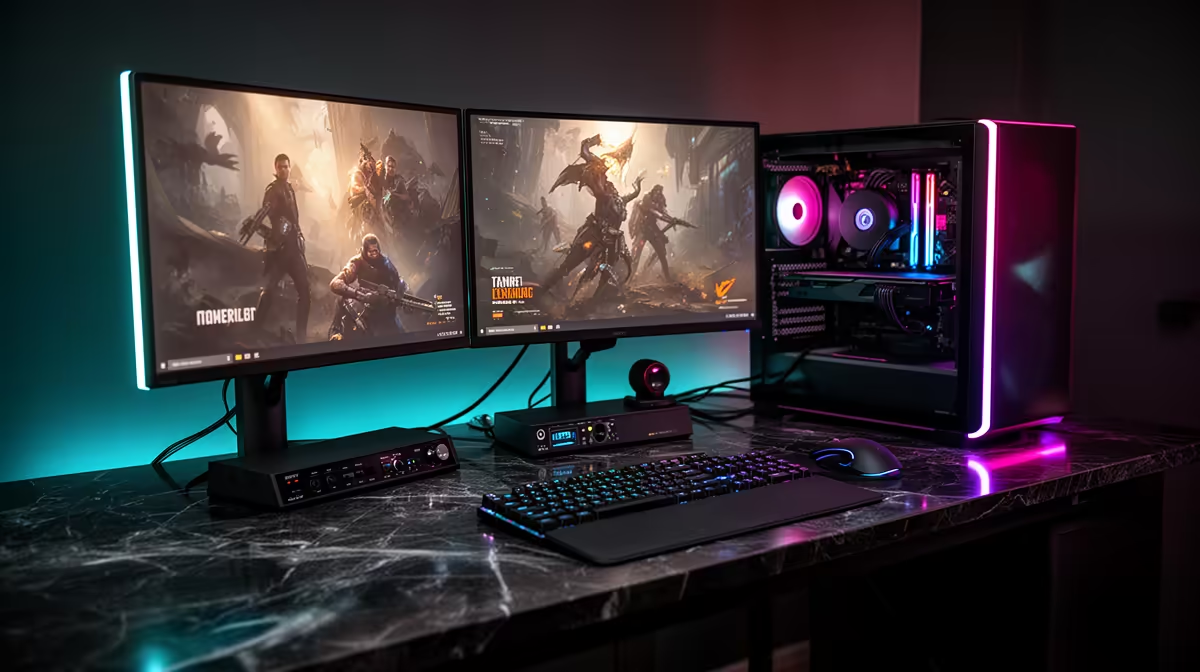
Tired of your stream looking a bit… flat? A single, static camera angle can make even the most intense Warzone clutch feel dull. You see the pros with their slick multi-cam setups and think, "I need a second PC for that, right?" Wrong. A professional, engaging one-stream setup for two angles is easier and more affordable than you think, right here in South Africa. Let's get your stream looking lekker. 🚀
Why a Dual-Angle Setup Is a Big Deal
Before we dive into the "how," let's cover the "why." Adding a second camera angle isn't just a gimmick; it's a strategic move to boost viewer engagement. Think about it:
- Professional Polish: Instantly makes your stream look more like a high-quality production.
- Dynamic Storytelling: Switch to a hands-on-keyboard view for intense moments or a profile shot for a heart-to-heart chat. It breaks the monotony and keeps eyes glued to the screen.
- Show Off Your Rig: Got some epic RGB? A second angle is the perfect way to flex your setup's unique personality and customisation.
Creating a two-camera streaming setup on a single PC adds a layer of depth that your audience will definitely notice.
The Gear You Need for a Two-Angle Stream
You don't need to break the bank to achieve a dual-camera stream. The key is to be smart with your gear. You likely have most of what you need already.
Cameras & Peripherals
Your primary camera can be your trusty Logitech or Razer webcam. For the second angle, you can use another USB webcam, a DSLR with a capture card, or even your smartphone using an app like DroidCam. What's crucial is having reliable gear that won't let you down mid-stream. Investing in solid audio and peripherals from brands like quality Corsair gear ensures your entire production feels premium.
Lighting Is Everything 💡
Two cameras mean you need to light two scenes. This doesn't mean you need double the lights, but you do need to be clever. A key light for your face is non-negotiable. For your secondary angle (like your hands or a product), a smaller, focused light works wonders. To add some colour and personality to your background, consider customisable lighting like these dynamic Cololight panels to make your space pop.
Pro Scene Switching Tip
Use a Stream Deck or set up hotkeys in OBS Streamlabs to switch between your camera angles instantly. This keeps your stream fluid and professional... no more awkward mouse-fumbling on screen!
Software Magic: Your One-Stream Setup for Two Angles
This is where it all comes together. We'll use OBS Studio as an example, but the principles apply to Streamlabs and other software too. The secret is using "Scenes."
- Add Your Sources: In OBS, add both your cameras as separate "Video Capture Device" sources. Name them clearly, like "Main Facecam" and "Hands Cam."
- Item
- Assign Hotkeys: Go to Settings > Hotkeys and assign unique keys to switch between these scenes. Now you can change angles with a single button press. That’s it! You've just created a one-stream setup for two angles.
Optimising Performance on a Single PC
Running two video feeds and a game on one machine can be demanding. To avoid dropped frames, ensure your PC is up to the task. Use your GPU's encoder (NVIDIA's NVENC or AMD's AMF) in your streaming software's settings to take the load off your CPU. Closing unnecessary background apps is also a must. If you find your rig is struggling, it might be time to look at upgrading your streaming essentials to handle the extra workload smoothly. ✨
Ready to Build Your Pro Setup? Elevating your stream doesn't have to cost a fortune. Find affordable webcams, lighting, and mics to perfect your dual-angle setup. Shop now at Evetech for performance that leaves lag in the dust.











