

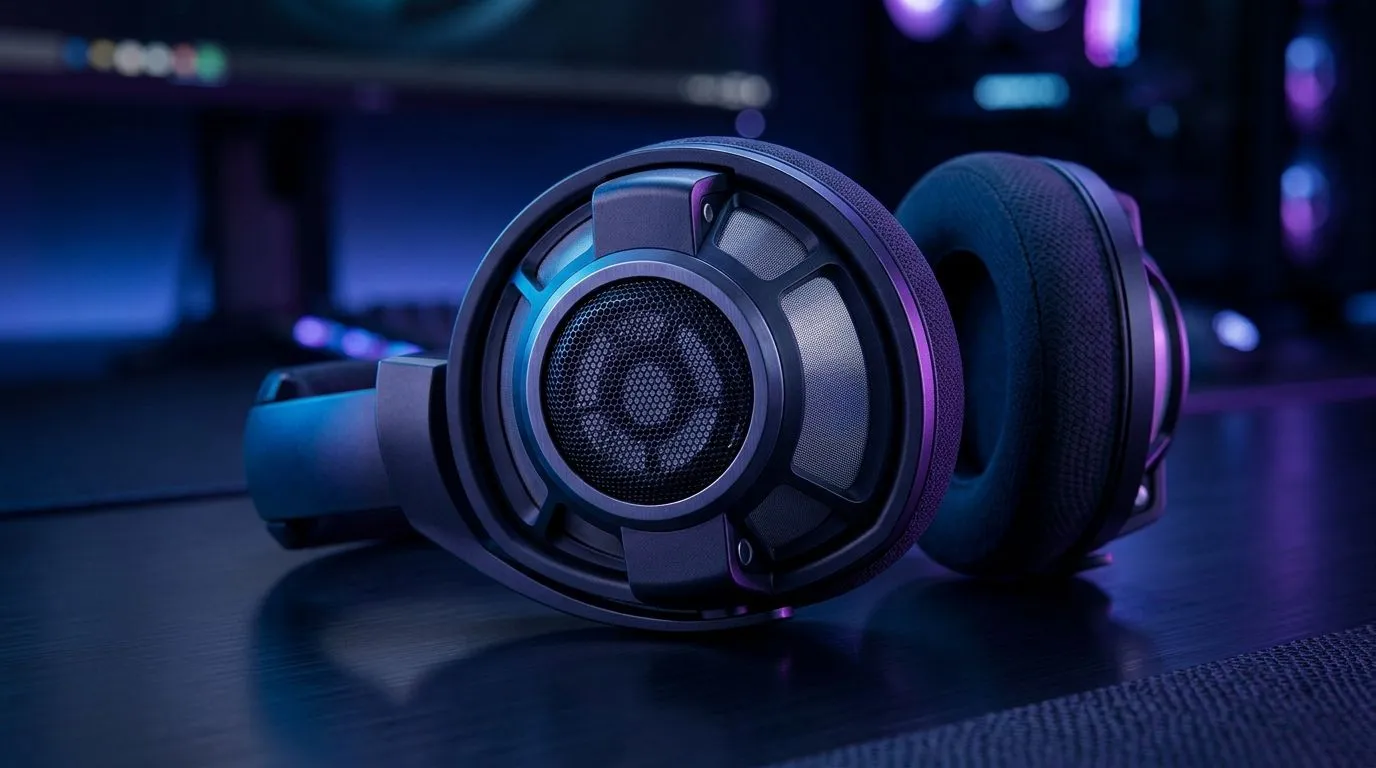
Positional Audio Settings for 40mm Neodymium Drivers: Why your headset “centres” differently
If your footsteps sound a bit… off, you’re not imagining things. In competitive shooters, positional audio can be the difference between “someone’s behind me” and “yep, I’m late.” The good news? Even with 40mm neodymium drivers, you can tune settings for clearer direction, tighter bass, and less muddy midrange. 🔧 Let’s dial in positional audio so your ears get the map, not guesswork.
Positional Audio Settings for 40mm Neodymium Drivers: Get the signal right first
Before you touch sliders, confirm the basics. Headsets with 40mm neodymium drivers are typically tuned for strong clarity and punch, but virtual surround and “enhancement” features can clash with each other.
Start with this workflow:
- Choose one spatial mode (don’t stack surround + “enhancement” effects).
- Lower virtual surround intensity if the stage feels too wide and footsteps lose accuracy.
- Set Windows audio to the headset as the default output, so your game and voice chat share the same device pipeline.
If you’re using a Razer headset line that supports audio features, Evetech’s product catalog pages are a useful starting point for compatibility and bundled feature descriptions. For example, check the Razer Barracuda X Chroma Wireless options here: Razer Barracuda X Chroma Wireless (Phantom White) deals.
Positional Audio Settings for 40mm Neodymium Drivers: EQ targets for direction and clarity
Here’s the practical truth… footsteps live in the mid-to-upper frequencies. When bass is too loud, direction smears.
Try this starting point:
- Bass (low end): reduce slightly if footsteps feel distant.
- Mids: keep them present so you hear “movement” cues, not just explosions.
- Treble (high end): raise just enough to separate steps from noise.
You’ll often get better results by using a mild EQ preset rather than extreme boosts. A small change beats a loud “V-shape” every time. ✨
Productivity Pro Tip 🔧
On Windows, use the Razer Synapse-style software (or your headset’s companion app) to save separate profiles per game and per squad setup. That way, you can keep a “Footsteps Focus” profile for shooters and a “Dialogue Clarity” profile for story games, without re-tuning every session.
Positional Audio Settings for 40mm Neodymium Drivers: Spatial presets that don’t lie
Different games interpret audio differently. In some titles, directional cues improve with “head-locked” audio, in others “surround width” makes everything feel further apart than it really is.
For best results:
- Turn off “loudness equalisation” if it flattens quiet cues.
- Use a short test loop in your training range: left, right, behind. Then tweak in small steps.
- Keep voice chat levels stable so positional audio stays consistent during comms.
If you’re comparing headsets for these features, Evetech’s category overview helps you narrow down models by headset family and common feature sets. Start with this hub: Razer headsets and headphones (all models).
Positional Audio Settings for 40mm Neodymium Drivers: Don’t buy blind… match the tech to your setup
Two setups, same headset… totally different results. Here’s a quick micro-story: one friend played with “cinematic” spatial audio and kept blaming the game. Another teammate switched to a lighter spatial profile and suddenly realised the sound was actually correct. The “fix” was just removing conflicting enhancements.
If you’re shopping for a headset that fits your gaming style, browse Evetech’s broader headset range to compare options in one place: Headphone and headset deals. 🚀
Ready to Find Your Perfect Match? The Mac vs Windows debate is complex, but for maximum power, choice, and value in South Africa, Windows is hard to beat. Explore our massive range of laptop specials and find the perfect machine to conquer your world.











