

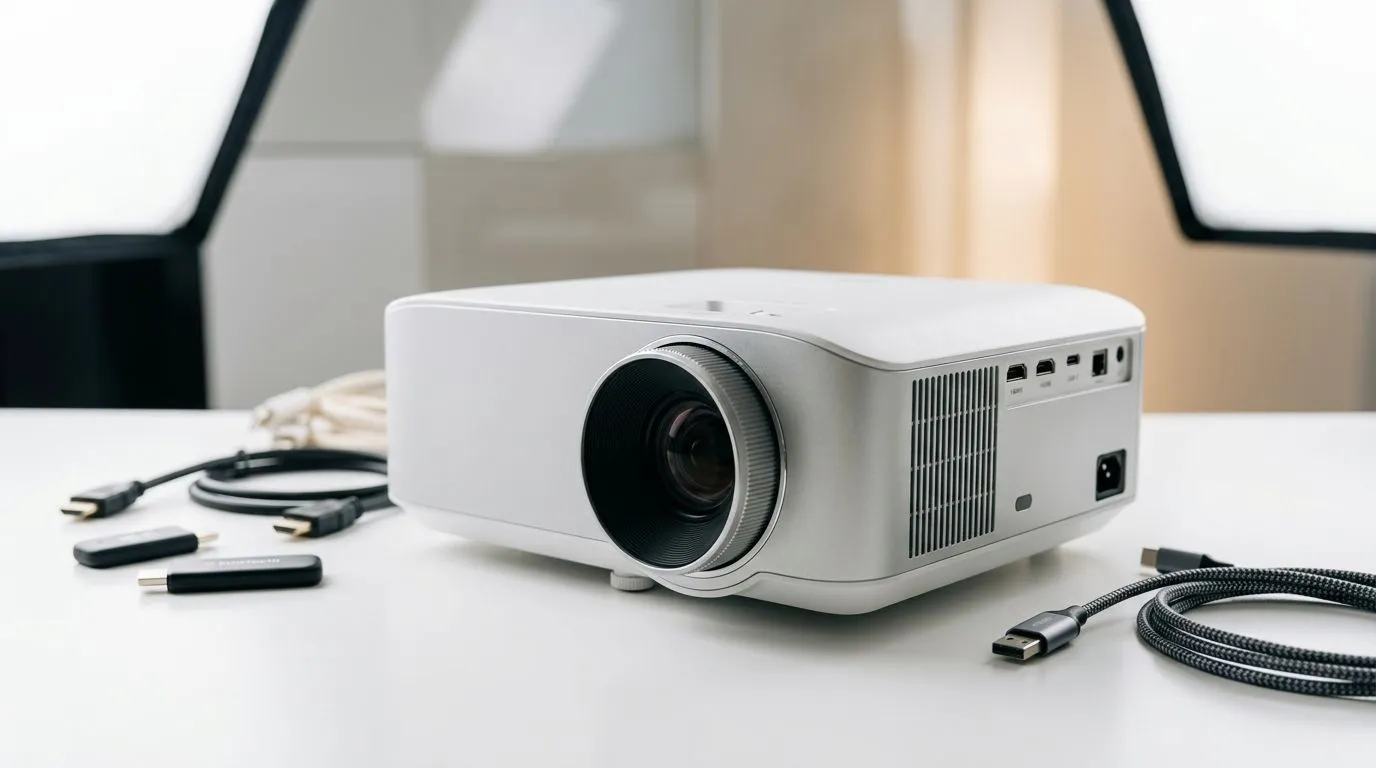
Projector Inputs Guide: HDMI, USB-C, and Wireless Options for SA Users
South African gamers and media lovers... you’ve seen it. You plug in, nothing. Or worse, the picture is washed out, laggy, or audio refuses to cooperate. 😅 If you’re setting up a projector for PS5, Xbox, a gaming PC, or even streaming box duty, the right inputs matter more than you think.
This guide walks you through projector inputs using real-world SA setups, from HDMI basics to USB-C connections and wireless options. By the end, you’ll know what to buy, what to avoid, and how to verify compatibility before you part with your ZAR.
HDMI: The “Most Compatible” Input for Gaming Setups
HDMI is still the default because it supports both high-quality video and audio over a single cable. For gaming, that usually means fewer headaches than mixed cables and adapters.
What to check on the projector side
Look for:
- HDMI ports count: If you’re switching between consoles and a PC, more ports save time.
- HDMI standard support: Many modern projectors handle high resolutions comfortably, but refresh-rate and HDR support vary by model.
- Audio output: Some projectors route sound internally, others rely on external speakers. If your plan is to run sound through a soundbar or speakers, confirm what the projector provides.
What to check on the source side (console or PC)
- PS5 and Xbox: Both use HDMI, so you’re usually set.
- Gaming PC: Most GPUs output HDMI and/or DisplayPort, so HDMI is simple if you’re not using a direct DisplayPort-to-projector setup.
For projector shopping in the SA market, start by browsing Evetech’s range here: Explore projectors across price points
Projector Inputs Guide: USB-C Connections for One-Cable Convenience
USB-C on a projector is underrated… when it works. The big win is convenience: one cable for video (and sometimes audio/charging depending on the device and projector). For laptops, it can cut clutter right away.
The catch: not all USB-C ports are equal
USB-C can exist in different roles. Some ports are for data only, others support video output. When a projector is “USB-C capable,” it typically supports video input (often through DisplayPort Alt Mode), but you should still confirm in the product specs.
When USB-C makes sense in South African homes
- You want fewer cables between your laptop, work setup, and occasional movie nights.
- Your laptop has USB-C with video output and you want a clean desk or entertainment centre.
- You’re budget-conscious and want to avoid extra HDMI adapters.
If you’re shopping by brand and want to compare USB-C options among popular lines, Evetech has a solid set to browse, including: Shop Promate projectors
Wireless Options: When You Want “No More Cables” (But Not At Any Cost) 🚀
Wireless projection is tempting, especially for living-room convenience. But gaming over wireless can be risky depending on latency, compression, and the specific wireless tech used.
Wireless reality check for gamers
- Low latency matters: Fast-paced games can feel off if lag is noticeable.
- Stability matters: Wi-Fi interference is common in busy neighbourhoods and flats.
- Quality can drop: Wireless often compresses video, which may affect sharpness.
Use wireless for…
- Movies, casual content, and slide decks.
- “Show it on the big screen” moments when you’re not chasing competitive responsiveness.
If you want to compare projector options from another well-known brand category, check: Browse ViewSonic projectors
Projector Inputs Guide: Choosing the Right Cable and Adapter (Without Wasting ZAR) 🔧
Before you buy, do a quick compatibility scan. It takes two minutes and saves money.
Setup Pro Tip 🔧
"Before you commit, verify your source outputs and your projector inputs in the product specs. For USB-C, confirm it supports video input (not just charging or data). For HDMI, match resolution support and confirm audio routing if you’re using external speakers. If you’re in doubt, choose HDMI first, then consider USB-C and wireless for convenience."
HDMI cables: the boring stuff that matters
- Use a decent HDMI cable length for your room.
- If your setup is long-range (big rooms, ceiling mounts), consider a cable rated for the resolution you want.
- Avoid random “ultra cheap” cables when you can. It’s a common cause of handshake failures and flicker.
USB-C adapters: don’t guess blindly
If your laptop does not output video over USB-C, no adapter magic will fix it. In that case, HDMI remains your best path.
Projector Inputs Guide: A Simple “What Should I Buy?” Decision Tree ✨
Let’s make it easy.
If you’re gaming or using a PC
Start with a projector that has HDMI first. It’s the most straightforward path.
If your main source is a laptop
Choose USB-C only if your laptop’s USB-C supports video output and the projector specifically supports USB-C video input.
If you’re primarily streaming movies and casual content
Wireless can be great for convenience, but keep expectations realistic. If competitive gaming is your priority, plan to run HDMI.
Final move before purchase
Compare projector input options, confirm audio output needs, and then pick cables accordingly. That way your first setup session stays fun, not frustrating.
CALLTOACTION
Ready to Find Your Perfect Match? Projector inputs can be confusing, but you don’t have to gamble. For the best odds of getting the right HDMI, USB-C, and wireless options for your setup, browse Evetech’s projector selection and choose with confidence. Explore our massive range of projectors and get the display you actually want.











