


iRacing SA Gaming PC Build Guide
iRacing build planning should focus on the target resolution, settings and total system balance. Treat launch wording as time-sensitive, then verify requirements before choosing SA PC parts.
Read moreMaster projector keystone correction with our guide to vertical, horizontal, and 4-corner adjustments. Get a perfectly rectangular image for your home cinema setup today! 📽️✨
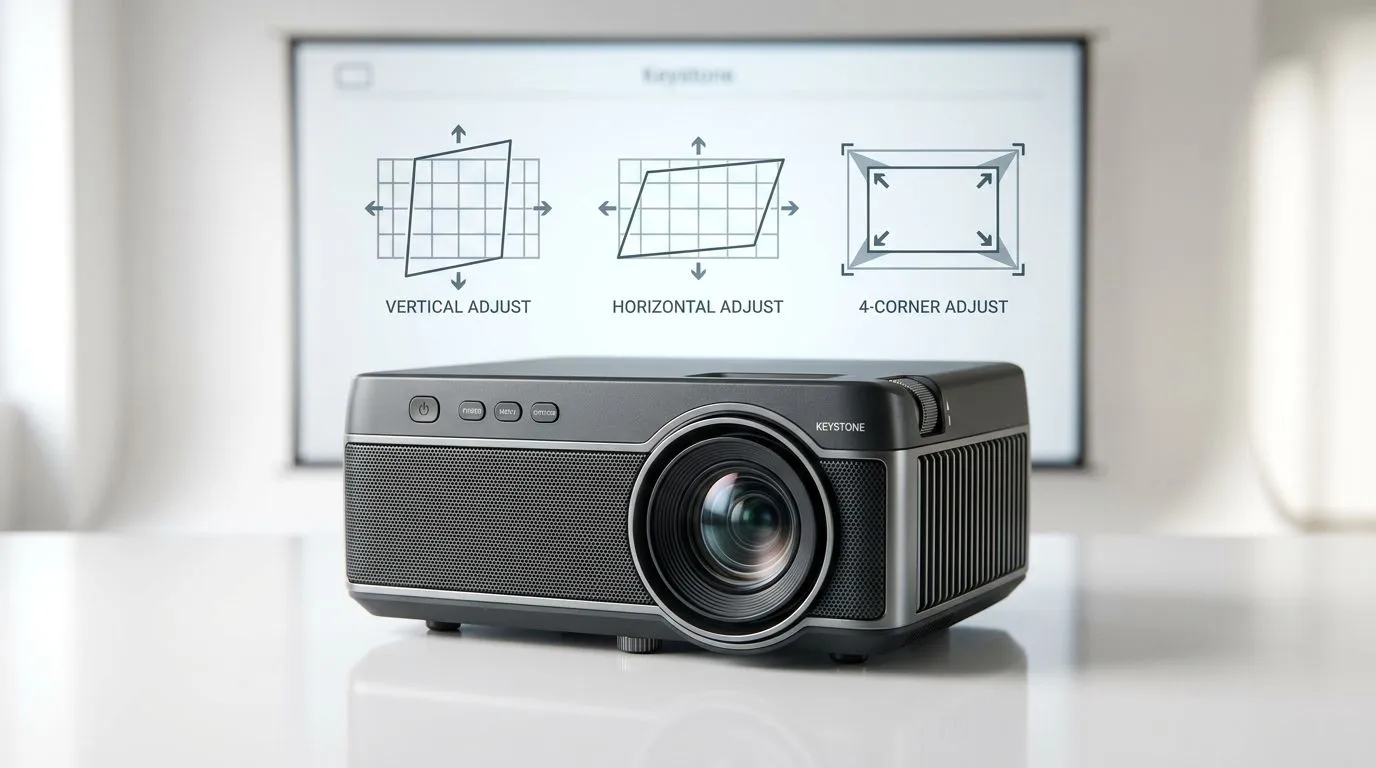
If your projector looks like a trapezium… you’re not alone. South African gamers and home-theatre fans set up in lounges, bedrooms, and even game rooms with awkward distances. One quick move changes everything: the picture slides, stretches, and keystone correction becomes your best friend. 🔧 But vertical, horizontal, and 4-corner correction aren’t all the same. Get it wrong and you’ll waste time… or end up with a blurred, misaligned image.
This guide explains what each keystone mode does, how to use it properly, and when to skip correction entirely. ✨
Keystone correction fixes image distortion caused by the projector being tilted. Instead of a perfect rectangle, the projected image becomes “wider at the top” or “narrower at the sides”. This happens because the projector’s optical axis is not lined up with the screen.
There are two common ways manufacturers describe keystone correction:
Then there’s the more precise option:
Before we get into settings, a quick rule: use keystone as a last step. The ideal setup is physical alignment first, then fine-tuning. If your projector is heavily tilted, keystone correction can reduce image quality because it effectively “reshapes” the picture.
Use vertical keystone when:
Typical symptoms:
Use horizontal keystone when:
Typical symptoms:
Use 4-corner keystone when:
Because each corner can be adjusted, 4-corner correction can “square up” the image without forcing a single uniform transformation.
Here’s the practical workflow that usually gives the cleanest results:
If you’re too far off, stop and adjust placement first. Keystone isn’t a substitute for correct geometry.
If your model includes lens shift, use it instead of keystone. Lens shift moves the image without “warping” it as much.
Note: Lens shift availability varies by model. Check your specific projector’s manual for whether it supports it.
If your screen has text or HUD elements (gaming, viewing sports), over-correcting can make straight lines look subtly curved. That can be distracting in fast scenes.
In South African homes, ceilings and stands are rarely perfectly level. Use a simple phone spirit level (or a cheap laser level) to set the projector angle first. Then do keystone in tiny increments. The goal is to keep keystone values low, because less correction usually means sharper geometry for gaming and movies.
If you find yourself needing extreme keystone values to “make it fit”, consider these options:
For example, if you’re buying a projector for a fixed entertainment area in a small SA bedroom, you may care more about flexible placement and adjustment than maximum brightness. That’s where shopping by features matters.
If you’re shopping in the R7,000 range, start here for options:
And if you want something specific from brands known in home setups:
Want a full selection to compare adjustment features and pricing across the board?
Ready to Find Your Perfect Match? The Mac vs Windows debate is complex, but for maximum power, choice, and value in South Africa, Windows is hard to beat. Explore our massive range of laptop specials and find the perfect machine to conquer your world.
Keystone correction is a feature that adjusts the image geometry to ensure a rectangular display even when the projector is placed at an angle to the screen.
Vertical keystone fixes image distortion caused by tilting the projector up or down, while horizontal keystone corrects distortion from side-to-side placement.
Use 4-corner adjustment when you need precise control over each corner of the projection, especially if the projector is mounted off-center or at a difficult angle.
Yes, digital keystone correction can slightly reduce resolution because it compresses pixels. For the best quality, try to position your projector optimally first.
Access your projector's settings menu and navigate to the Keystone or Geometry tab to adjust the vertical or horizontal settings until the image is square.
Manual 4-corner adjustment offers superior precision for complex installations, whereas automatic keystone is faster and more convenient for temporary setups.
iRacing build planning should focus on the target resolution, settings and total system balance. Treat launch wording as time-sensitive, then verify requirements before choosing SA PC parts.
Read more
Skyrim PC requirements should be mapped to resolution, settings and upgrade budget before choosing a tier. Verify current requirements, then balance GPU, CPU, RAM and SSD around SA pricing.
Read more
Skyrim PC builds is a cautious guide for game PC build planning. Compare game requirements, tier fit, resolution goals, RAM, storage, and GPU choice for SA buyers without assuming live prices, availability, or exact benchmark results.
Read more
Hades 2 PC builds is a cautious guide for game PC build planning. Compare game requirements, tier fit, resolution goals, RAM, storage, and GPU choice for SA buyers without assuming live prices, availability, or exact benchmark results.
Read more
Roblox PC builds is a cautious guide for game PC build planning. Compare game requirements, tier fit, resolution goals, RAM, storage, and GPU choice for SA buyers without assuming live prices, availability, or exact benchmark results.
Read more
Mortal Kombat 1 launch needs a balanced parts plan, not a random basket. Map the CPU, GPU, RAM, SSD, cooling, and monitor target to the budget so SA builders know where to spend first.
Read more
Wondering if a TKL wireless mechanical keyboard is worth it for everyday productivity? We break down latency, battery life, comfort, and workflow gains for real work. ⚡⌨️

Maximise battery life on a fanless 15-inch laptop using efficiency core architecture. Cut idle drain, tune power profiles, and improve thermals for longer runtime. 🔋⚙️

Learn how to reduce desk clutter with a TKL wireless keyboard using fewer cables, smart placement, and tidy essentials. Get a faster, calmer workspace with better ergonomics. ✅🧼

RGB keyboard lighting too distracting? Learn how to manage backlight modes, set brightness, and reduce distraction for focus and productivity 😌🖱️

Are themed gaming keyboards worth the extra cost? Compare build quality, switch options, features, and resale value to find the best fit for your setup 🎮⌨️

Full-Size vs Tenkeyless mechanical keyboards for gaming: find out if a smaller layout truly improves aim, speed, and comfort. We break down layout, desk space, latency-feel, and keybinds 🎮⌨️

Dedicated media rollers vs function key shortcuts: learn which setup gives you better workflow control, faster media access, and fewer mistakes. 🖱️🎧

Best Mechanical Switch Type for Gaming: Clicky vs Linear vs Tactile. Find your feel, speed, and noise balance with practical guidance for FPS, MOBA, and productivity 😄🎮

Direct mouse answer: Mouse not keeping up with your work? Everything that matters about dual-mode 2.4GHz + BT 5.0: DPI behaviour, channel switching, battery curves and per-app button mapping. Covers when 2.4GHz USB wins (low-latency desk) and when BT 5.0 wins (laptop, d

Plain wireless mouse guide: Mouse not keeping up with your work? Everything that matters about wireless productivity mouse: DPI behaviour, channel switching, battery curves and per-app button mapping. Includes DPI tuning tips, channel switch shortcuts, and ZAR-aware fea

Real productivity numbers: Set up your wireless mouse in this order: everything that matters about wireless productivity mouse: DPI behaviour, channel switching, battery curves and per-app button mapping. Includes DPI tuning tips, channel switch shortcuts, and ZAR-aware

Pen not feeling like paper? Stylus lag and skipping usually trace to old drivers, dirty nibs, or display refresh mismatches, not the pen itself. Covers pressure curve tuning, tilt thresholds, nib swap timing, and SA pricing brackets.