

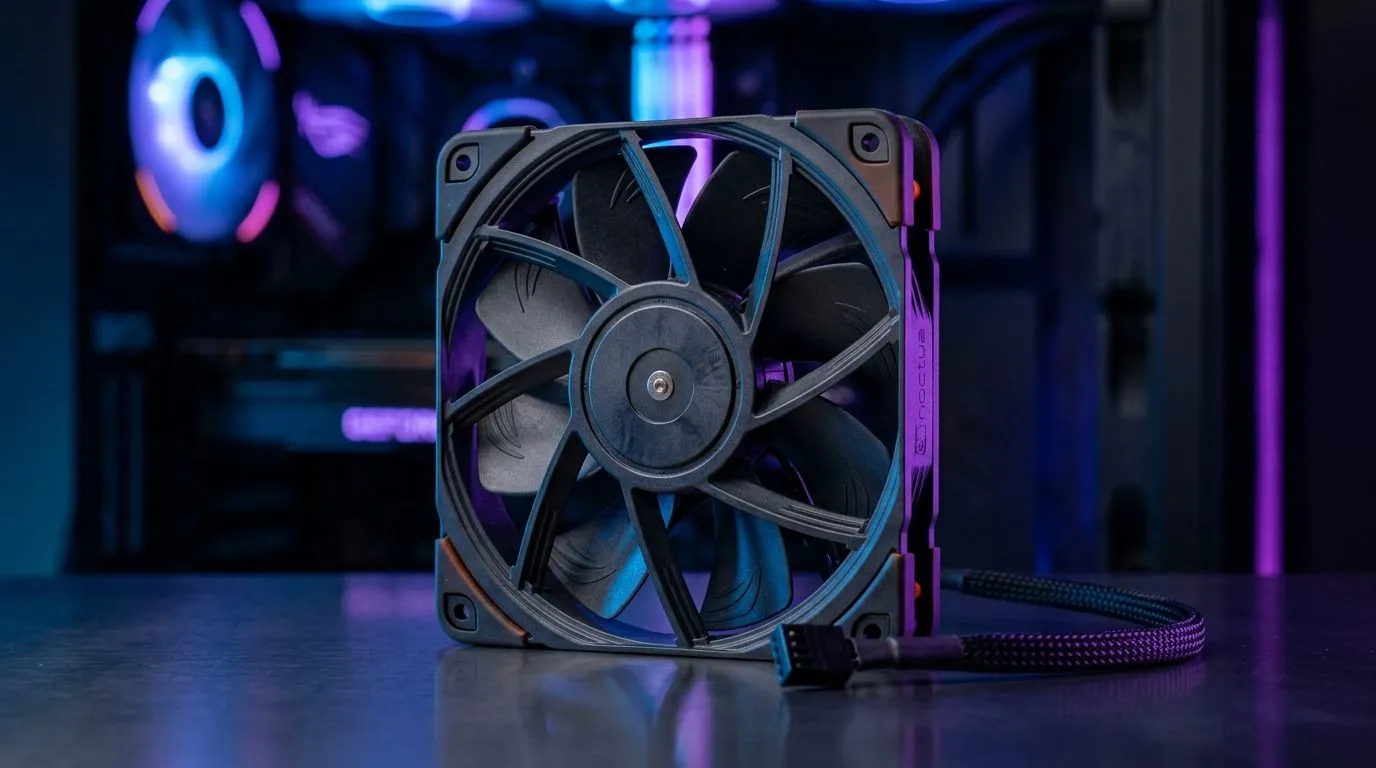
PWM Case Fan Setup for Smart Temperature Control & Quiet PC: the “set and forget” upgrade 🇿🇦
If your PC sounds like it’s auditioning for a role in an action movie, your fans might be running too hard, too often. And if your temps spike during a raid, you’re losing performance before you even notice. A PWM case fan setup for smart temperature control & quiet PC fixes both problems by letting your motherboard “decide” fan speed based on real temperatures. 🔧
The best part? You don’t need exotic water cooling. You need the right fans, sensible placement, and clean fan curves.
PWM fans explained (and why they matter) 🔥
PWM (Pulse Width Modulation) fans can vary speed precisely using a control signal from your motherboard. This is why PWM setups usually sound calmer under light load and get louder only when needed.
Before you buy, check two things:
- Fan type: Look for PWM support so your board can control RPM.
- Connector: Your motherboard will typically expect a 4-pin PWM header (not just power).
For shopping options, browse Evetech’s case fan selection here:
Planning airflow like a pro (front-to-back, not chaos) ✨
A quiet PC starts with correct airflow direction. In most cases:
- Front intake: Cooler air in
- Rear exhaust: Hot air out
- Top exhaust (optional): Helps remove rising heat
Then aim for balanced static pressure and desk noise. If you’re using a dense air cooler or radiator, fans with higher static pressure tend to perform better, especially at lower RPM. If you’re only moving general case air, you can prioritise airflow.
Want RGB without sacrificing control? Consider fans designed with lighting options:
Prefer a clean look? Many gamers go “stealth build” and skip the lights:
PWM Case Fan Setup: Smart fan curves that actually work ⚡
Now to the practical part: fan curves. In BIOS or your motherboard software, set a curve that avoids constant ramping.
A reliable starting point:
- Below ~50°C CPU: Keep fans low (so idle remains quiet)
- 50°C to 70°C: Gradually increase
- Above ~70–75°C: Ramp more aggressively to protect thermals
Use your actual temperatures during games. If your curve is too sensitive, you’ll hear “RPM chatter” every time a scene changes.
Picking the right fan sizes (120mm vs 140mm)
Size affects noise and airflow. Generally, 140mm fans can move more air at lower RPM, which often means less noise for the same cooling.
Evetech carries different size options:
- https://www.evetech.co.za/PC-Components/case-fans-97.aspx?attributes-size=120mm
- https://www.evetech.co.za/PC-Components/case-fans-97.aspx?attributes-size=140mm
Brand matters, but setup matters more
A good PWM fan with a poor curve still won’t feel great. Still, reputable models can make the whole experience smoother. If you’re specifically looking at CORSAIR options:
And for DeepCool fans:
Productivity Pro Tip 🔧
Windows, keep your monitoring simple with Evetech-recommended tools in your build workflow: watch CPU package temperature and fan RPM during a 10–15 minute gaming session, then adjust your fan curve only once at a time. Small changes beat constant tinkering, and you’ll stop the “why is it ramping every match?” problem.
Testing and fine-tuning without guesswork 🎮
After installation:
- Boot into BIOS and confirm PWM control is enabled on the headers you used.
- Run a consistent test workload (a game benchmark or a 10–15 minute match).
- Note peak temps and the loudest moment.
- Adjust slowly: bump the “ramp start” point first, then refine the slope.
If your case has good clearance, focus on cable routing. Restricted airflow turns a good fan curve into a noisy one.
Ready to build a quieter, smarter rig? 🚀
A PWM case fan setup for smart temperature control & quiet PC isn’t just about buying fans. It’s about matching your airflow plan to your motherboard’s control, then tuning a curve that behaves under real gaming loads.
Ready to Find Your Perfect Match? The Mac vs Windows debate is complex, but for maximum power, choice, and value in South Africa, Windows is hard to beat. Explore our massive range of laptop specials and find the perfect machine to conquer your world.











