

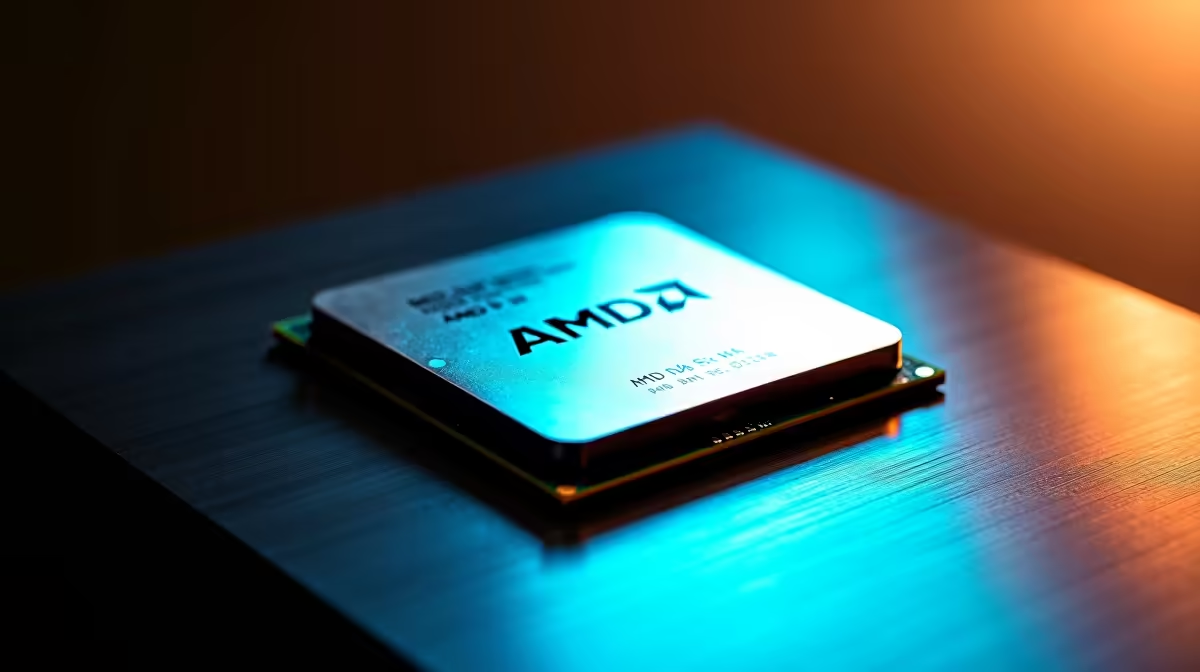
AMD Ryzen Master is the official overclocking utility for Ryzen processors, available as a free download directly from AMD. It gives you full control over CPU clock speeds, voltages, and memory timings through a GUI - no BIOS required for basic tuning.
Quick Answer
How do you download and set up Ryzen Master for AMD CPU overclocking?: Download Ryzen Master from AMD's official website, install it, and run it with administrator privileges. The Home view shows your current CPU status; use the Creator Mode or Manual Mode profiles to adjust boost clocks, core voltages, and memory settings, then apply and test stability.
🔧 Download and Installation
Step 1 - Get Ryzen Master: Go to amd.com and search for Ryzen Master in the drivers and support section, or search "AMD Ryzen Master download" directly. The installer is free and under 200MB.
Step 2 - System requirements check: Ryzen Master supports all AMD Ryzen desktop processors (1000-series through 9000-series). It does not support Threadripper or EPYC on the standard version. Your PC must run Windows 10 or Windows 11 64-bit.
Step 3 - Install: Run the installer as administrator. Accept the licence agreement and follow the prompts. Ryzen Master installs a system service that monitors and applies CPU parameters.
Step 4 - First launch: Open Ryzen Master from the Start menu. The Home tab shows your CPU's current boost clock, all-core clock, temperature, and socket power. This is your baseline - note these values before making any changes.
📊 Understanding Ryzen Master's Profiles and Modes
Ryzen Master organises settings into profiles. The key modes are:
Default Profile: Restores your CPU to stock AMD settings. Always keep this intact as your recovery baseline.
Auto Overclocking (Precision Boost Overdrive / PBO): The easiest starting point. PBO allows the CPU to boost beyond its rated limits by relaxing power and thermal constraints, letting AMD's boost algorithm find the maximum stable clock your specific chip can achieve. Enable PBO and set the power limits to the maximums your cooler can handle - this is the safest performance gain available on any Ryzen system.
Creator Mode: Applies a fixed all-core clock lower than maximum single-core boost but more consistent across all cores. Useful for sustained workloads like rendering or streaming encoding.
Manual Mode: Full manual control over per-core or all-core clock speeds and voltages. Advanced territory - start with small increments (25MHz at a time) and always stress-test after each change.
Memory/Fabric (FCLK): Controls Infinity Fabric and memory clock. On Ryzen 5000 and 7000, the sweet spot for most kits is DDR4-3600 with a 1:1 fabric ratio. Pushing beyond this requires per-chip validation.
💡 Stability Testing and Safety Tips
After any change, apply it and run a stability test before gaming or using your PC for productive work. Free tools like OCCT or Cinebench are the standard validation method. Run Cinebench R23 multi-core for at least ten minutes; if it crashes or produces errors, reduce your overclock.
Monitor temperatures closely. Ryzen CPUs are designed to run up to 95°C on the CPU die temperature - AMD considers this normal for Ryzen 5000/7000. However, sustained temperatures above 90°C under all-core load suggest your cooler is working at its limit. If temperatures are marginal, focus PBO tuning on power limits rather than pushing additional voltage.
Ryzen Master settings reset on reboot unless you save and activate a profile. For permanent overclocks, most enthusiasts mirror their final Ryzen Master settings in BIOS for stability.
❓ Frequently Asked Questions
Does using Ryzen Master void my AMD warranty? AMD's warranty policy states that overclocking is not covered if it causes damage. However, Ryzen Master's PBO mode operates within AMD's boost framework and is a supported feature. Extreme manual overclocks with elevated voltages carry more risk from a warranty perspective.
Why does Ryzen Master show lower clocks than what I see in Task Manager? Task Manager samples clock speeds infrequently and at a point in time. Ryzen Master shows averaged or minimum/maximum values over a monitoring window. The numbers will differ - Ryzen Master's readings are more meaningful for tuning.
Can I use Ryzen Master alongside BIOS XMP/EXPO memory profiles? Yes, and this is the recommended approach. Enable XMP or EXPO in BIOS for memory speed, then use Ryzen Master for CPU performance tuning. The two settings operate independently.
Evetech carries All CPUs & Processors and Graphics Card Deals — check live stock and pricing before you buy.
Ready to Find Your Perfect Match? Shop at Evetech











