



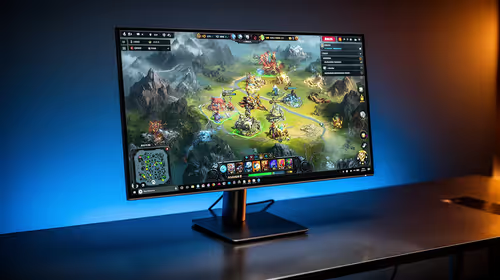
IPS vs VA for Strategy and Sim Games in SA
IPS vs VA for strategy and sim games should be judged by fit, not a single winner. Compare compatibility, latency, capacity, upgrade path, cost planning, and South African setup needs.
Read moreMaster your Ryzen motherboard power settings to unlock peak performance and efficiency. This guide demystifies PBO, Curve Optimizer, and VRM controls, helping you safely boost your CPU without overheating. Ready to take control? 💻⚡ Let's dive in and optimize your rig!
So, you’ve built a killer PC around a powerful AMD Ryzen CPU. That’s brilliant! But are you getting every ounce of performance you paid for? Or maybe your rig sounds like it’s preparing for takeoff during a simple Chrome session. The solution often lies hidden in your BIOS, specifically in the Ryzen motherboard power settings. This guide will help you decode those cryptic options and tune your machine for peak performance or silent efficiency. 🔧
Before diving into the BIOS, let's quickly cover the basics. Think of your motherboard's power settings as the rulebook for your CPU. They dictate how aggressively it can boost its clock speeds, how much power it can draw, and how it behaves when idle. Getting these settings right is the key to unlocking your hardware's true potential. For most users, the three most important concepts to grasp are Precision Boost Overdrive (PBO), Core Performance Boost (CPB), and the Curve Optimizer. Mastering these is the first step in optimising your Ryzen motherboard power settings.
Every BIOS looks a bit different, but these settings are usually found under a tab named "Ai Tweaker," "Overclocking," or "Advanced." Don't be intimidated by all the options; we're focusing on the ones that give you the most bang for your buck.
PBO is AMD's automated overclocking tool. It allows your CPU to boost higher and for longer, provided it has enough power and thermal headroom.
This is where the real magic happens. ✨ Curve Optimizer, found within the PBO menu, lets you fine-tune the voltage your CPU receives at different frequencies. By applying a "negative offset" (e.g., -10, -15, -20) to all cores, you're essentially undervolting the CPU. This makes it run cooler and more efficiently, often allowing it to sustain higher boost clocks for longer. We’ve seen users drop CPU temperatures by 5-10°C without losing any performance… a massive win! For enthusiasts looking to push these limits, investing in one of the latest AMD X870 motherboards ensures you have the robust power delivery needed for stable tuning.
After applying a Curve Optimizer offset, always run a stability test. A tool like Cinebench R23 (on a 10-minute loop) or Prime95 can help ensure your system is 100% stable. If it crashes, reduce the negative offset (e.g., from -20 to -15) and try again.
It's crucial to understand that BIOS settings and Windows Power Plans work together. The BIOS sets the absolute hardware limits, while your Windows Power Plan tells the CPU how to behave within those limits on a moment-to-moment basis. For the best experience, always install the latest AMD chipset drivers and use the "AMD Ryzen Balanced" power plan in Windows. This ensures the CPU can quickly ramp up and down as needed. As technology evolves, keeping an eye on upcoming B850 boards will be key to leveraging the latest power management features.
So, what should you do? It depends on your goal. Getting your motherboard power settings for Ryzen correct is about matching them to your needs.
Ultimately, the foundation of any great Ryzen build is the motherboard itself. It dictates your connectivity, features, and how effectively you can manage your CPU's power. Take a look at our full range of AMD motherboards to find the perfect base for your build.
Ready to Unleash Your Ryzen's Full Potential? The right motherboard is the foundation for mastering your PC's power. Whether you're a hardcore overclocker or just want a stable, efficient rig, the perfect board makes all the difference. Explore our massive range of AMD motherboards and find the perfect match for your CPU.
Key settings include Precision Boost Overdrive (PBO) for auto-overclocking, Curve Optimizer for fine-tuning voltage, and Load-Line Calibration (LLC) for stable voltage delivery.
Yes, when done carefully. Features like PBO and Curve Optimizer are designed by AMD for safe performance tuning. Always monitor temperatures and start with small adjustments.
PBO allows your Ryzen CPU to boost to higher frequencies for longer, constrained only by your motherboard's power delivery and cooling, thereby exceeding stock limits safely.
For permanent changes, setting power options in the BIOS is best. Ryzen Master is an excellent tool for testing and experimenting with settings before committing them in the BIOS.
Undervolting with Curve Optimizer reduces the voltage your CPU needs, lowering temperatures. This creates more thermal headroom, allowing the CPU to sustain higher boost clocks.
The Voltage Regulator Module (VRM) delivers stable, clean power to the CPU. A high-quality VRM is crucial for maintaining stability during high boost clocks and overclocking.
IPS vs VA for strategy and sim games should be judged by fit, not a single winner. Compare compatibility, latency, capacity, upgrade path, cost planning, and South African setup needs.
Read more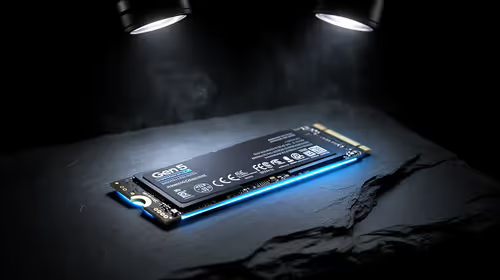
Gen 5 NVMe SSD guide for Bloemfontein gamers should be shortlisted around the job it must do. South African buyers should compare capacity, speed, thermals, and motherboard support, warranty path, and upgrade room before treating any pick as best.
Read more
Skip the RTX 5070 if your first-time builder budget needs better balance. Better SA picks can free room for the right CPU, PSU, case, monitor, storage, and cooling while still giving a strong first gaming PC experience this year in South Africa.
Read more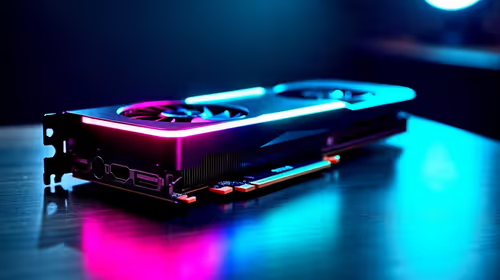
RTX 5080: weighing the pros and cons for SA should be shortlisted around the job it must do. South African buyers should compare GPU tier, VRAM, cooling, and PSU headroom, warranty path, and upgrade room before treating any pick as best.
Read more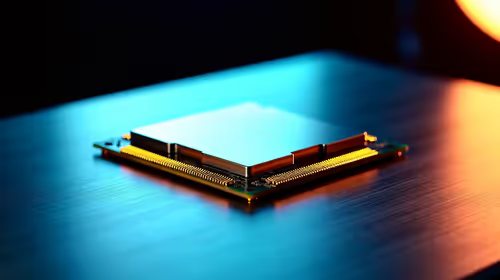
Core i5-13400F gives South African PC builders a capable mid-range CPU choice with clear limits. Check its gaming fit, discrete GPU requirement, LGA1700 platform costs, and upgrade path before locking in your parts list.
Read more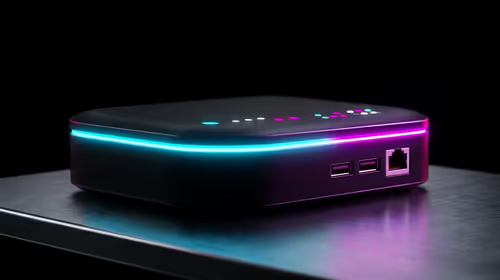
Pros and cons of the Wi-Fi 7 routers for SA should be shortlisted around the job it must do. South African buyers should compare WiFi standard, coverage, latency, and device support, warranty path, and upgrade room before treating any pick as best.
Read more
Steam content servers unreachable needs a download-path check, not an immediate reinstall of every game. Restart the client, inspect download settings and compare another connection when practical. Clearing the download cache is separate from deleting installed games.

Keychron G6 HE has built-in and swappable battery versions with different weights. The product brief lists 42g and 46g respectively, each with a 3g tolerance. Choose by grip and battery preference before treating one headline weight as universal.

Corsair HS80 v2 MAX supports 2.4GHz wireless and Bluetooth. Its maximum battery figures use RGB-off conditions and differ by connection. Check microphone routing, comfort and the exact device support before assuming every wireless mode behaves alike.

Windows taskbar notification badges can be shown or hidden in Taskbar behaviours. This changes the small app indicators, not the underlying messages. Choose a calmer desktop while keeping a deliberate routine for checking important conversations and app updates.
Windows taskbar notification badges can be shown or hidden in Taskbar behaviours. This changes the small app indicators, not the underlying messages. Choose a calmer desktop while keeping a deliberate routine for checking important conversations and app updates.

Windows USB device in use can mean a program still has the drive open. Finish transfers and close files before retrying ejection. Better performance caching requires safe removal; a replacement drive is not the first fix for an open-file warning.

Windows Nearby Sharing not working starts with feature, Bluetooth and visibility checks on both PCs. My devices only depends on matching Microsoft accounts. Test a small harmless file before buying networking hardware or changing your home router.

Windows hardware reserved RAM is different from memory used by applications. Compare installed memory with firmware detection and the usable amount before buying modules. Reservations and reporting limits vary by system; no universal setting restores every byte.

Windows title bar window shake can minimise other open windows when you shake the active window by its title bar. Inspect the Multitasking setting and switch it off if that gesture interrupts your work. The preference costs R0 and does not require new hardware.

Windows Print Screen opens Snipping Tool when its keyboard preference is enabled. Change the option under Accessibility, Keyboard to choose another workflow. Test whether you need a clipboard image or a saved file.

Windows desktop icons missing may be a visibility setting. Right-click the desktop, choose View and inspect Show desktop icons. If only system icons are absent, use Desktop icon settings. Check the Desktop folder before assuming files were deleted.

Windows set time zone automatically greyed out calls for a location and device-policy check. Automatic time-zone selection relies on location services. A manual time-zone choice is separate from synchronising the clock; check both before replacing hardware.