

Quick Answer
Setting up a 2TB SATA SSD involves connecting the drive via the SATA data and power cables, initialising it in Windows Disk Management, creating a partition, and formatting to NTFS. The process takes under 15 minutes and no special software is required for basic setup.
A 2TB SATA SSD is an excellent secondary storage choice for a gaming or work PC - it offers plenty of space for game libraries, media, and backups at a lower price per gigabyte than NVMe. Setting one up in South Africa is straightforward whether you are installing it in a desktop tower or an external enclosure. This tutorial walks through the complete process from physical installation to the drive being ready to use.
Physical Installation: Connecting the SATA SSD
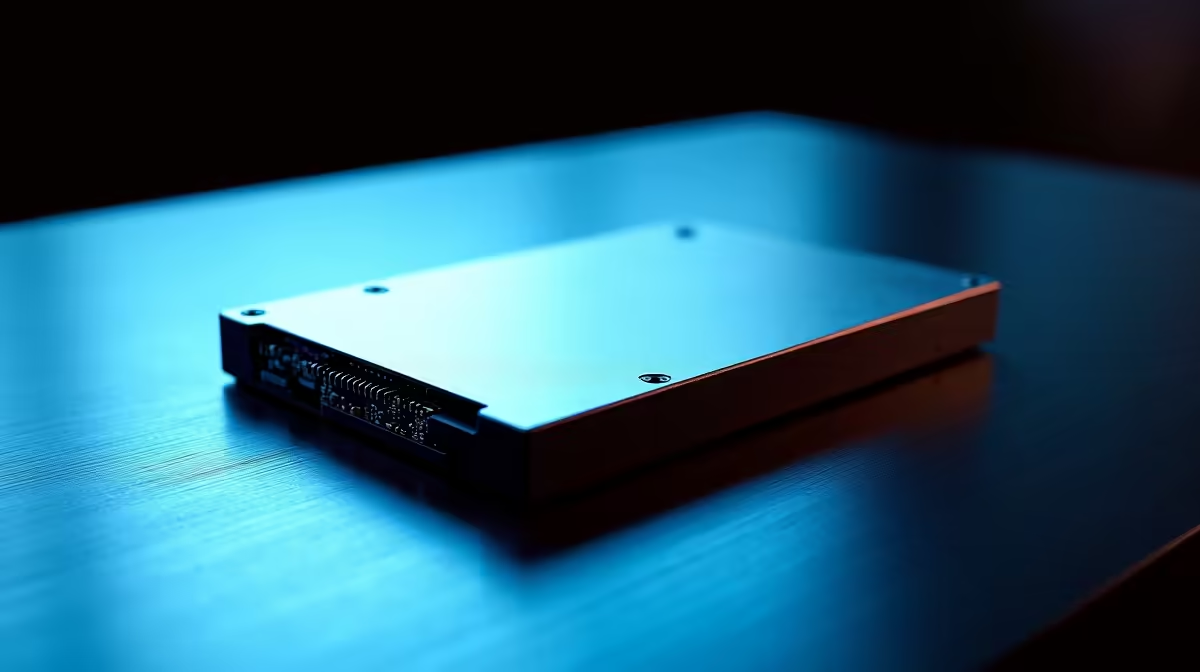
SATA SSDs use the 2.5 inch form factor and connect via two separate cables. The SATA data cable connects the drive to a SATA port on your motherboard. The SATA power cable comes from your power supply unit. Both connectors are keyed so they only fit in one orientation.
Step 1: Power down your PC completely and unplug it from the wall. Static discharge precautions apply - touch a metal part of the case to discharge before handling the drive.
Step 2: Locate an available SATA port on your motherboard. Most motherboards have 4-6 SATA ports. Connect one end of the SATA data cable to the drive and the other end to a free motherboard port.
Step 3: Connect a SATA power connector from your PSU to the drive. If your PSU does not have a free SATA power connector, a Molex-to-SATA adapter works.
Step 4: Secure the drive in a 2.5 inch drive bay using the screws included with your case or SSD. Some cases include tool-free 2.5 inch bays with a sliding mechanism.
If installing in an external USB enclosure instead, simply slide the drive into the enclosure following the enclosure instructions - no cables to manage.
Windows Initialisation and Partition Setup
Once physically connected and the PC is powered on, Windows will detect the new drive but it will not yet appear in File Explorer. You need to initialise and format it through Disk Management.
Step 1: Right-click the Start button and select Disk Management. Your new 2TB SSD will appear as a dark gray bar labelled as unallocated, usually listed as Disk 1 or Disk 2.
Step 2: Right-click the disk number on the left side and select Initialise Disk. Choose GPT (GUID Partition Table) as the partition style - this is correct for drives above 2TB and for modern Windows 10 and 11 systems.
Step 3: Right-click the unallocated space in the drive bar and select New Simple Volume. Follow the wizard: assign the full 2TB as a single volume or split it if you prefer separate partitions, assign a drive letter, and choose NTFS as the file system. The allocation unit size can stay at default.
Step 4: The format will complete and the drive appears in File Explorer. For a 2TB drive the quick format takes seconds.
Optimisation Tips for Your New 2TB SATA SSD
SSDs do not need defragmentation - Windows 10 and 11 automatically disable scheduled defrag for SSDs and use TRIM instead. TRIM keeps the SSD performing well over time by clearing deleted data blocks.
Enable AHCI mode in your BIOS if it is not already active. AHCI (Advanced Host Controller Interface) enables features including Native Command Queuing which improves SATA SSD performance. This setting is in your BIOS under Storage Configuration. Note: if Windows is already installed on another drive with IDE mode, switching to AHCI may require a registry change first to avoid boot issues.
For game library use, simply point Steam, GOG Galaxy, or your game launcher to the new drive as an additional library location. In Steam this is done through Settings - Storage - Add Drive.
Frequently Asked Questions
Q: Does a 2TB SATA SSD need to be formatted before use? A: Yes. New drives ship without a partition or file system. You must initialise, partition, and format via Windows Disk Management before the drive appears in File Explorer.
Q: Should I choose MBR or GPT when initialising my 2TB SATA SSD? A: Choose GPT. MBR has a 2TB size limit which means you cannot use the full capacity of a 2TB drive with MBR. GPT also works better with modern UEFI systems running Windows 10 or 11.
Q: Why is my 2TB SSD showing less than 2TB in Windows? A: This is normal. Drive manufacturers count 1TB as 1,000,000,000,000 bytes, but Windows counts using binary (1,099,511,627,776 bytes per tebibyte). A 2TB drive will show approximately 1.81-1.86TB in Windows. No space is missing - it is a unit counting difference.
Ready to Find Your Perfect Match? Browse storage upgrades and full PC deals at Evetech to expand your gaming or work setup.











