

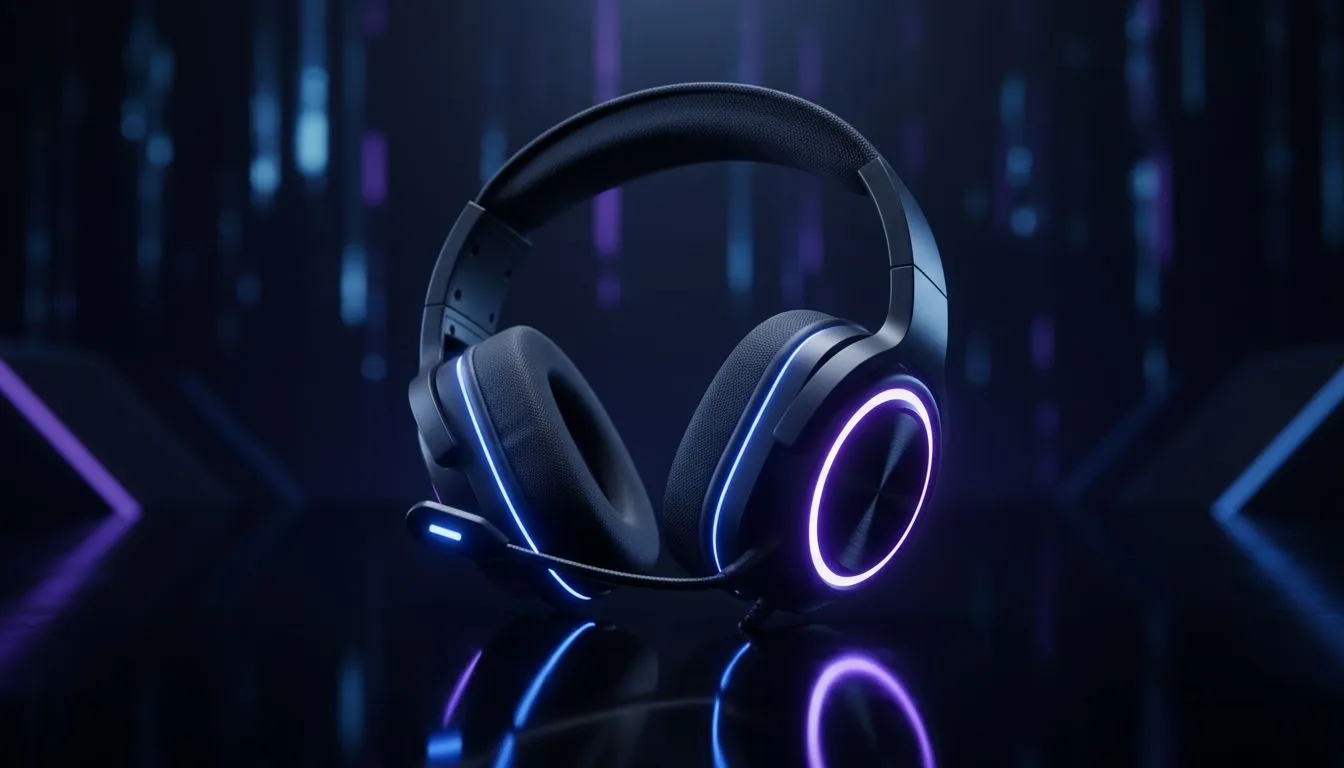
Set Up Gaming Headset Mac for Best Sound: Quick checklist
South African gamers—want your Mac to deliver crisp footsteps and thunderous bass in Apex or FIFA? Start here. This short, practical checklist helps you set up your gaming headset on macOS for the best sound, with tips that work on both USB and Bluetooth headsets. Read fast, tweak once, play better. 🔧✨
Set Up Gaming Headset Mac for Best Sound: Physical setup and cabling
Always start with the basics. If your headset is wired, use a direct USB or 3.5 mm connection. Avoid cheap splitters; they can introduce noise. For USB headsets, plug into a rear or powered USB port to ensure stable audio and mic power.
If you’re shopping, the Razer Barracuda X Chroma is a compact wireless option that supports multi‑platform use and solid battery life—check current ZAR pricing and deals on the product page before you buy: Razer Barracuda X Chroma wireless headset. ⚡
Set Up Gaming Headset Mac for Best Sound: macOS settings and app tweaks
macOS routes audio per app. To get the cleanest output, choose your headset in System Settings > Sound for both Input and Output. If you use a USB headset, pick it as the default device to avoid macOS switching mid‑game.
In-game audio settings matter. Lower unnecessary processing like virtual surround unless your headset advertises a native surround mode. For voice chat, prioritise a single input device to prevent echo. For more headphone options and brand choices, see Evetech's Razer headphones collection.
Mac Audio Tip ✨
When using Bluetooth headphones, pair them in System Settings, then quit and relaunch your game or voice app. If audio sounds flat, disconnect other Bluetooth devices. For USB headsets, use System Settings to confirm sample rate stays at 44.1 or 48 kHz for best compatibility.
Set Up Gaming Headset Mac for Best Sound: Bluetooth vs USB troubleshooting
Bluetooth is convenient but can revert to hands‑free mode, reducing audio quality. If you notice muffled sound during calls, macOS probably switched profiles. Reconnect the headset, or use a USB dongle for stable gaming audio.
If your mic is quiet, test it in QuickTime or Voice Memos. System Settings shows input levels. If levels are low, raise input gain or use a USB interface. For parts, adapters, and replacement cables, browse Evetech’s headphone and headset components to keep your setup clean and reliable.
Set Up Gaming Headset Mac for Best Sound: When to upgrade
If latency or range becomes an issue, consider wireless models with dedicated low‑latency dongles. For a premium wired experience, open‑back headphones with an external DAC deliver clearer staging for competitive play. Explore Evetech’s broader headphone selection to compare features and ZAR pricing.
For a quick look at compatible headsets and deals, check Evetech’s headphone/headsets category.
Set Up Gaming Headset Mac for Best Sound: Final checklist before play
- Confirm headset is selected as both Input and Output.
- Restart the game or chat app after switching devices.
- Disable extra sound processing in macOS and in‑game.
- Keep firmware and macOS up to date.
Micro story: I helped a Durban eSports teammate ditch crackling sound by swapping a cheap USB hub for a powered port. Problem solved within five minutes.
Where to buy and next steps 🚀
Ready to upgrade? Compare wired, wireless and USB options at Evetech’s Razer headphones category to find the right fit for your Mac and wallet. For cables, adapters, and spares, see the headphone components section to keep your gear performing at its best.
Ready to Find Your Perfect Match? The Mac vs Windows debate is complex, but for maximum power, choice, and value in South Africa, Windows is hard to beat. Explore our massive range of laptop specials and find the perfect machine to conquer your world.











