

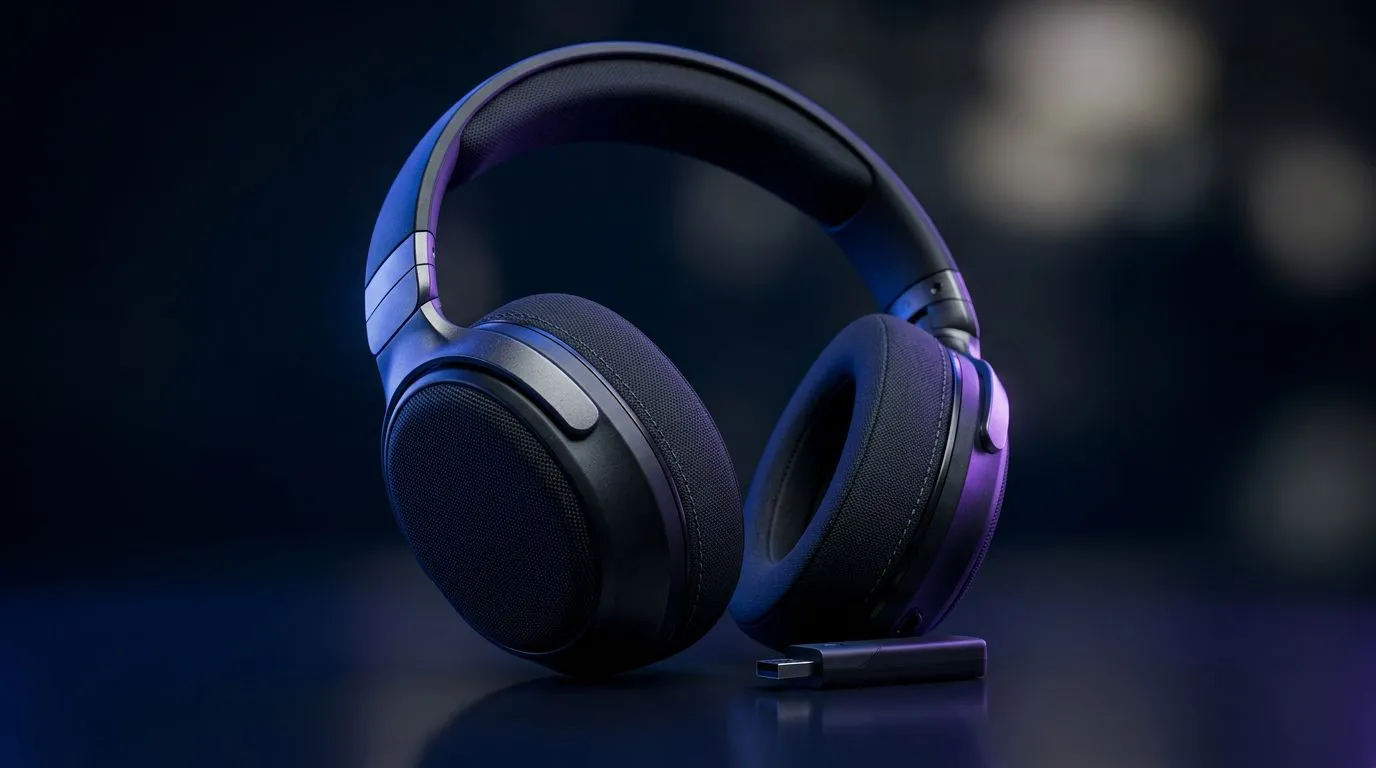
Breaking Free from the Cable Chaos
There is nothing quite like the freedom of cutting the cord during a heated session of Call of Duty or an immersive RPG marathon. If you have finally decided to upgrade, learning how to set up a wireless gaming headset for PC and console is the best way to elevate your audio experience. Whether you are playing on a high-end desktop or a PS5, a seamless wireless connection ensures you hear every footstep without the dreaded tug of a cable. 🎧
Getting Started with Your Wireless Connection
Most modern headsets are plug-and-play, but getting the best performance requires a bit of fine-tuning. If you are looking for a versatile option, the Razer Barracuda X Chroma is a fantastic starting point for South African gamers who switch between their rig and their console.
For PC users, always ensure your 2.4GHz USB dongle is plugged into a high-speed port. Avoid using front-panel case ports if you experience interference; plugging directly into the motherboard rear I/O often provides a more stable connection. If you are browsing for alternatives, you can check out our full selection of Razer headphones and headsets to find a model that fits your specific budget and aesthetic.
Optimising Audio Settings for Console and PC
Once your hardware is synced, the software side is where the magic happens. On PC, ensure your headset is set as the default "Communication Device" in your Sound Control Panel. For console players, navigate to your audio settings and ensure the output is set to "All Audio" rather than just "Chat Audio." ⚡
Pro Audio Tip 🔧
If your wireless headset feels like it lacks depth, check your Windows Sound settings to see if 'Spatial Sound' (like Windows Sonic or Dolby Atmos) is enabled. This simple toggle can drastically widen your soundstage, making it much easier to pinpoint enemy locations in competitive shooters.
If you are still weighing your options before making a purchase, feel free to browse our comprehensive range of headphones and headsets to compare features like battery life, weight, and microphone quality. 🚀
Troubleshooting Common Connectivity Issues
Every now and then, wireless signals can be finicky. If you notice audio stuttering, it is often due to interference from your Wi-Fi router. Try moving your wireless dongle away from other USB 3.0 devices or using a USB extension cable to bring the receiver closer to your headset. A clean signal is the difference between a win and a frustrating loss. ✨
Ready to Find Your Perfect Match? The wireless revolution is here, and your audio setup deserves an upgrade. Explore our massive range of premium gaming headsets at Evetech and find the perfect gear to conquer your world. Shop our latest headset deals here.











