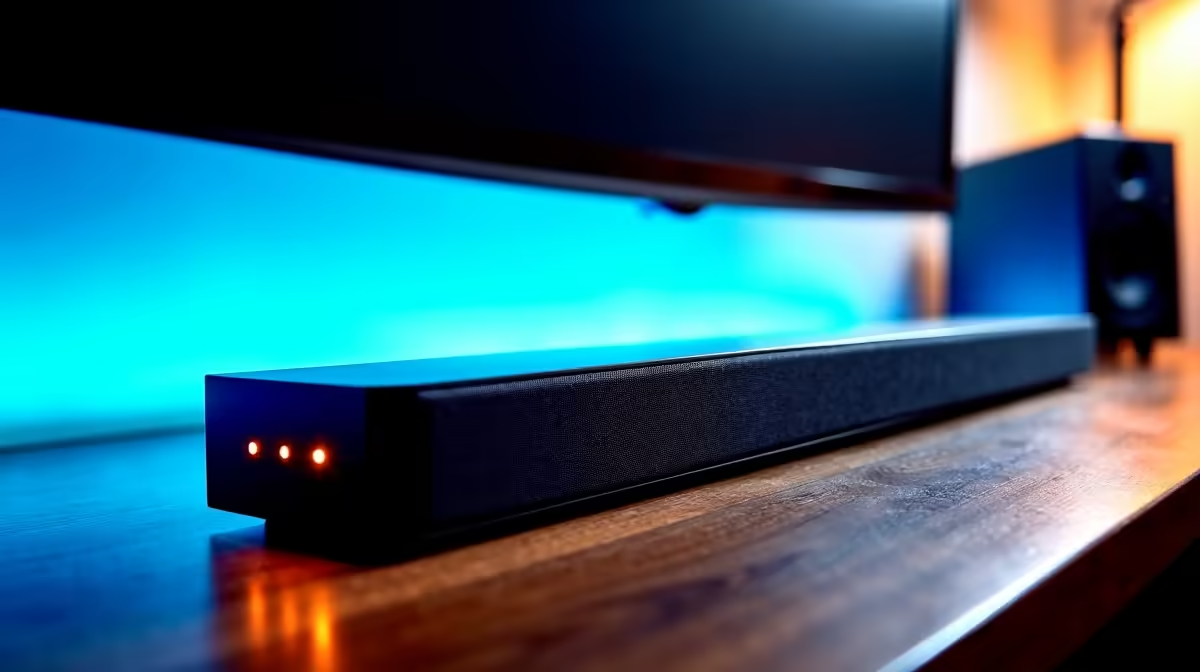
Is your high-end gaming rig let down by tinny sound? Your monitor delivers stunning visuals, but its speakers often can't keep up. While HDMI is the default, there’s a secret weapon for audio fidelity: the SPDIF optical out. This dedicated cable can seriously upgrade your sound bar, unlocking crystal-clear digital sound for total immersion. Let's explore how using the SPDIF audio out can maximize your sound bar and monitor clarity and transform your gaming experience. 🎧
What is SPDIF and Why Should You Care?
SPDIF (Sony/Philips Digital Interface Format) is a type of digital audio connection. You’ve probably seen the port on the back of your PC, console, or TV—it's usually a small, square-ish port that glows with a red light when active. This is the optical, or "Toslink," connection.
So, why use it over a standard 3.5mm audio jack?
- Purity: It sends a pure, digital audio signal directly to your sound bar or receiver. This avoids the electrical interference that can plague analogue cables, resulting in a cleaner, hiss-free sound.
- Simplicity: One thin cable handles multiple channels of audio, including compressed surround sound formats like Dolby Digital and DTS.
- Compatibility: Many modern PC monitors and motherboards include an SPDIF output, making it a widely available option for a high-quality audio setup.
Optimise Your Setup for Maximum Clarity
Getting the most out of your gear is what it's all about. Pairing epic visuals with immersive audio is non-negotiable for a top-tier experience. When you've invested in one of the latest all-gaming monitors, you owe it to yourself to get the sound right.
Here’s a quick guide to using SPDIF audio out to maximize your sound bar and monitor clarity:
- Check Your Ports: Locate the SPDIF/Optical Out port on your PC or console and the corresponding Optical In on your sound bar.
- Connect the Cable: Plug a quality optical cable firmly into both ports. You should hear a distinct click.
- Configure Your Settings: Dive into your device's audio settings (e.g., the Windows Sound control panel or your PlayStation's audio menu) and select "Optical" or "SPDIF" as the primary output device.
This direct digital connection ensures the audio signal remains uncompressed and clean until it hits your sound bar's processor. The difference is especially noticeable on immersive curved monitors, where positional audio cues are crucial for spotting enemies. ✨
Check Your Sound Bar's Capabilities
Not all SPDIF connections are equal. Ensure your sound bar supports the audio format you're sending (e.g., Dolby Digital 5.1). Check your sound bar's manual to confirm you're not trying to send an unsupported signal, which can result in silence or stereo-only sound.
SPDIF vs. HDMI ARC: Which is for You?
You might also have an HDMI ARC (Audio Return Channel) port. So, which should you use?
HDMI ARC is convenient, sending video to your display and receiving audio back to your sound bar over a single HDMI cable. However, a dedicated SPDIF connection can sometimes be more reliable, bypassing potential HDMI handshake issues that can cause audio dropouts.
For a pure gaming setup where your PC or console is the source, using the SPDIF audio out is often the most stable and straightforward path to high-fidelity sound. This ensures the audio for your stunning 4K monitors is just as crisp as the visuals. 🔧 While you won't typically find this port on the slimmest portable monitors, for a home setup, it's a powerful tool. Just be sure to invest in a decent optical cable from our range of monitor accessories to guarantee a perfect connection.
Ready for a True Audio-Visual Upgrade?
Don't let poor audio bottleneck your incredible visuals. A great display is the heart of your setup, and pairing it with crisp, clear sound makes all the difference. Check out the best PC monitor deals at Evetech and build the immersive rig you deserve.