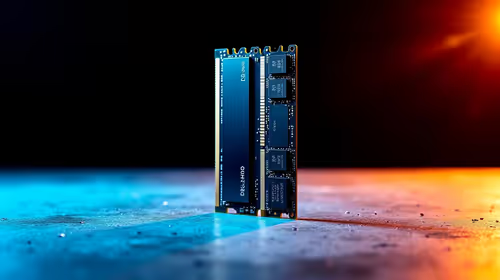
You just dropped thousands of ZAR on a top-tier rig. You boot it up... and hit a sudden blue screen. Few things are more frustrating than unexpected hardware crashes. If you are currently troubleshooting DDR5 stability issues on high-performance motherboards, take a deep breath. This new memory standard is incredibly fast but highly sensitive. Let us walk through the most common fixes to get your system running smoothly. 🚀
Start with the Motherboard BIOS
DDR5 technology is still maturing rapidly. Manufacturers release frequent updates to optimise memory compatibility. Before tweaking any settings, ensure your board is running the latest firmware. If you are shopping for an upgrade, browsing the latest motherboards ensures you get hardware with refined memory traces. Always flash your BIOS using a reliable USB drive. It is much safer and prevents mid-update software crashes.
Check XMP and EXPO Profiles
Pushing RAM beyond standard speeds requires extreme precision. When you enable XMP or EXPO, you are technically overclocking your system. Sometimes these default profiles push voltages too low for stability. If you experience random crashes, try manually bumping your DRAM voltage by 0.02v in the BIOS. This tiny adjustment often provides the stability your system craves.
Memory Training Pro Tip 🔧
When you first install new RAM or clear your CMOS, your system will take longer to boot. This is called memory training. Do not panic and restart the PC... let it run for a few minutes so the board can configure the optimal sub-timings.
Platform-Specific Quirks
Intel and AMD handle memory controllers quite differently. If you are running 13th or 14th Gen chips on ASUS Intel motherboards, you might find four-stick configurations particularly unstable. It is almost always better to run two high-capacity sticks rather than four smaller ones to reduce stress on the memory controller.
On the red team side, Ryzen 7000 series processors have a sweet spot of 6000MHz. Pushing beyond that limit on ASUS AMD motherboards often requires manually tuning the Infinity Fabric. Stick to the sweet spot for a simple plug-and-play experience.
Testing for Faulty Hardware
Sometimes the issue is not a BIOS setting at all. You might just have a bad module. To rule this out, you need to stress test your system thoroughly. Windows has a built-in Memory Diagnostic tool. It is a great starting point before moving to heavier third-party software. For deeper testing, download a free tool like MemTest86. Run the program overnight to check for underlying hardware errors.
If the software throws errors immediately, try testing one stick at a time. This isolation method helps you identify the exact culprit. Dealing with a dead module is annoying... but it gives you a clear path forward for a warranty claim.
Physical Installation and Thermals
DDR5 runs much hotter than older generations. High temperatures can quickly lead to system instability. Ensure your PC case has excellent airflow. If you are pushing extreme overclocks, consider adding active memory cooling. A dedicated RAM fan can drop temperatures significantly.
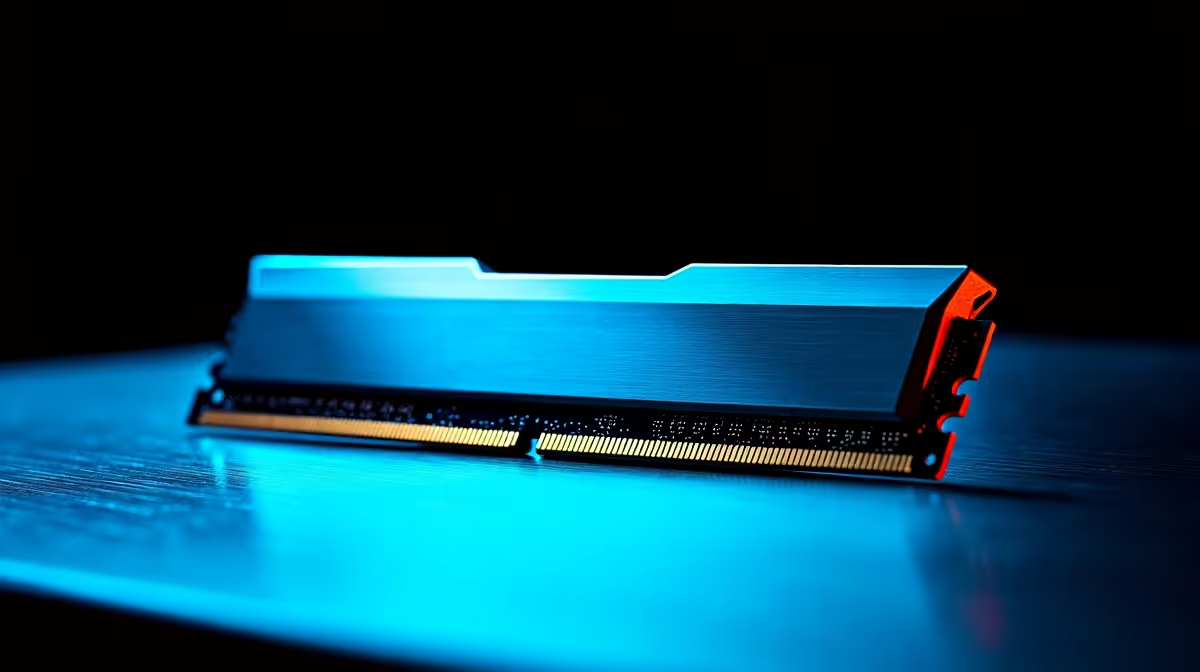
Also, double-check that your DDR5 memory kits are seated in the correct slots. This is usually slots two and four counting from the CPU.
If all this manual tuning sounds like a massive headache, you are not alone. Sometimes it is easier to let the experts handle the rigorous stress testing. You can always grab one of our pre-configured gaming PC deals that come fully optimised and tested out of the box. ✨
Ready to Upgrade Your Rig? Memory issues should never hold back your gaming experience. Whether you need a more stable motherboard or a blazing-fast RAM kit, Evetech has the best components in South Africa. Explore our massive range of PC components and build the ultimate system today.