

You just dropped a few thousand ZAR on a blazing-fast external drive or a stunning new screen. You plug it in... and nothing happens. Or worse, it disconnects mid-transfer. Troubleshooting USB4, high-speed peripherals and external display connectivity on desktop PCs can feel like a dark art. But do not stress. We are going to sort out those bandwidth bottlenecks and blank screens right now.
Mastering USB4 Bandwidth and Cables ⚡
USB4 is incredibly fast. It pushes up to 40Gbps of data. However, not all cables are created equal. If your premium mouse or external NVMe drive keeps dropping connection, check your cable first. Many standard cables only support charging or much lower data speeds. Always look for the official USB-IF certification logo.
If you are rocking one of our top-tier gaming desktop setups, ensure you plug directly into the motherboard rear I/O. Front panel ports often lack the bandwidth needed for ultra-fast gear. The rear ports connect directly to the motherboard chipset. This guarantees maximum stability for high-speed peripherals.
Fixing External Display Connectivity 🖥️
Blank screens are incredibly frustrating. When troubleshooting USB4 and external display connectivity, the main culprit is usually bandwidth allocation. USB4 shares data and video through one single pipe. If you are pushing pixels to high-resolution 4K or 5K displays, you absolutely need a premium active cable. Passive cables lose signal strength over longer distances.
Sometimes the fix is as simple as updating your graphics drivers. If you are shopping around to upgrade your visual experience, browsing through a reliable catalogue of monitors in South Africa is your best starting point. Just make sure your GPU supports DisplayPort Alternate Mode over USB-C. Without this feature, your desktop PC simply cannot send a video signal through that port.
Troubleshooting Pro Tip 🔧
Always update your motherboard chipset drivers and BIOS before blaming the hardware. Manufacturers frequently release patches to optimise USB4 stability and fix high-speed peripheral dropouts.
Software Tweaks for High-Speed Gear
Hardware is only half the battle. Windows can sometimes aggressively manage power to your USB ports. This causes your gear to disconnect unexpectedly. To fix this, open your Device Manager. Locate your USB Root Hubs. Right-click and dive into the power management tab. Uncheck the box that allows the computer to turn off the device to save power.
This simple tweak forces your desktop PC to supply constant power. It is a vital step when troubleshooting USB4, high-speed peripherals and external display connectivity on desktop PCs. Constant power delivery stops your capture cards from dropping out while you are streaming.
Managing Power Delivery and Hubs 🚀
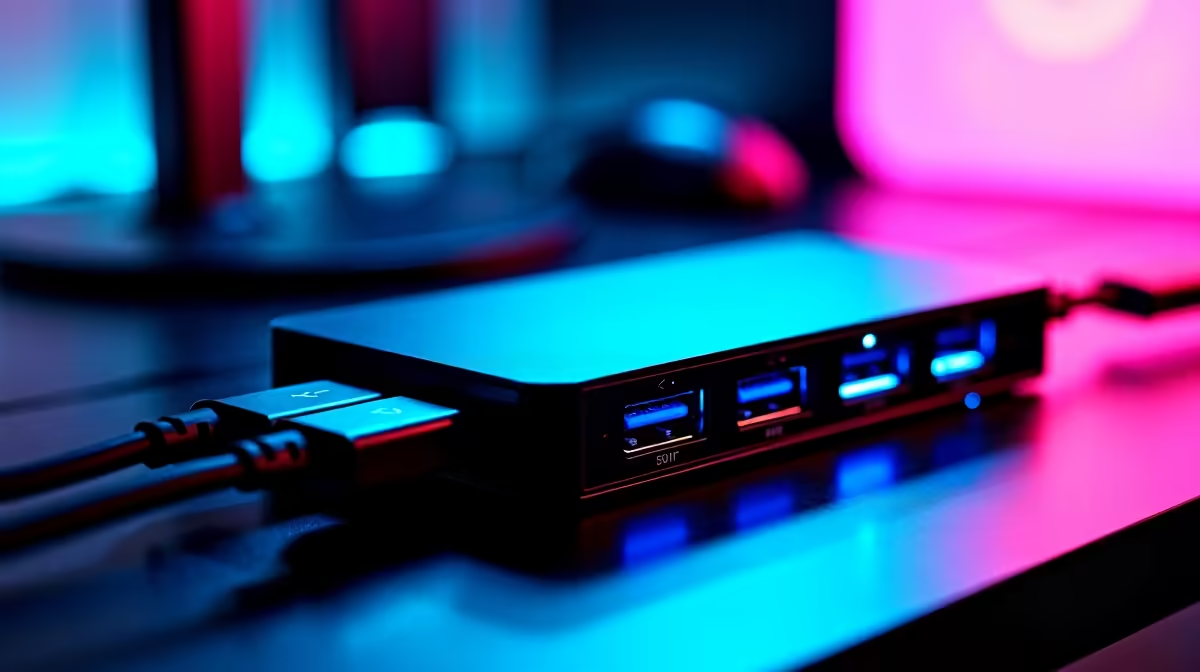
High-speed peripherals draw serious power. If you daisy-chain too many devices into a single unpowered hub, your system might cut the connection. It does this to protect the motherboard from power surges. Always use a dedicated, powered USB4 hub if you run multiple demanding accessories.
Keep an eye out for daily tech specials if you need a dedicated dock or an upgraded power supply. Distributing the load prevents those annoying random disconnects during intense gaming sessions. Proper power management is crucial for a stable system.
When you balance your bandwidth and power correctly, your desktop becomes an absolute powerhouse. Taking the time to configure your ports properly ensures your gear performs exactly as advertised.
Ready to Upgrade Your Setup? Stop battling with outdated ports and slow transfer speeds. If you want maximum power and seamless connectivity in South Africa, we have exactly what you need. Explore our massive range of PC specials and find the perfect machine to conquer your world.











