Are your games stuttering? External drive transfers taking ages? It’s a common frustration for many South African PC users, often stemming from a simple misunderstanding of your PC’s most ubiquitous ports. We’re talking about USB-A 3.0 vs USB-A 2.0, and knowing the difference isn't just about faster file copies—it's about optimising your entire setup for peak performance.
The Speed Difference: USB-A 3.0 vs USB-A 2.0 Explained ⚡
At a glance, those rectangular USB ports on your PC might look identical. But beneath the surface, there's a world of difference in their capabilities, particularly when we talk about USB-A 3.0 vs USB-A 2.0. The primary distinction lies in data transfer speed.
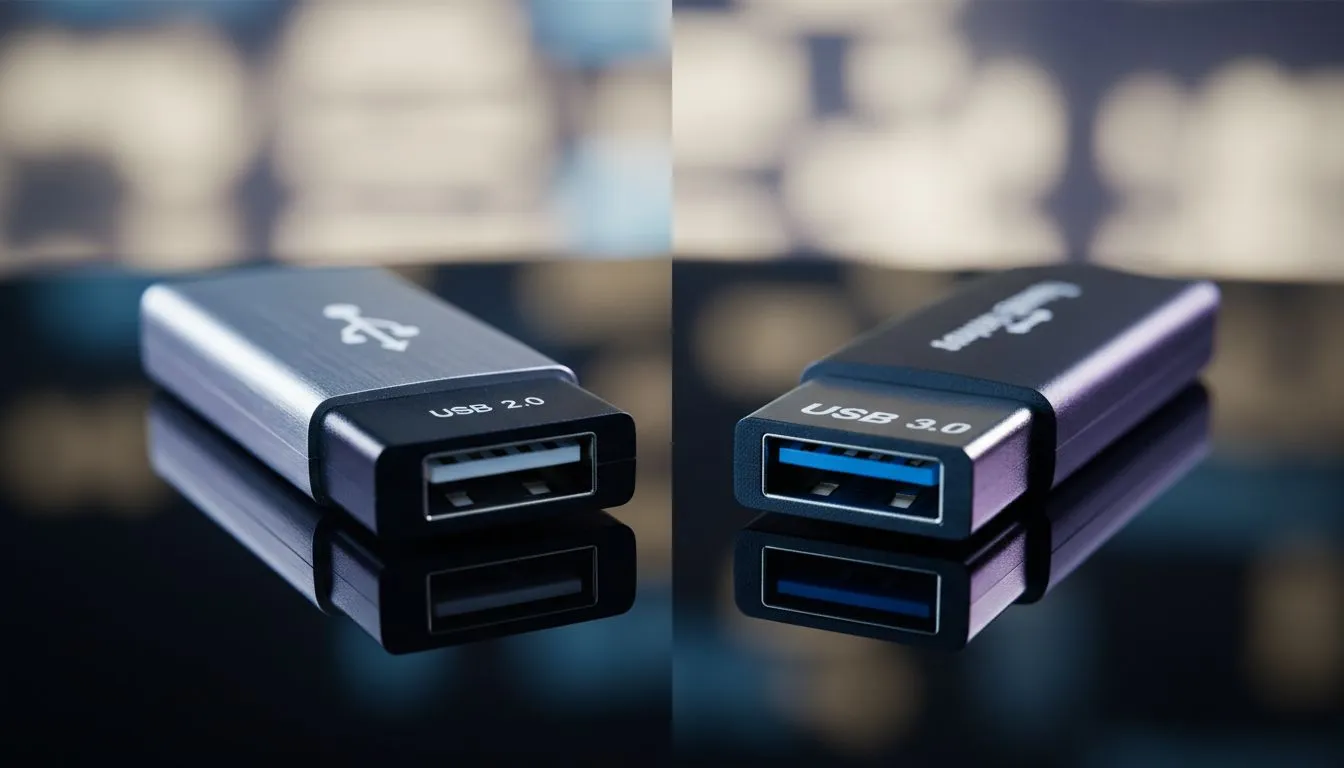
- USB-A 2.0 (High-Speed): Maxes out at a theoretical 480 Megabits per second (Mbps). Think of it as the reliable old bakkie—it gets the job done, but not in a hurry. These ports are often black or white internally.
- USB-A 3.0 (SuperSpeed): Kicks things up a notch, offering a theoretical 5 Gigabits per second (Gbps)—that’s more than 10 times faster than USB 2.0! This is your sports car, built for speed and efficiency. USB 3.0 ports are typically identifiable by their blue internal plastic, though some manufacturers use red, yellow, or even green.
This speed isn't just a number; it translates directly into your daily computing experience, especially for gamers and content creators.
Why Speed Matters Beyond File Transfers
While faster backups are great, the debate of USB-A 3.0 vs USB-A 2.0 impacts more than just moving files. Consider these scenarios:
- Gaming: High-end external SSDs used for game libraries benefit immensely from USB 3.0, reducing load times. VR headsets and high-fidelity webcams for streaming also demand the extra bandwidth to prevent lag and ensure smooth operation.
- Content Creation: Editing 4K video directly from an external drive or capturing high-res audio via an interface requires the sustained throughput of USB 3.0 to avoid dropped frames or audio glitches.
- Peripheral Performance: Even seemingly simple devices like external sound cards or multi-input hubs can perform better with the increased bandwidth, ensuring every component gets the data it needs without bottlenecking.
Which Devices Truly Need USB 3.0?
When considering USB-A 3.0 vs USB-A 2.0, assigning the right device to the right port is key. Prioritise your USB 3.0 ports for:
- External SSDs and High-Speed HDDs: For rapid game loading, large file transfers, or running operating systems off external drives.
- High-Resolution Webcams & Capture Cards: Essential for streamers and content creators needing uncompressed video feeds.
- VR Headsets: To ensure smooth, low-latency experiences.
- USB 3.0 Hubs and Docking Stations: If you need to expand your high-speed connectivity, connect a quality docking station under R2000 to a USB 3.0 port.
- Fast USB Flash Drives: Especially useful for transferring large project files or game installers.
Port Identification Pro Tip 🔧
Look closely at the plastic insert inside your USB-A ports. Blue usually means USB 3.0 (or newer). Black or white typically indicates USB 2.0. Some manufacturers use red or yellow for always-on charging ports or other specific functions, but blue is the most common indicator for SuperSpeed.
When USB 2.0 Is Still Good Enough ✨
Don't underestimate USB 2.0; it still has a vital role in your setup. These ports are perfectly adequate for devices that don't require high bandwidth, freeing up your precious USB 3.0 ports for more demanding tasks.
- Keyboards and Mice: These peripherals send minimal data, so USB 2.0 is perfectly fine.
- Printers and Scanners: Most home office devices won't benefit from USB 3.0 speeds.
- Game Controllers: Wired controllers typically don't demand the bandwidth of USB 3.0.
- Charging Cables: For charging smartphones or other gadgets, as long as the port provides enough power, the data speed is irrelevant.
- Low-Speed USB Hubs: If you just need more ports for basic devices, a budget-friendly docking station under R1000 connected to a USB 2.0 port can be ideal for expanding connectivity for non-critical peripherals.
Optimising Your Setup: The Right Port for the Job 🚀
Understanding the difference between USB-A 3.0 vs USB-A 2.0 empowers you to make smarter choices for your rig. By strategically plugging in your devices, you can eliminate bottlenecks, enhance performance, and ensure a smoother, more responsive computing experience.
If your motherboard or laptop is short on the right type of ports, don't despair! A quality USB hub or docking station can be a game-changer. Whether you're looking for a general docking station to manage all your peripherals or eyeing a specific Promate docking station for robust connectivity, Evetech has a range of solutions to expand your high-speed options. Making the right choices about where your devices belong can truly transform your daily tech interactions.