

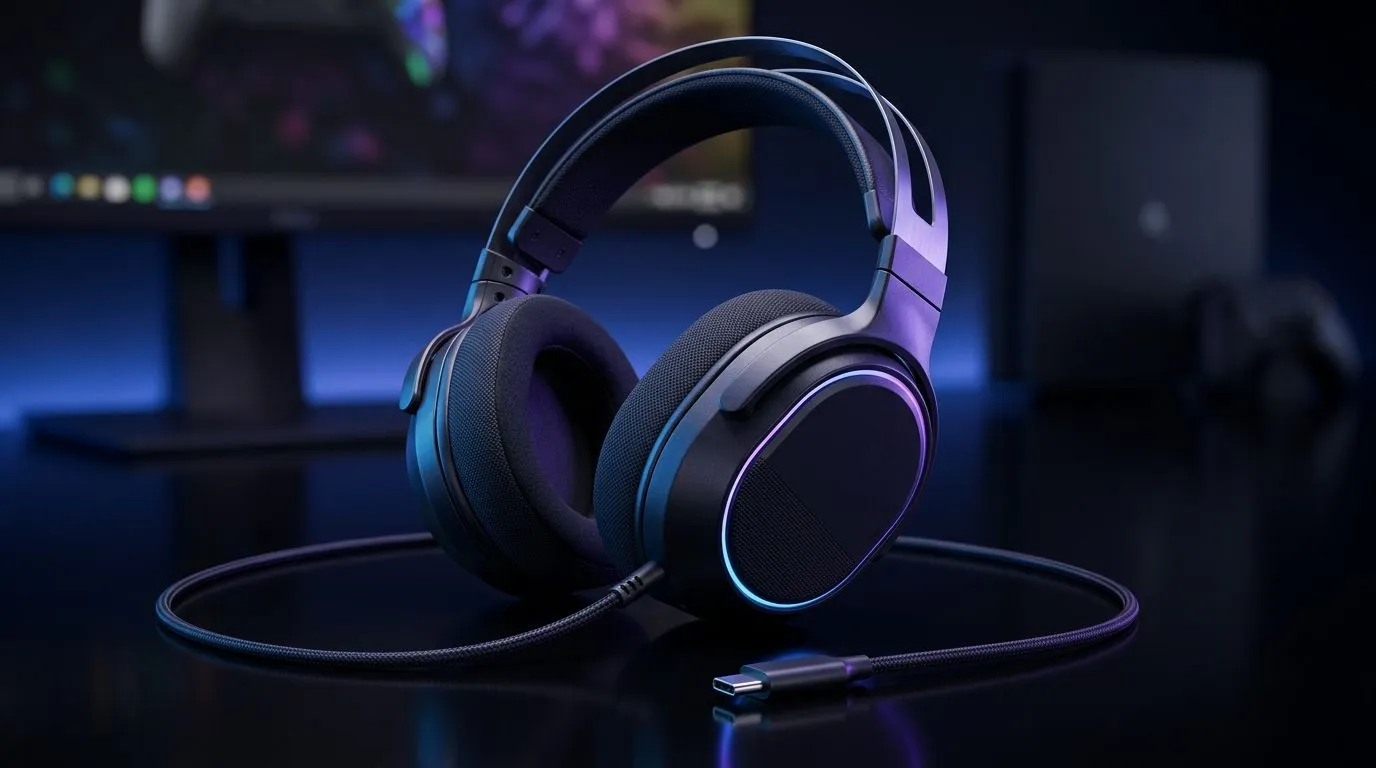
How to Set Up a USB-C Gaming Headset for PC and Console
A USB-C gaming headset should be simple. Plug it in, pick the right audio mode, and jump into the match. Yet many South African gamers still wrestle with silent mics, wrong output devices, or a console that refuses to recognise the headset. If that sounds familiar, you’re in the right place. A few quick checks can save you frustration... and maybe your evening raid 🔧
USB-C gaming headset setup basics for PC and console
USB-C carries digital audio, so setup usually starts with one thing: making sure the device supports the way you want to use it. Some headsets work directly through USB-C on PC. Others need a USB-C to USB-A adapter, or a console-specific dongle. Always check the headset’s official specs before you buy. If you’re browsing options, Evetech’s Razer headset range is a useful place to compare features and fit.
On PC, Windows will often detect the headset automatically. On PlayStation and Nintendo Switch, support depends on the headset’s connection method and whether it uses a USB wireless adapter or native USB audio. For Xbox, compatibility can be more limited, so verify the product page carefully. Reputable manufacturer support pages are best for confirmation.
How to set up a USB-C gaming headset on PC
Start with the physical connection.
- Plug the headset directly into a USB-C port if available.
- If you’re using an adapter, connect it firmly and avoid loose hubs.
- Wait for Windows to install any drivers automatically.
- Open Sound Settings and select the headset as both output and input if needed.
- Test the mic in the Sound Control Panel or Windows voice settings.
If the headset is not showing up, try another USB port. Front-panel ports can sometimes be less stable than rear motherboard ports. Also check whether the headset has a companion app for EQ, sidetone, or mic monitoring. Those settings can make a cheap-sounding headset feel premium without changing hardware.
Quick Windows check
If audio plays but the mic is dead, the issue is often privacy permissions. Go to Windows microphone settings and allow app access. It’s a small step, but it solves more problems than people expect ⚡
Quick Setup Tip ⚡
Before you troubleshoot anything, test the headset on a second device. If it works on your phone or laptop, the problem is usually software, not the headset itself.
How to set up a USB-C gaming headset on PlayStation, Switch, and other consoles
Console setup is usually faster, but the rules are stricter.
PlayStation
Plug the headset or USB wireless dongle into a free USB port. Then open audio settings and confirm the output device. If the headset includes a mic, make sure input is set correctly too.
Nintendo Switch
For docked play, USB audio is supported on many headsets through the dock. Handheld mode is more limited, so check whether your headset supports direct USB-C input or needs an adapter.
Xbox
This is where you should slow down and read the product page. Not every USB-C headset is fully supported on Xbox consoles. Some work only through 3.5 mm, specific wireless dongles, or licensed accessories. For a wider selection of accessories and fit options, browse Evetech’s headphones and headsets category.
USB-C gaming headset troubleshooting tips
If your USB-C gaming headset is connected but still not working, try this order:
1. Check the cable and port
A damaged cable, loose adapter, or dusty port can break the connection. USB-C looks reversible, but it still needs a clean, secure fit.
2. Confirm the selected device
Both PC and console can default to another audio device. That happens a lot after a Windows update or when multiple peripherals are connected.
3. Restart with the headset plugged in
Some devices only detect the headset during boot or sign-in.
4. Update firmware or drivers
If the manufacturer offers firmware updates, install them. This can fix mic detection, audio balance, and connectivity quirks. Use the official support page for the headset brand.
5. Test without extra accessories
Docking stations, USB hubs, and cheap splitters can cause power or recognition issues. Go direct first, then add accessories later.
Choosing the right USB-C gaming headset for your setup
Not every headset suits every player. A PC-first gamer may want software control, virtual surround support, or a clear mic for Discord. Console players may care more about plug-and-play ease and long-session comfort.
If you’re comparing a popular model, the Razer Barracuda X Chroma wireless headset in Phantom White is worth a look for gamers who want a neat, modern setup. Always check the official product page for the latest features, included cables, and compatibility notes before buying.
A good rule? Buy for your main device first. Cross-platform support is a bonus, not a guarantee.
USB-C gaming headset setup summary for South African gamers
The fastest way to avoid headaches is simple: confirm compatibility, connect directly where possible, set the correct input and output, then test voice and game audio separately. That approach works whether you’re gaming on a PC in Johannesburg, a console in Cape Town, or a laptop setup anywhere in between.
A little patience at the start saves a lot of confusion later. And if you’re upgrading, choose a headset that matches your actual playstyle, not just the box claims.
Ready to Find Your Perfect Match? The Mac vs Windows debate is complex, but for maximum power, choice, and value in South Africa, Windows is hard to beat. Explore our massive range of laptop specials and find the perfect machine to conquer your world.











