

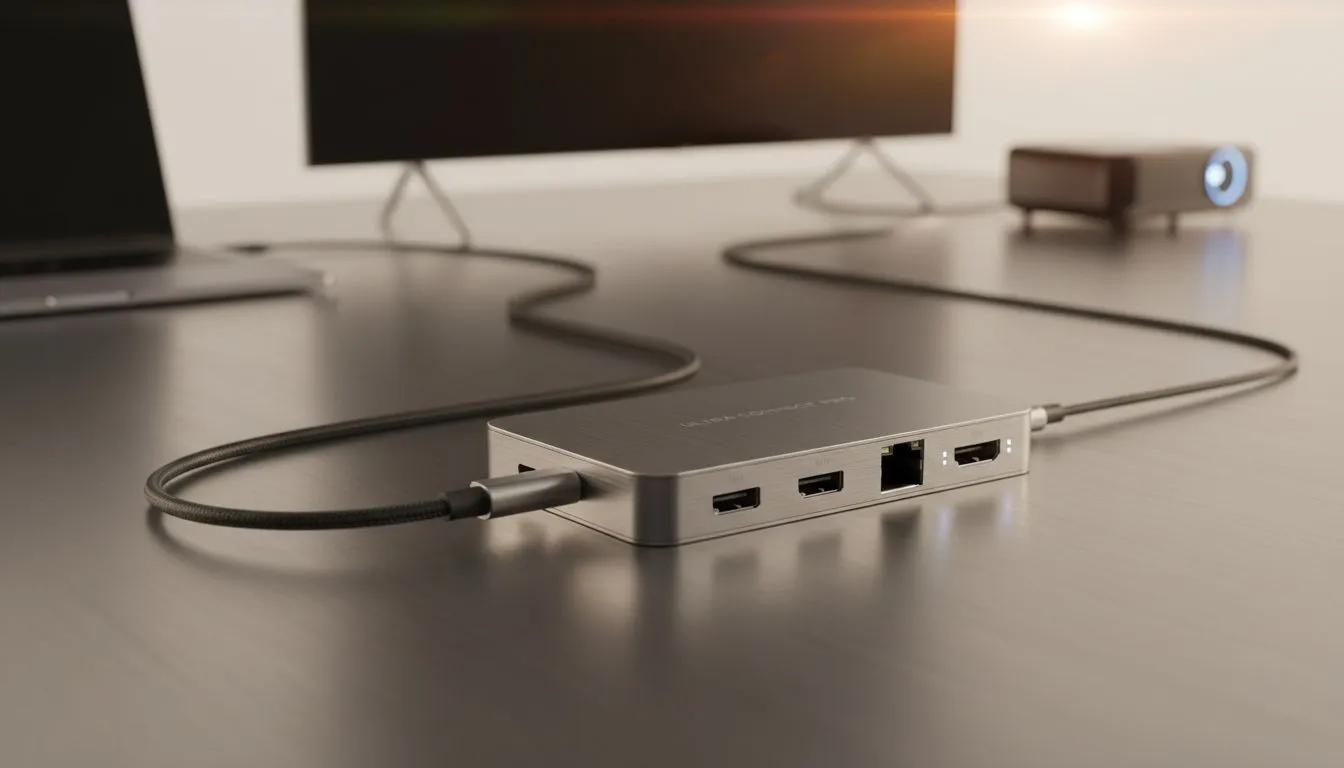
Tired of squinting at your laptop screen for that epic gaming session or crucial work presentation? Imagine effortlessly beaming your display onto a massive TV or projector. With the right USB-C HDMI hub, it’s not just possible... it’s plug-and-play simple. This tiny gadget is the key to unlocking a bigger, better viewing experience for everything from Apex Legends championships to boardroom pitches, right here in South Africa. 🚀
Why a USB-C HDMI Hub is Your New Best Friend
Modern laptops are sleek and powerful, but they often come with a frustrating trade-off: fewer ports. If your machine relies on USB-C, you've probably faced the challenge of connecting to older displays that use HDMI. A USB-C HDMI hub bridges this gap perfectly.
It’s more than just an adapter; it's a central docking station that expands your laptop's capabilities. With one compact device, you can output high-definition video, connect peripherals, and sometimes even charge your laptop simultaneously. It simplifies your setup, reduces cable clutter, and makes you ready for any display, anywhere. This kind of versatility makes it one of the most essential PC components for any modern setup.
How to Connect Your Laptop to a TV or Projector
Getting your laptop's screen onto a larger display is incredibly straightforward. There's no complex software to install... just a few simple steps.
Your Step-by-Step Guide 🔧
- Plug It In: Connect the USB-C HDMI hub to a compatible USB-C port on your laptop. This port usually has a lightning bolt (Thunderbolt) or "DP" (DisplayPort) symbol next to it.
- Connect the Display: Plug one end of a standard HDMI cable into the hub’s HDMI port and the other end into your TV or projector.
- Switch Input: Use your TV or projector’s remote to select the correct HDMI input channel (e.g., HDMI 1, HDMI 2).
- Configure Your Display: Your laptop should automatically detect the new screen. You can choose to either "Mirror" your display (showing the same thing on both screens) or "Extend" it (using the second screen as extra desktop space).
You can often find surprisingly good deals on gaming accessories, including high-quality hubs and cables, so keep an eye out for specials.
Display Shortcut Pro Tip ✨
On Windows, press the Windows Key + P to instantly bring up the project menu. This lets you quickly switch between PC screen only, Duplicate (Mirror), Extend, and Second screen only without digging through settings. It's a lifesaver for presentations!
Choosing the Right USB-C Hub for Your Needs
Not all hubs are created equal. To find the perfect one, consider what you’ll be using it for.
- For Gamers: Look for a hub that supports 4K resolution at a 60Hz refresh rate (4K@60Hz). This ensures smooth, fluid motion, which is critical for fast-paced games. A lower 30Hz refresh rate is fine for movies or presentations but can feel choppy in-game.
- For Professionals: If you're giving presentations, a reliable 1080p or 4K@30Hz hub is usually more than enough. Prioritise hubs with extra ports, like USB-A for your wireless mouse presenter and an Ethernet port for a rock-solid internet connection.
- Power Delivery (PD): A hub with a USB-C Power Delivery port is a massive bonus. It allows you to plug your laptop's charger into the hub, which then passes power through to charge your laptop while still being connected to the display.
Thinking about what you need beyond video output will help you select a device that truly enhances your workflow. Check out our full range of gaming accessories to see the different types of hubs available.
Ready to Unlock Your Laptop's Full Potential? A simple hub can transform your setup from a single screen to a multi-display powerhouse. Explore our massive range of PC accessories and find the perfect hub to connect your world.











