

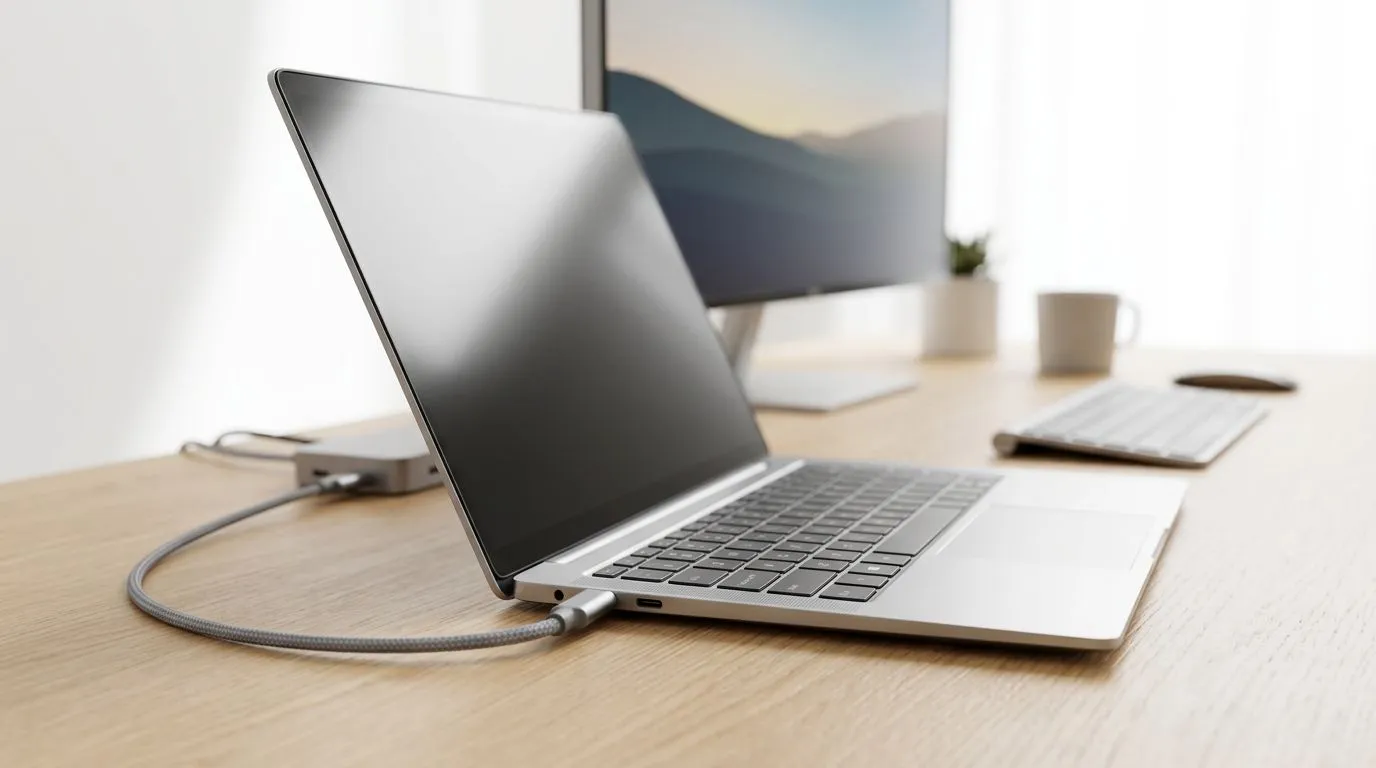
USB-C Power Delivery Setup: Simplify Your Ultrabook Workstation (South African Edition) ⚡
If you work from home or live in “game + study” mode, your laptop charger should not be a mystery box. In South Africa, power cuts, long commutes, and bag-carry life make one thing essential… USB‑C Power Delivery that actually delivers. ⚡
This guide walks you through a safe, practical USB-C Power Delivery Setup: Simplify Your Ultrabook Workstation so you can power, charge, and keep your ultrabook stable. No guesswork. No expensive mistakes.
USB-C Power Delivery Setup: Simplify Your Ultrabook Workstation starts with the basics ✨
USB‑C is the connector. Power Delivery (PD) is the negotiation. Together, they can move serious wattage, but only when the charger and the laptop agree.
Here’s the mental checklist before you buy anything:
Confirm the laptop’s PD requirements
Look for the charger wattage your ultrabook normally uses (often shown near the original adapter). You want a USB‑C PD charger that can provide at least that wattage. If you underpower it, the laptop might still run… but charging can be slow, intermittent, or stop under load.
Match the charger to your use case
- Office + browsing + light work: 45W or 65W PD is often enough.
- Heavy multitasking: aim for higher wattage if your ultrabook original adapter is beefier.
- Travel bag setup: one charger for laptop and peripherals beats hauling a “charger graveyard”.
Use the right cable… because cables matter
Even with the correct charger, an under‑spec cable can cap performance. Pick a USB‑C cable that supports the wattage you need. If you’ve ever noticed “it charges… but not really,” you’ve likely found the culprit.
Productivity Pro Tip ⚡
On Windows, use the PowerToys FancyZones utility to create custom snap layouts for your windows. It's a lifesaver for managing multiple apps on an ultrawide monitor, letting you organise your timeline, preview window, and asset folders perfectly for video editing.
USB-C Power Delivery Setup: Simplify Your Ultrabook Workstation with real-world stability 🔧
Let’s make this practical. Imagine you’re editing footage after hours and your laptop is set to “Balanced.” Then you plug in USB‑C PD and everything seems fine… until render starts and battery charging stalls.
That scenario is common when wattage or profiles don’t line up. The fix is simple:
Step-by-step: dial it in
- Start with a full charge (so you can see what changes).
- Plug in via USB‑C and check if charging shows normally.
- Run your heaviest workflow for 10 to 15 minutes.
- Item
Power settings reduce “mystery drain”
On Windows, set the plan to a sensible mode. When the laptop tries to throttle performance while also charging, the experience can feel inconsistent. Keep it aligned with your real workload.
Where to start shopping in SA: laptops that make USB‑C PD worthwhile 🚀
Not all ultrabooks are equal in how they handle USB‑C charging. If you’re upgrading, it helps to shortlist laptops that match your travel and power reality.
If you want to browse options right now:
- Explore Intel ultrabook deals here: Intel laptops on special
- Check out Ryzen laptop options here: Ryzen laptop deals
- If you’re also gaming part-time, browse: best gaming laptop deals
- Working to a budget? Look at: buy gaming laptops under R20k
- For RTX-focused picks: GeForce RTX gaming laptops on special
Even if you’re not shopping today, scanning specs helps you see what chargers and ports each model leans on. That reduces “surprise” compatibility problems later.
USB-C Power Delivery Setup: Simplify Your Ultrabook Workstation (Quick checklist) ✅
Before you commit to a USB‑C PD setup, confirm:
- Charger wattage meets or exceeds your laptop’s original adapter needs.
- USB‑C cable rating supports that wattage.
- You can charge under load (not just while idle).
- Your Windows power plan supports your workflow smoothly. 😉
If you want the cleanest experience, buy one charger you trust and standardise your cable. Your future self will thank you… especially during load shedding weeks.
Ready to Find Your Perfect Match? The Mac vs Windows debate is complex, but for maximum power, choice, and value in South Africa, Windows is hard to beat. Explore our massive range of laptop specials and find the perfect machine to conquer your world.











