

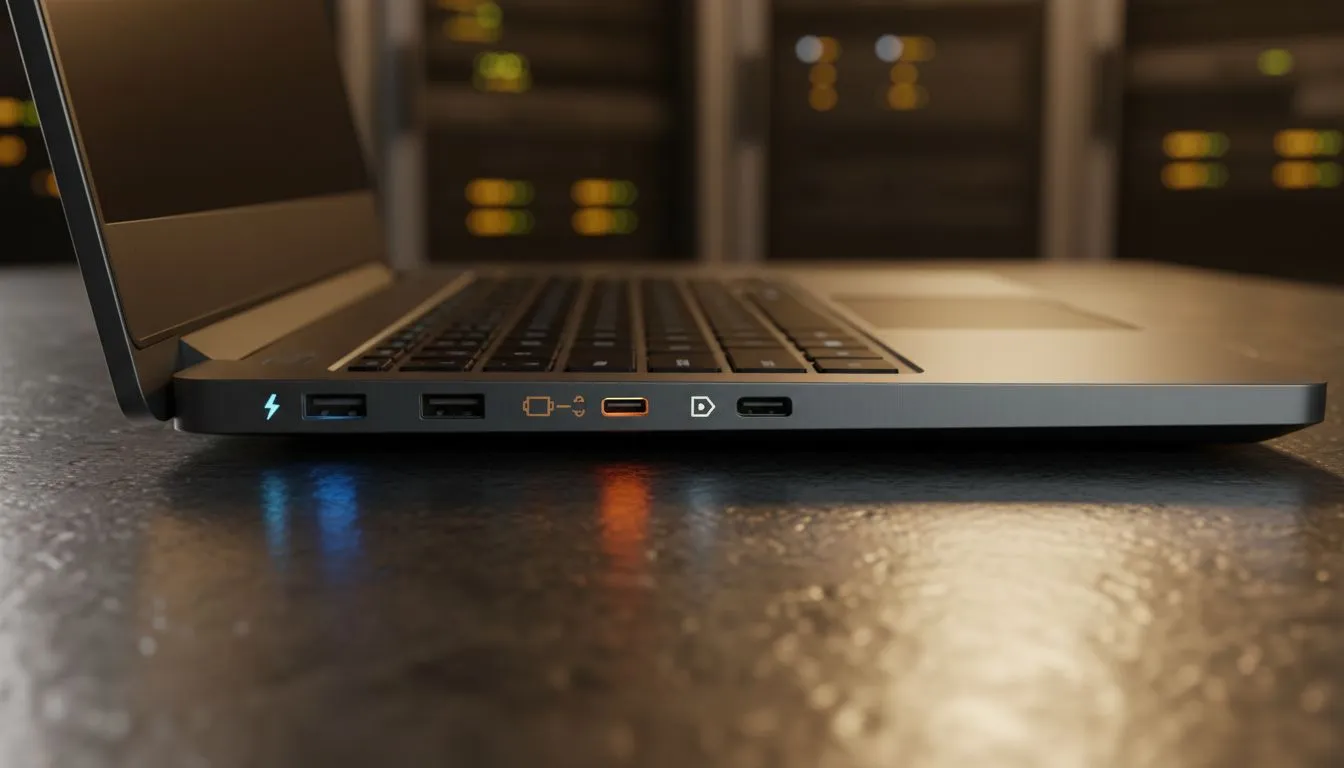
Ever stared at your sleek new laptop, a tangle of cables threatening to overwhelm your desk, and wondered which port does what? You're not alone, boet. Modern laptops, especially those designed for performance and portability, often feature a single, versatile connector that can handle everything from charging your device to powering multiple monitors. But what exactly is the difference between USB-C vs Thunderbolt, and how does it impact data transfer and charging on your laptop? Let's unpack it.
Unpacking USB-C: The Versatile Connector for Laptops 🔌
At its core, USB-C is a physical connector standard. Think of it as the shape of the plug. It’s reversible, meaning there's no "wrong" way to plug it in – a minor miracle for anyone who's fumbled with older USB-A ports in the dark. But beyond its convenient form factor, USB-C is a powerhouse of versatility.
It supports a range of underlying protocols, making it capable of:
- Data Transfer: Depending on the USB standard it implements (like USB 3.2 Gen 2x2), it can move data at speeds up to 20 Gbps.
- Power Delivery (PD): Most USB-C ports can deliver significant power, often up to 100W (and sometimes more with specific hardware), meaning it can charge many laptops, smartphones, and tablets.
- Video Output: Through 'DisplayPort Alternate Mode' (Alt Mode), a USB-C port can output video to external monitors.
Essentially, a USB-C port is a multi-tool for your laptop, but its actual capabilities depend on the specific USB standard it adheres to.
Thunderbolt Explained: When Speed and Power Collide ⚡
Now, imagine taking the versatility of USB-C and cranking it up to eleven. That's Thunderbolt. Developed by Intel (and initially with Apple), Thunderbolt is a technology that uses the USB-C connector but offers significantly enhanced capabilities. While all Thunderbolt ports use a USB-C connector, not all USB-C ports are Thunderbolt. It's like how all squares are rectangles, but not all rectangles are squares.
Key features of Thunderbolt (specifically Thunderbolt 3 and 4, which use USB-C):
- Blazing Data Speeds: Thunderbolt 3 and 4 boast a phenomenal 40 Gbps bandwidth. That’s twice the speed of the fastest USB 3.2 Gen 2x2 and four times that of USB 3.2 Gen 1. This means transferring massive game files, 4K video projects, or large datasets happens in a flash.
- Daisy-Chaining: A unique advantage is the ability to daisy-chain multiple devices (like external GPUs, storage arrays, or monitors) from a single port, simplifying your setup.
- Power Delivery: Like USB-C, Thunderbolt supports Power Delivery, often with robust wattage capabilities, making it ideal for charging high-performance laptops and powering peripherals simultaneously.
- Display Output: Thunderbolt 3 and 4 can drive two 4K displays at 60Hz or a single 8K display, making it a dream for multi-monitor setups.
USB-C vs Thunderbolt: Decoding Data vs Charging on Laptops
This is where the rubber meets the road for understanding your laptop's capabilities. The fundamental difference between USB-C vs Thunderbolt lies in their underlying protocols and, consequently, their performance ceilings for both data and charging.
- Data Transfer: If your laptop has a plain USB-C port, its data speed will typically range from 5 Gbps (USB 3.2 Gen 1) to 20 Gbps (USB 3.2 Gen 2x2). A Thunderbolt port, however, consistently delivers 40 Gbps, making it the undisputed champion for high-speed external SSDs, eGPUs, and other bandwidth-hungry peripherals.
- Charging on Laptops: Both can charge your laptop via Power Delivery. However, Thunderbolt often guarantees higher wattage support and better efficiency when powering multiple devices through a docking station. A standard USB-C port might only deliver 15W, while a Thunderbolt port on a powerful gaming laptop could easily provide 100W or more. Always check your laptop's specifications.
- Versatility & Connectivity: While a USB-C port might handle a single external monitor and charge your phone, a Thunderbolt port can power a complex setup: dual 4K monitors, an external GPU, a high-speed SSD, and charge your laptop – all through a single cable connected to a docking station.
Why This Matters for South African Gamers & Professionals ✨
For anyone juggling multiple peripherals, external drives, and monitors, especially in South Africa where efficient setups help manage power usage during load shedding, understanding your ports is crucial.
Imagine this: You're a content creator editing a 4K video, or a gamer wanting to expand your battle station with extra screens and peripherals. A single, powerful port like Thunderbolt, combined with a versatile docking station, transforms your laptop into a full desktop workstation. It means less cable clutter, faster workflows, and the ability to connect everything from your gaming mouse and keyboard to external storage and high-resolution monitors with ease.
Looking for a docking station that can handle your demanding setup? Evetech offers a wide selection, from affordable docking station options under R1000 for basic expansion to more feature-rich docking stations under R2000 that unlock the full potential of Thunderbolt. For reliable peripherals, you might also want to explore Promate docking stations, known for their quality and compatibility.
Productivity Pro Tip ⚡
When choosing a docking station, always check its power delivery capability and the number type of display outputs. If your laptop has a Thunderbolt port, invest in a Thunderbolt-compatible dock to leverage its full 40 Gbps speed and multi-display support. It’s a game-changer for a clean, powerful setup.
Making the Right Choice: Your Laptop's Ports and Your Needs
So, how do you know what you have? Look for the lightning bolt symbol next to your USB-C port – that's the tell-tale sign of Thunderbolt. If it's not there, you likely have a standard USB-C port.
When considering a new laptop or upgrading your workstation, think about your workflow:
- Casual User: A standard USB-C port might be perfectly adequate for charging your laptop and connecting a single external display or USB drive.
- Prosumer/Gamer/Creator: If you regularly transfer large files, run multiple high-resolution monitors, or use external GPUs, a laptop with Thunderbolt ports and a matching docking station is a worthwhile investment. It truly enhances the capabilities of your machine, making it a central hub for all your peripherals.
Understanding the difference between USB-C vs Thunderbolt, especially concerning data and charging on laptops, empowers you to make smarter tech decisions. Don't let port confusion slow you down.
Ready to Power Up Your Setup? Whether you need to streamline your cables, expand your display options, or simply get more out of your laptop, a docking station is the answer. Explore Evetech’s full range of docking stations and find the perfect hub to connect your world.











