

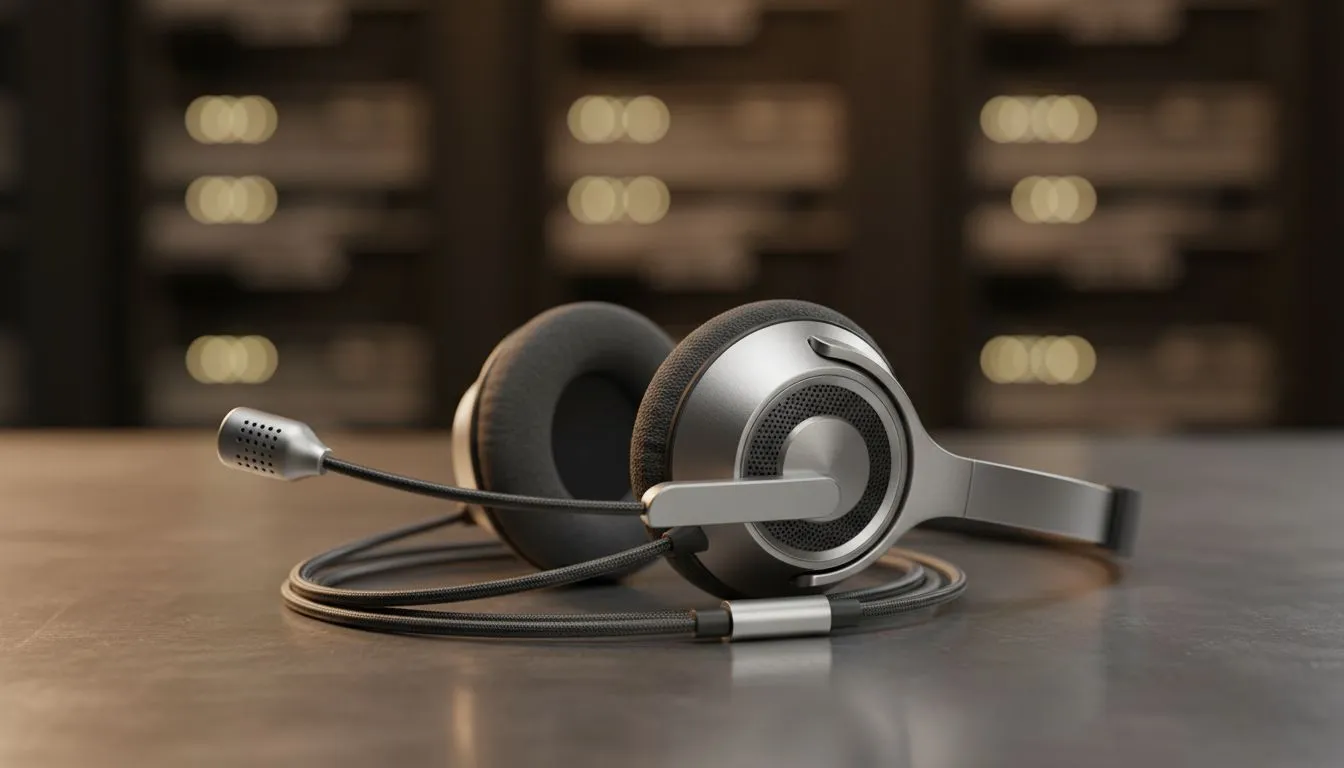
Troubleshooting Your USB Headset on Mac: Fix Sound Output & Mic Input
Plugging in a high-end headset should be a simple process. Yet, many South African gamers find their Mac stays silent after connecting. Whether you are grinding in a creative suite or hopping onto a quick call, audio glitches are a massive pain. If you need to use a USB headset on Mac and fix sound output & mic input issues, you are in the right place. 🔧
Optimise Your macOS Sound Settings
The most common reason for silence is that macOS has not automatically switched the default device. When you connect a new peripheral, the system might stay stuck on the internal speakers. To fix this, head to System Settings and select the Sound menu.
Under the Output tab, manually click on your device. If you have recently picked up one of the latest Razer headphones and headsets, you want that signature audio immediately. Ensure the volume slider at the bottom is not muted. Many users overlook this simple step... it happens to the best of us.
Audio MIDI Pro Tip ⚡
If your headset sounds "tinny" or distorted, open the Audio MIDI Setup app in your Utilities folder. Ensure the sample rate matches your headset's native frequency... usually 44.1 kHz or 48.0 kHz. This often resolves weird robotic noises in Discord or Zoom calls instantly.
Solving Microphone Input Hurdles
Getting your voice heard is just as important as hearing the game. If your teammates cannot hear you, the input settings likely need a nudge. Within the same Sound menu, click the Input tab and select your USB device.
For those using the Razer Barracuda X Chroma Wireless Headset Phantom White, ensure the physical mute button on the ear cup is not engaged. macOS also has strict privacy settings. Go to System Settings, then Privacy & Security, and find Microphone. Ensure the application you are using... like Discord or Teams... has permission to access your audio. ⚡
Check Hardware Connections and Hubs
Sometimes the issue is not software. If you use a USB-C hub, it might not provide enough power for high-performance gear. Try connecting your headset directly to the Mac port if possible. Browsing a wide range of headphone and headsets is the easy part... getting them to talk to macOS is where the work begins.
Check for any debris in the port. Dust can prevent a clean connection in our South African climate. If the device still does not show up, try a quick NVRAM/PRAM reset on older Intel Macs... or simply restart your Apple Silicon machine. This often clears the hardware communication cache. ✨
Ready to Find Your Perfect Match? The Mac vs Windows debate is complex, but for maximum power, choice, and value in South Africa, having the right gear is essential. Explore our massive range of headphone and headsets and find the perfect machine to conquer your world.











