

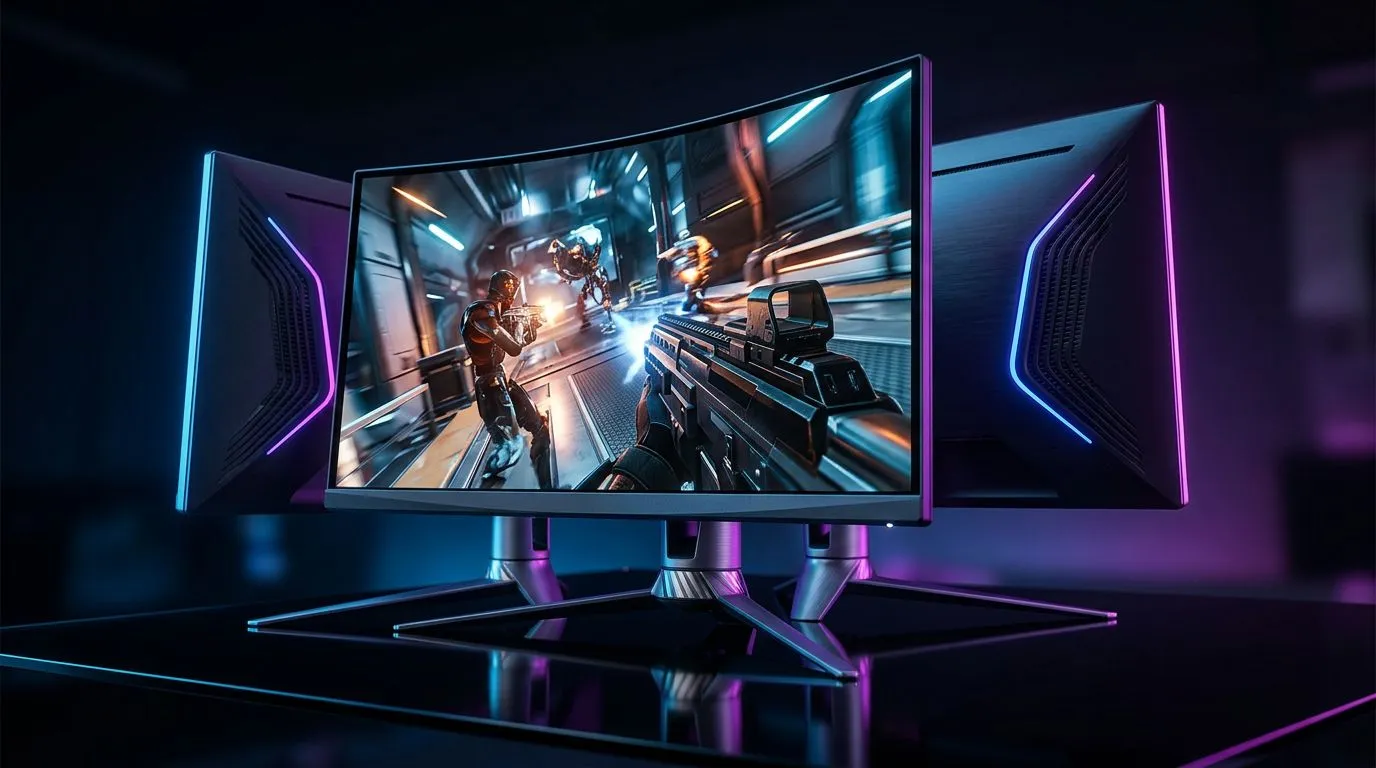
AMD FreeSync Premium Explained for South African Gamers: Less Stutter, Smoother Fights ⚡
If your frame rate dips during firefights or your screen “tears” mid-rush, you’ve felt it. It’s frustrating, especially in ranked matches on a tight schedule. The good news? A lot of those issues are monitor-side, not just PC-side. AMD FreeSync Premium is one of the most common answers you’ll see on gaming monitor listings in South Africa… and it’s worth understanding before you buy.
In this guide, we break down What Is AMD FreeSync Premium? Essential Gaming Monitor Tech Explained in plain language, so you can match features to your PC (and your budget in ZAR).
What Is AMD FreeSync Premium? The Core Monitor Tech 🔧
AMD FreeSync Premium is a technology that helps your monitor and AMD-compatible graphics hardware stay in sync. Instead of the monitor refreshing at a fixed rate, it can adjust refresh timing to match what the GPU is outputting. That reduces two common problems:
- Stutter: Frames arrive unevenly, and the monitor displays them at the wrong moments.
- Screen tearing: Parts of two frames can show at once when updates don’t line up.
For official details, AMD describes FreeSync as adaptive sync built to reduce tearing and stutter, and FreeSync Premium includes extra safeguards for gaming. You can review AMD’s FreeSync Premium information on the AMD website: https://www.amd.com/en/products/graphics/technology/freesync.html
How it works (without the maths)
Your GPU renders frames. Normally, the monitor refreshes on its own schedule. With FreeSync Premium, the monitor waits for the GPU’s frame timing and updates accordingly. The result is smoother motion, especially in real-world gameplay where frame rates are rarely perfectly stable.
The “Premium” part: why it matters
FreeSync Premium is not just “adaptive sync.” Premium is targeted at gamers and includes additional requirements around low frame rate behaviour and smoother transitions. For buyers, that generally means more consistent gameplay across a wider range of FPS swings.
AMD FreeSync Premium vs “FreeSync” vs “Compatible”: What should you look for? ✨
You’ll see multiple labels in listings, and it’s easy to assume they’re identical. Here’s a practical way to compare without getting lost in marketing:
- FreeSync Premium: Typically aimed at gaming with added low-FPS focus.
- FreeSync (non-Premium): Can still reduce tearing, but the “Premium” guarantees are stronger.
- FreeSync “Compatible”: Works in many cases, but expectations are less uniform.
If you’re shopping in Evetech’s monitor categories, you’ll often find multiple refresh rate options side by side. Use the filters, then confirm the exact adaptive sync spec on the product page before you pay.
Useful starting points to browse categories:
- Check deals and bundles in best PC monitor deals: https://www.evetech.co.za/best-pc-monitor-deals/x/047.aspx
- Browse the full monitor lineup: https://www.evetech.co.za/PC-Components/pc-monitors-89.aspx
- If you want gaming-first screens, browse all gaming monitors: https://www.evetech.co.za/all-gaming-monitors/x/1587.aspx
Setting up FreeSync Premium the right way (so you actually notice the difference) ⚙️
Buying the monitor is step one. Setup is step two, and it’s where many people accidentally turn “great tech” into “meh results.”
On AMD Radeon GPUs
- Install the latest Radeon Software.
- Enable Adaptive Sync / FreeSync in Radeon Software settings.
- In-game, use a sensible frame cap (not always “unlimited”).
Even if your FPS spikes, a reasonable cap can reduce how often your GPU moves between refresh ranges. This is especially helpful if you play competitive shooters where timing matters.
On Windows (quick checklist)
- Set the monitor refresh rate to the highest supported mode in Windows Display Settings.
- Confirm the monitor input signal mode is correct (some monitors have modes like “DP” vs “HDMI,” which can affect feature support).
Setup Pro Tip 🔧
In Radeon Software, turn on FreeSync, then test in one game you know well. If motion still feels inconsistent, try limiting your FPS slightly below the monitor’s max refresh (for example, aim for ~10–15 FPS under the ceiling). This often keeps the GPU within the adaptive range more consistently, especially on South African power-unstable days when background tasks can spike frame times.
What specs matter most with FreeSync Premium? (Refresh rate, resolution, and panel type) 🚀
FreeSync Premium helps even when FPS fluctuates. But other specs still shape your experience.
1) Refresh rate (Hz)
Higher refresh can feel smoother, but FreeSync Premium’s benefit depends on whether your GPU can realistically feed frames near that range.
- If you play esports at 1080p, 144Hz and above often make sense.
- If you’re hitting 4K, your GPU budget and chosen settings matter more.
Browse 4K/5K options here if you’re aiming for higher detail:
2) Resolution (1080p vs ultrawide vs 4K)
Higher resolution increases load and can reduce average FPS. If you’re pairing FreeSync Premium with a system that struggles at a given resolution, you might still see gains, but you may need to tune settings.
3) Panel type and motion clarity
Even with adaptive sync, response time and panel behaviour affect clarity. If you’re sensitive to ghosting, focus on the monitor’s motion specs and reviews on reputable sites. When comparing options, prioritise:
- motion response performance
- refresh support
- adaptive sync support
Curved or flat with FreeSync Premium? Buy based on your playstyle ⚡
Curved monitors can improve immersion and reduce eye strain for long sessions for some players. But the “best” choice depends on desk depth and how you position your chair.
If you’re considering curved screens:
For portable setups (LAN days, casual setups, or study desks), portable monitors can also be a smart path, but you’ll want to verify refresh and adaptive sync support on the specific model:
Don’t forget the stuff that protects your setup (and your warranty sanity) ✨
Adaptive sync won’t help if your connection is unstable. A bad cable, loose port, or poor power setup can introduce flicker and dropouts.
Evetech also stocks monitor accessories, and buying the right cable and stand can keep your setup reliable:
Cable Reality Check ✨
If you’re using HDMI, make sure the cable supports the features you expect (especially at higher refresh rates). If you can, DisplayPort often makes it easier to hit higher refresh modes. Also, keep power bricks and adapters away from crowded power strips to reduce interference.
Quick buyer guide: Should you choose an AMD FreeSync Premium monitor? ✅
Choose AMD FreeSync Premium if:
- You play games where FPS varies across matches (most people do).
- You notice tearing or stutter with fixed refresh.
- You want smoother motion without needing to maintain perfect frame pacing.
Don’t overspend just because it says “Premium”:
- Pick a refresh rate your PC can sustain with your preferred settings.
- Make sure the monitor’s adaptive sync support is specifically stated for the model you’re buying.
If you want to narrow down options fast, start in Evetech’s monitor categories and then shortlist based on FreeSync Premium support and refresh rate.
CALLTOACTION: Find your FreeSync Premium monitor (and the right deal in ZAR)
Ready to Find Your Perfect Match? If you’re chasing smoother gameplay, the right monitor is the foundation. Browse South African deals, compare FreeSync Premium options, and build a setup that matches your FPS and your desk. Explore our massive monitor range here.











