You’re in the final moments of a tense Valorant match on a South African server. It’s a 1v1 clutch situation… and then it happens. A massive lag spike freezes your screen for a split second. By the time it recovers, you’re staring at the defeat screen. Sound familiar? This frustrating scenario, often caused by a housemate streaming Netflix or a large download, is exactly what Quality of Service (QoS) is designed to prevent. So, what is QoS? Let's dive in.
Understanding Quality of Service (QoS)
Think of your internet connection as a busy highway. All your online activities—gaming, streaming, browsing, downloading—are cars trying to use this highway at the same time. Without any rules, it’s chaos. A massive 4K movie stream (a big truck) can easily block the small, time-sensitive packets of your game data (a nimble sports car), causing lag.
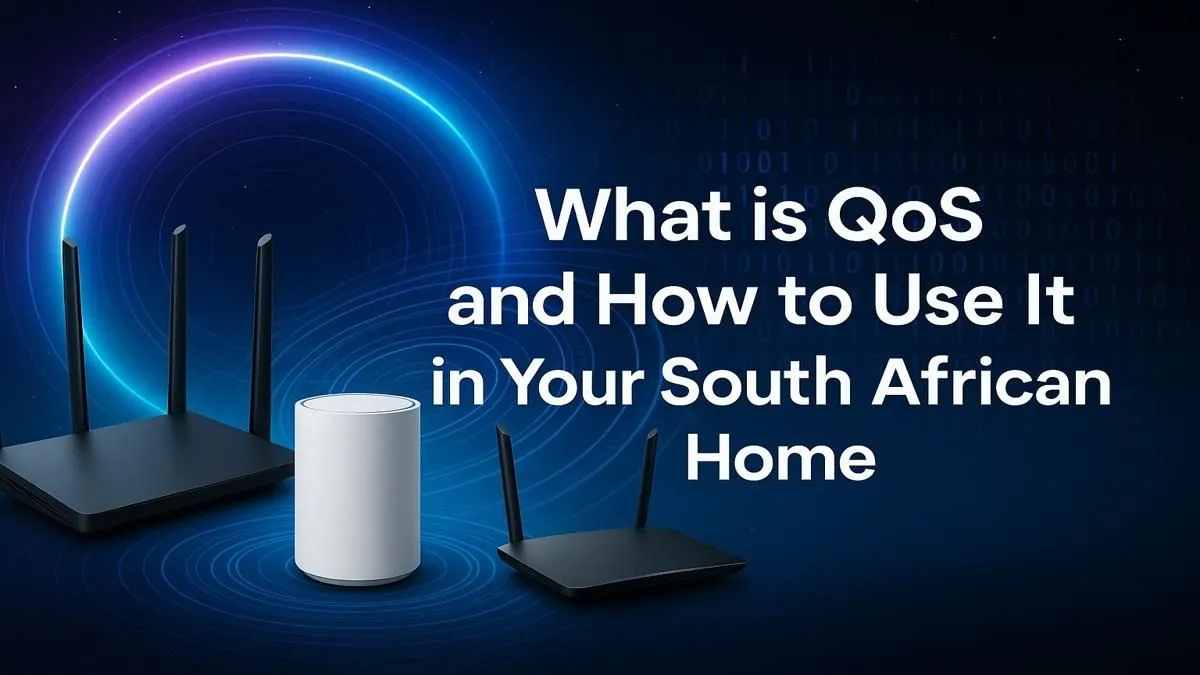
Quality of Service, or QoS, is essentially the traffic cop for your home network. It allows you to tell your router which "cars" get priority. By configuring QoS, you can ensure that your gaming traffic always gets a clear lane, even when the rest of the network is busy. This doesn't increase your total internet speed, but it intelligently manages the bandwidth you have, making your connection feel faster and more responsive where it counts. The foundation of this system is, of course, a modern wireless router with robust QoS features. ⚡
How to Configure QoS on Your Home Network
Setting up QoS might sound technical, but most modern routers make it surprisingly straightforward. While the exact steps vary between brands like TP-Link, ASUS, and Netgear, the general process is very similar.
Here’s a basic guide to get you started:
- Access Your Router's Settings: Open a web browser and navigate to your router's IP address (usually
192.168.1.1 or 192.168.0.1). You'll find the correct address and login details on a sticker on the router itself. - Find the QoS Menu: Look for a section labelled "QoS," "Traffic Manager," "Traffic Prioritisation," or something similar. It's often located under an "Advanced" tab.
- Enable QoS: Switch it on. You may be asked to run a speed test or manually enter your internet connection's upload and download speeds. Be accurate here!
- Item
To ensure your prioritised device gets the strongest possible signal, pairing it with a quality wireless adapter can make a significant difference.
Find Your MAC Address 🔧
On a Windows PC, open Command Prompt (search for 'cmd' in the Start Menu) and type ipconfig all. Look for "Physical Address" under your active network adapter (e.g., "Ethernet adapter" or "Wireless LAN adapter"). That 12-character code is your MAC address. On PlayStation or Xbox, you'll find it in the network settings menu.
Common QoS Mistakes to Avoid
When you first learn what QoS is and how to use it, it’s easy to get over-enthusiastic. Avoid these common pitfalls to get the best results:
- Prioritising Everything: If you set every device and application to "Highest" priority, you've achieved nothing. The goal is to create a clear difference between what's important (your game) and what can wait (a Windows update).
- Ignoring Upload Speed: Gamers often focus only on download speed, but a stable upload is crucial for sending your actions to the game server. Make sure your QoS settings account for upload bandwidth too.
- Forgetting the Rest of the House: A well-configured network is a balanced one. Give your gaming machine top priority, but perhaps set the living room smart TV to a medium priority so others can still stream without constant buffering. If signal strength is an issue in other parts of the house, using wireless range extenders can help ensure everyone has a stable connection.
So, Does QoS Really Work? ✨
Absolutely. While QoS can't fix a fundamentally slow or unstable internet line from your ISP, it is incredibly effective at managing bandwidth within your home. For South African gamers sharing a connection, it’s one of the best tools for fighting lag spikes and improving network consistency.
It reduces latency and jitter by ensuring your game's data packets aren't delayed by other, less critical traffic. The result? A smoother, more responsive gaming experience where you can focus on your skill, not your connection. To get the most out of these settings, you need a robust wireless networking setup that can handle the demands of modern gaming and streaming.
Ready to Tame Your Home Network?
A powerful router is the brain of your digital home. QoS is a potent tool, but it works best with the right hardware. Explore our massive range of networking gear and build a setup that banishes lag for good.