

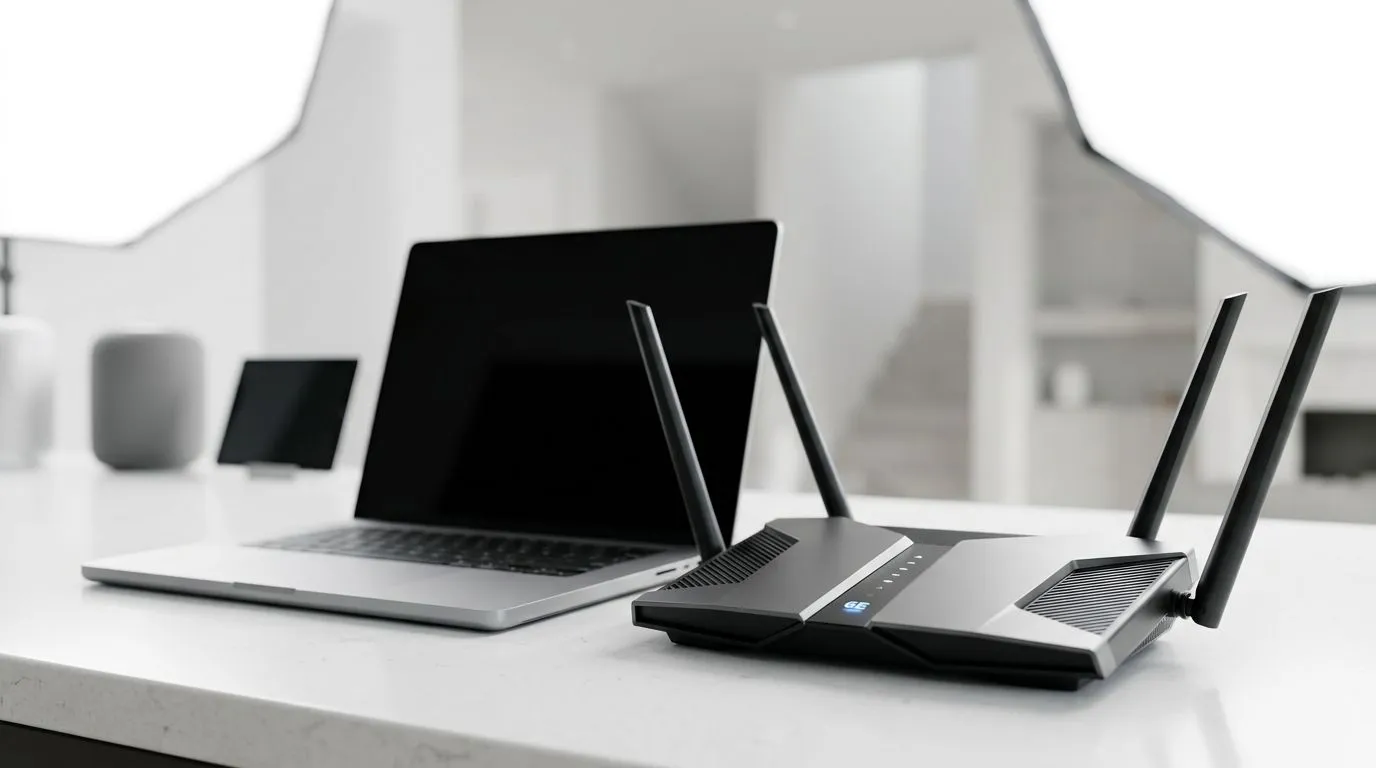
Wi‑Fi 6E Laptop Setup Guide: Start Fast, Stay Fast (South Africa Edition) 🚀
If your laptop Wi‑Fi feels “fine” but downloads still crawl, you’re not imagining it. In many homes across South Africa, crowded 2.4 GHz networks cause lag… especially in evenings when everyone streams and games.
This Wi‑Fi 6E laptop setup guide will help you squeeze more speed and reduce stutter by using the newer 6 GHz band. The goal is simple: smoother downloads, better gaming responsiveness, and fewer “why is this buffering?” moments.
Wi‑Fi 6E Laptop Setup Guide: Know What You’re Actually Enabling ⚡
Wi‑Fi 6E adds support for the 6 GHz spectrum. Compared to older 2.4 GHz and 5 GHz bands, 6 GHz typically offers:
- Less interference (fewer overlapping neighbours)
- More available channels
- Lower chances of congestion in busy areas
But here’s the catch… you only get those benefits if all parts support it:
- Your laptop has Wi‑Fi 6E hardware.
- Your router supports Wi‑Fi 6E (and is actually broadcasting 6 GHz).
- Your device connects to the 6 GHz network, not 5 GHz or 2.4 GHz.
Before you change anything, check your laptop’s Wi‑Fi capabilities in your network adapter settings. If you don’t see “Wi‑Fi 6E” in the adapter info, no amount of tweaking will unlock 6 GHz.
Wi‑Fi 6E Laptop Setup Guide: Pick the Right Laptop First 🧠
A good setup starts with a laptop that can do the job. When you’re shopping for a new machine for home networking, look for models that clearly list Wi‑Fi 6E support (or “ax/6E” in the wireless specs). If you’re browsing deals, start here:
- Intel laptop deals that are often well-suited for modern wireless setups: Intel laptops on special
- Ryzen laptop deals for strong performance per rand: Ryzen laptop deals
- If you want gaming-first hardware for better overall responsiveness, check: best gaming laptop deals
And if your budget is tight, you can still land Wi‑Fi 6E capable options in the right configurations. For example: buy gaming laptops under R20k.
Wi‑Fi 6E Laptop Setup Guide: Router Reality Check
Even the best laptop will suffer if the router doesn’t support 6E. For gaming and wireless reliability, focus on routers that explicitly mention Wi‑Fi 6E and show a 6 GHz SSID.
If your router lets you set separate SSIDs (like “Home-6G”), that’s ideal. It’s much easier to confirm you’re connected to the correct band.
Wi‑Fi 6E Laptop Setup Guide: Configure Windows for Better Wireless Performance 🔧
Once your hardware is confirmed, you can improve stability and consistency with a few sensible settings. These steps apply to most Windows laptops:
1) Connect to the 6 GHz SSID
After setup, open Wi‑Fi settings and choose the network that indicates 6 GHz (often shown as a different SSID).
If your device silently prefers 5 GHz, manually selecting the 6 GHz network usually helps.
2) Update Wi‑Fi drivers
Outdated drivers can ignore new features or behave poorly under congestion. Use your laptop manufacturer’s driver update page, then reboot.
3) Turn off power saving for the Wi‑Fi adapter
Power saving can reduce throughput and increase latency. In Device Manager:
- Network adapters
- Your Wi‑Fi adapter
- Power Management tab
- Uncheck options that allow the device to turn off or go to sleep
4) Make sure your laptop isn’t “sleeping” its Wi‑Fi
Check Sleep settings and “Modern Standby” behaviour in Windows Power & battery.
Connectivity Pro Tip ✨
Windows, run a quick Wi‑Fi test right after every change: join the 6 GHz network, reboot the router, then measure download and ping to a local test server. If performance jumps but later drops, you likely have power management or a driver regression to fix.
Wi‑Fi 6E Laptop Setup Guide: Remove the Usual Home Network Bottlenecks ⚡
A lot of “Wi‑Fi 6E is slow” complaints are actually about something else. Here’s what to check, in order:
Router placement
Put the router where you game, not where the cable is cheapest. Thick walls, metal objects, and corners can all knock your 6 GHz signal down faster than 2.4 GHz.
Channel congestion
If your router supports it, allow automatic channel selection. Manual choices can help only when you know your area’s interference patterns. In SA neighbourhoods with dense signals, auto is often safer.
Bandwidth sharing in the home
If someone starts a big upload (cloud backup, game installs for multiple users), everyone feels it. 6E helps, but it’s not magic. Make sure your router isn’t overloaded.
Wi‑Fi 6E Laptop Setup Guide: Gaming Settings That Pair Well 🔥
When you game over Wi‑Fi, network consistency matters as much as raw speed. For best results:
- Use Ethernet if you can for competitive matches (it still wins).
- On Wi‑Fi, prefer 6 GHz for games where stable ping matters.
- Keep background downloads off during ranked sessions.
- If your laptop has a gaming mode or network prioritisation feature, enable it and test. Don’t assume it’s always beneficial.
Wi‑Fi 6E Laptop Setup Guide: Find the Right Deal, Then Fine‑Tune 🚀
If you want the smoothest wireless experience, stack your advantages:
- A Wi‑Fi 6E capable laptop
- A Wi‑Fi 6E router with a visible 6 GHz option
- Windows settings tuned for stability
If you’re building toward an upgrade that can also push high FPS, look at this category for matching systems with modern laptop performance options: GeForce RTX gaming laptops on special. Then follow the setup steps above so your wireless doesn’t bottleneck your playtime.
Ready to Find Your Perfect Match? The Mac vs Windows debate is complex, but for maximum power, choice, and value in South Africa, Windows is hard to beat. Explore our massive range of laptop specials and find the perfect machine to conquer your world.











