

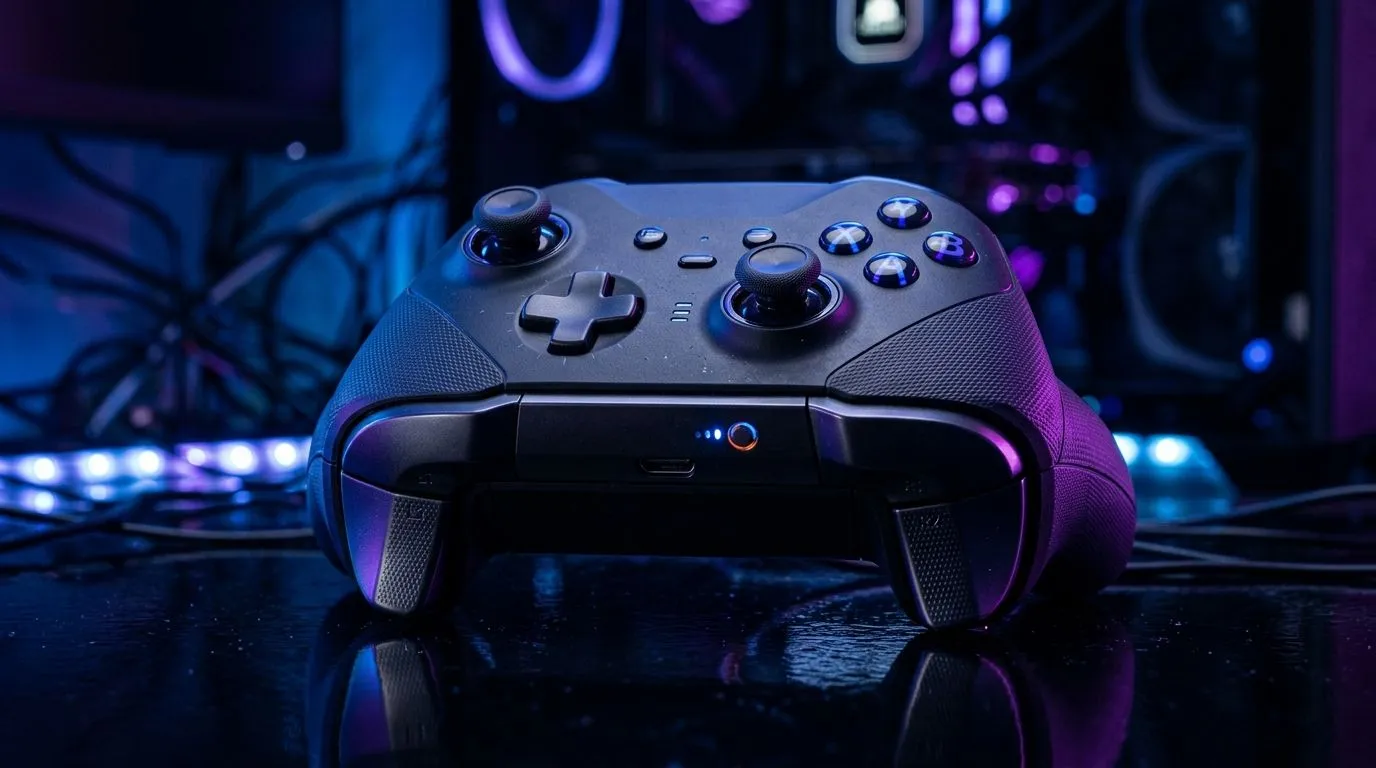
Wireless Gaming Controller Keeps Disconnecting on PC: why it happens (and how to fix it fast) 🔧
If your wireless controller keeps dropping in the middle of a ranked match, you’re not alone. In South Africa, where load-shedding and Wi‑Fi congestion can turn evenings into troubleshoot sessions… disconnects feel personal. 🎮 The good news? Most “controller disconnect” issues on PC are fixable with a few smart checks. Let’s walk through the most common causes, what to test in the right order, and how to choose a controller that won’t punish your aim.
Wireless Gaming Controller Keeps Disconnecting on PC: quick diagnosis checklist ⚡
Start with the easiest wins. Try these in order before you start replacing hardware:
1) Power and battery reality check
Low battery can cause sudden signal dropouts. Fully charge the controller (or insert fresh batteries) and test again. If it improves during longer sessions, you’ve found the culprit.
2) USB cable and port sanity (even for wireless)
If you use a wireless controller with a charging cable, the cable matters. A weak cable can cause inconsistent behaviour. Also try a different USB port on your PC, ideally a port directly on the motherboard (avoid front-panel hubs).
3) Bluetooth vs. wireless dongle
Many disconnects trace back to Bluetooth interference. If your controller supports a dedicated USB dongle, use it. Dongles generally offer more stable latency than Bluetooth in busy environments.
4) PC power settings and USB sleep
Windows may power down USB devices to save energy. Check your USB power management settings and set USB devices to not be allowed to sleep during power saving.
Connectivity Pro Tip ⚡
On Windows, open Device Manager, find your controller under Human Interface Devices or Bluetooth, then choose Properties → Power Management and uncheck ‘Allow the computer to turn off this device to save power’. This simple setting often stops random disconnects mid-match.
Wireless Gaming Controller Keeps Disconnecting on PC: adjust settings like a pro ✨
Once the basics are covered, tune the environment.
Reduce interference
Move the dongle/PC receiver closer, and avoid placing it behind the monitor or inside a metal desk enclosure. For Bluetooth setups, keep other wireless devices from sitting right on top of the controller’s receiver.
Test in a “clean” input scenario
Close overlays and background apps that can hook into input (especially those that run global hotkeys). Then reboot and retest. If it stops disconnecting, you can re-enable tools one by one to find the offender.
Update firmware and drivers
Controller firmware updates can resolve pairing and stability bugs. Check the controller brand’s update tool or support page, then run the update and retest after a full restart.
What to buy instead: stable wireless controllers that game well on PC 🚀
If you’re done chasing dropouts, look for controllers designed for PC stability, including reliable wireless modes and proven compatibility. Evetech stocks options that are built for serious play, including tournament-focused models. For example, consider the Razer Wolverine V3 Tournament Edition (8K) here: Best deal on the Razer Wolverine V3 Tournament Edition
When you’re shopping, don’t just compare specs. Compare how the controller connects (dongle vs Bluetooth), whether it supports consistent polling rates, and whether it’s easy to pair and remap for your PC games. Start your search with Evetech’s controller guides here: Explore gaming controllers on Evetech
If you’re set on Razer, use this filtered selection to narrow down faster: Browse Razer gaming controllers
Wireless Gaming Controller Keeps Disconnecting on PC: your next step
Fixing disconnects is usually about power settings, interference, and the right connection method. But if the controller’s hardware is the problem, upgrading is the quickest route back to smooth aim and stable inputs.
Ready to Find Your Perfect Match? The Mac vs Windows debate is complex, but for maximum power, choice, and value in South Africa, Windows is hard to beat. Explore our massive range of laptop specials and find the perfect machine to conquer your world.











