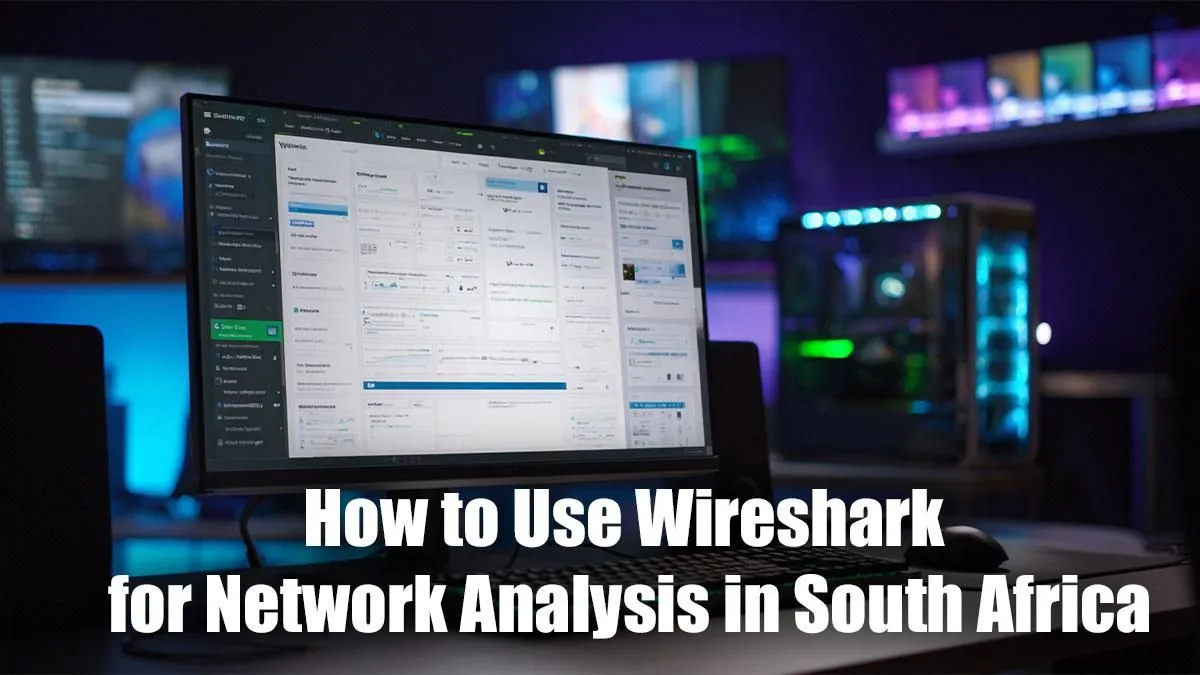
Is your game lagging at the worst possible moment? We’ve all been there. That frustrating stutter right before you land the perfect shot. For many South African gamers, blaming high ping is second nature, but what if you could see exactly what’s causing the problem? Enter Wireshark, a powerful free tool that can feel intimidating at first. This guide will demystify Wireshark network analysis in South Africa, turning you into your home network’s own IT hero. 🚀
Understanding Wireshark: Your Network's Detective 🕵️
Before we dive in, let's get one thing straight: Wireshark isn't just for super-geeks and cybersecurity pros. At its core, it's a "packet sniffer." Think of it as a detailed logbook for your internet connection. Every piece of data your computer sends or receives—whether it's for Discord, Apex Legends, or a background Windows update—is bundled into a "packet." Wireshark simply captures these packets and shows you exactly where they're going, where they're from, and how long they're taking.
This process of Wireshark network analysis lets you see what’s really happening under the hood. Is another device on your network hogging all the bandwidth? Is your game data taking a weird, long route to the server in Europe? Wireshark can help you find the answers.
Your First Wireshark Network Analysis Session
Ready to get your hands dirty? It's easier than you think. Follow these simple steps to perform your first network capture.
Step 1: Install and Launch Wireshark
First, head over to the official Wireshark website and download the installer for your operating system. The installation is straightforward; just follow the on-screen prompts. Once it's installed, run the program.
Step 2: Choose Your Network Interface
You'll be greeted with a list of network connections. You need to tell Wireshark which one to listen to. If your PC is connected via a cable, it will likely be called "Ethernet." If you're on Wi-Fi, look for "Wi-Fi." You should see a little graph next to the active connection showing live traffic. Double-click the correct one to start capturing. If your connection is the problem, a high-quality wireless adapter can often provide a more stable link for analysis and gaming.
Step 3: Capture and Recreate the Problem
The screen will immediately fill with lines of data—don't panic! This is normal. Now, go and do whatever causes the issue. If your game lags at specific moments, try to play until it happens. Let the capture run for a minute or two, then go back to Wireshark and click the red square "Stop" button near the top left. You've just captured the evidence!
Filter Out the Noise ⚡
A raw Wireshark capture is incredibly noisy. To find your game's traffic, first find its server IP address (a quick Google search often works). Then, in the display filter bar at the top, type ip.addr == [server.ip.address] (replacing the text in brackets with the actual IP) and press Enter. This will hide everything else, making your Wireshark analysis much easier.
Pinpointing Gaming Lag with Wireshark Analysis
Now that you have your data, you can start hunting for the culprit. Here are a few common issues that a basic Wireshark network analysis can uncover for South African gamers.
The Mystery of High Ping
High latency, or "ping," is the time it takes for a packet to travel from your PC to the game server and back. In Wireshark, the "Time" column shows you the time each packet was captured. A big jump in this value between packets sent and received indicates a delay somewhere along the line. If you see consistent delays, the problem might be your local network struggling to handle the traffic, suggesting it might be time to look at more powerful wireless routers designed for low-latency gaming.
Frustrating Packet Loss
Packet loss is when data packets get lost in transit and never reach their destination. This often feels like a sudden, jarring stutter in-game. In Wireshark, you can look for signs of this like "TCP Retransmissions." These are packets your PC has to send again because the first ones went missing. If you see a lot of these, especially over Wi-Fi, it could point to a weak or unstable signal. Sometimes, a simple fix like a wireless range extender can solve signal dead spots in your home.
Unmasking Bandwidth Hogs 🔧
Ever wonder why your connection slows to a crawl even with fast fibre? Another device or application could be secretly eating your bandwidth. In Wireshark, you can go to Statistics > Endpoints and look at the IPv4 tab. Sort by "Bytes" to see which IP addresses are sending and receiving the most data. You might find your smart TV is streaming 4K in the background or a cloud backup is running at the worst time.
Mastering your home connection is a key part of the PC experience. Understanding the full ecosystem of wireless networking components gives you the power to build a truly stable and fast setup.
Ready to Build a Lag-Free Zone?
Understanding your network is the first step. The next is ensuring your hardware can keep up. From powerful routers to stable adapters, a rock-solid network is the foundation of a great gaming experience. Explore our complete range of networking gear and build the ultimate connection today.