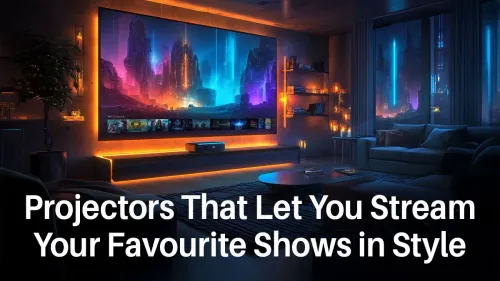
Tired of watching the latest Netflix blockbuster on a tiny screen? Imagine this: the lights are down, the popcorn is ready, and your wall transforms into a massive, crystal-clear cinema screen. That’s the magic of a smart projector. But getting it to work seamlessly can feel tricky. This guide cuts through the confusion, showing you exactly how to stream Netflix on a smart projector so your next movie night in South Africa is absolutely epic. 🎬
Why a Smart Projector is Your Ultimate Entertainment Hub
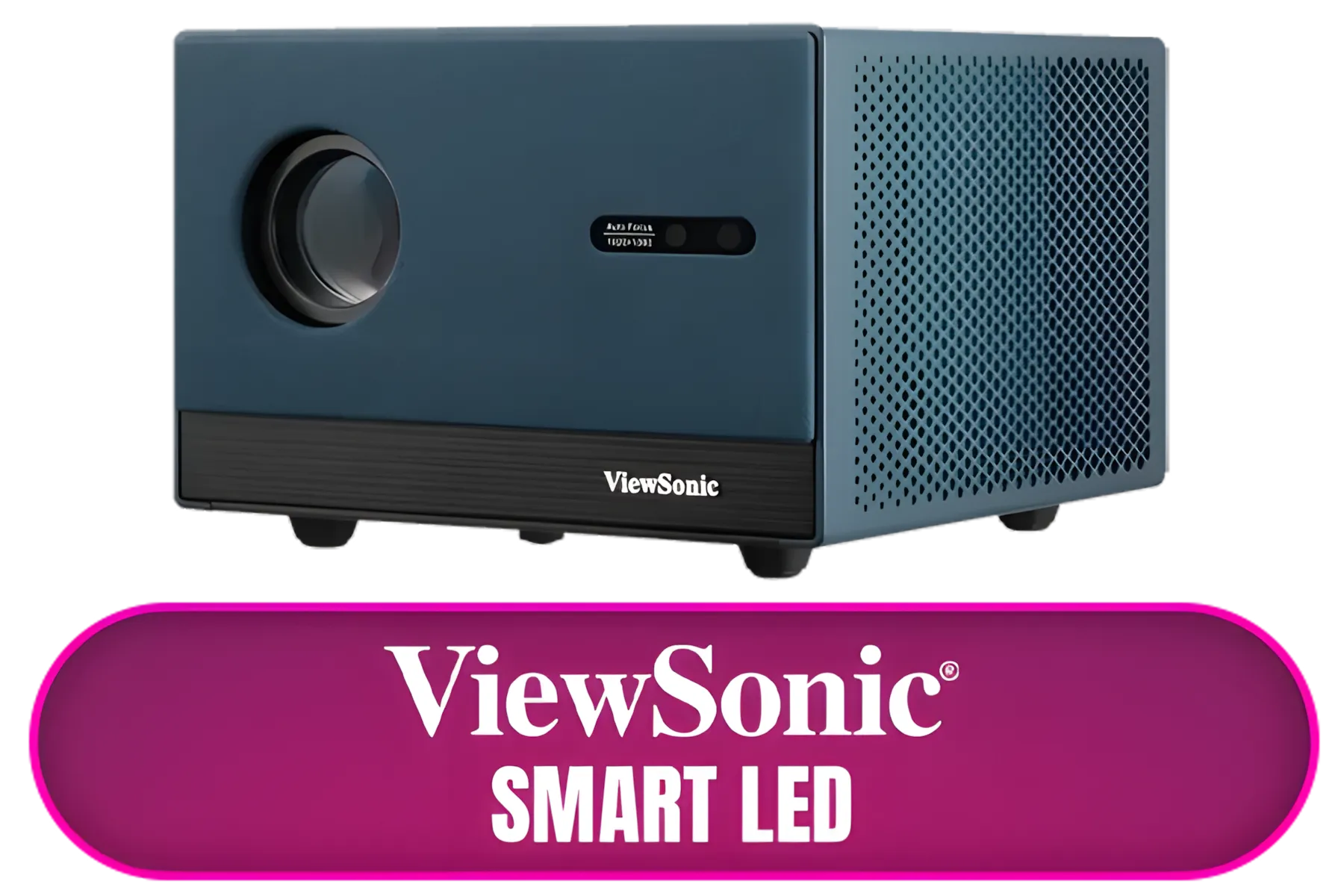
Before we dive into the "how," let's quickly clarify what makes a projector "smart." Unlike older models that are just display devices, a smart projector has a built-in operating system (OS), just like a smart TV. This means it has Wi-Fi, an app store (like Google Play), and the brains to run apps like Netflix, YouTube, and Showmax all on its own… no laptop required.
This built-in intelligence is what makes watching Netflix on a projector so incredibly simple. You get an all-in-one entertainment solution that's ready for action right out of the box. Check out some of the latest projectors to see the kind of tech we're talking about.
How to Stream Netflix on a Smart Projector: The Easy Way
If you have a projector with a built-in OS like Android TV, getting your stream on is a breeze. For most models, the process to get seamless Netflix and YouTube streaming is as simple as this:
- Connect to Your Wi-Fi: First things first. Navigate to your projector's settings menu, find the network or Wi-Fi section, and connect to your home network.
- Open the App Store: Look for an app store icon on your home screen. This is usually the Google Play Store, but it might be a brand-specific store.
- Download the Netflix App: Search for "Netflix," select the official app, and hit install. Do the same for YouTube or any other streaming service you use.
- Log In and Bringe: Once installed, open the app, sign in with your account details, and you're ready to go!
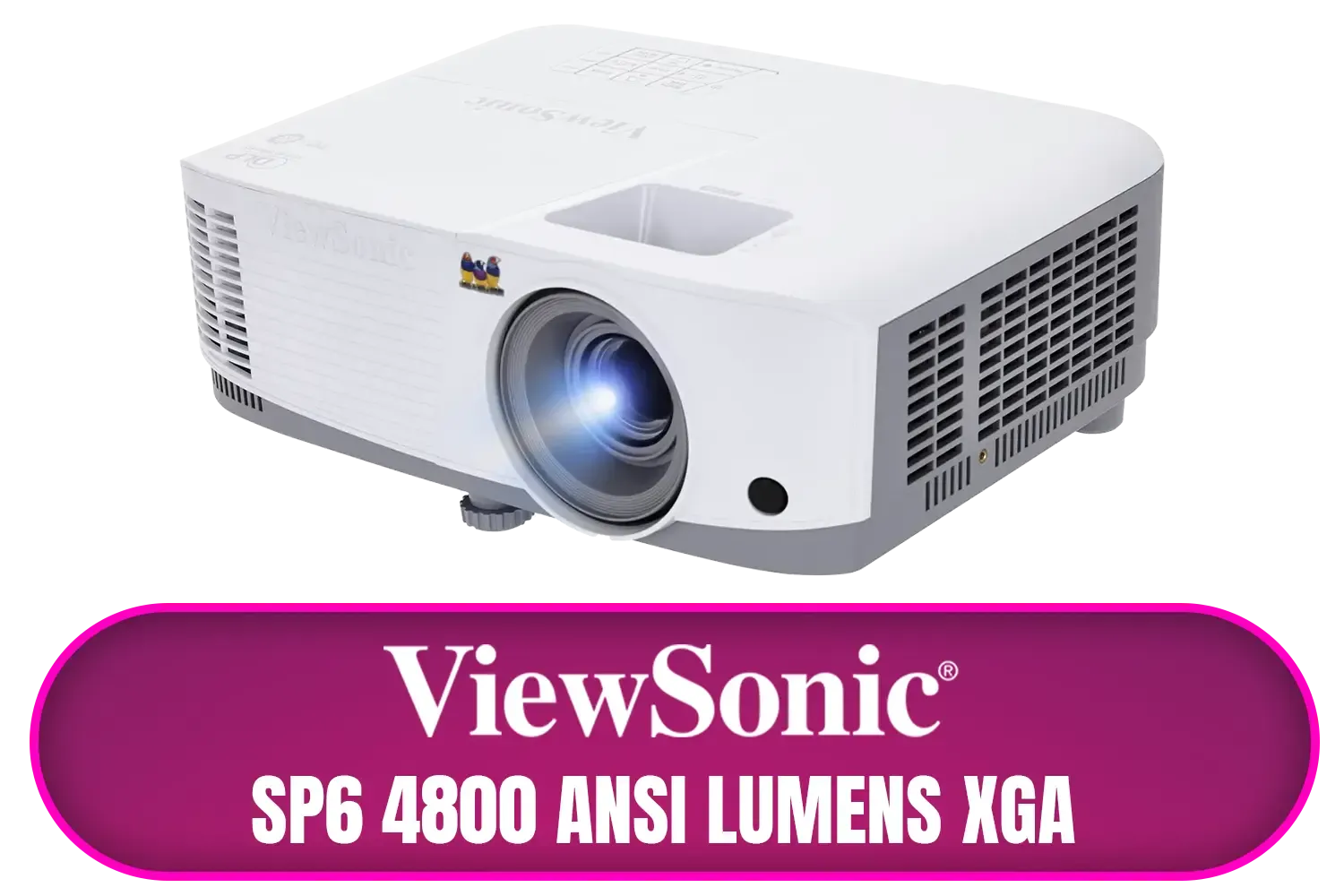
Many premium Viewsonic models come with these apps pre-installed, making the setup even faster.
Wi-Fi Pro Tip 💡
For the smoothest 4K streaming, make sure your projector has a strong connection to your router. If the signal is weak, consider moving the router closer or using a Wi-Fi extender. A wired Ethernet connection, if your projector supports it, is always the most reliable option for buffer-free viewing.
What If Your Projector Doesn't Have a Netflix App?
So, you've searched the app store and… nothing. Don't panic! Some projectors, especially ultra-portable or budget models, may not have official Netflix certification, meaning the app isn't available. But you still have excellent, easy options to get Netflix on your projector.
Option 1: Use a Streaming Dongle or Box
This is the most popular and reliable workaround. A small device like a Google Chromecast, Xiaomi Mi TV Stick, or Apple TV plugs directly into your projector's HDMI port. These devices have their own certified operating systems and are guaranteed to have the Netflix app.
- Setup is simple: Plug it in, connect it to your Wi-Fi, download the app, and you’ve successfully bypassed your projector’s limitations. It effectively turns any projector into a smart one.
Option 2: Connect Your Laptop or PC
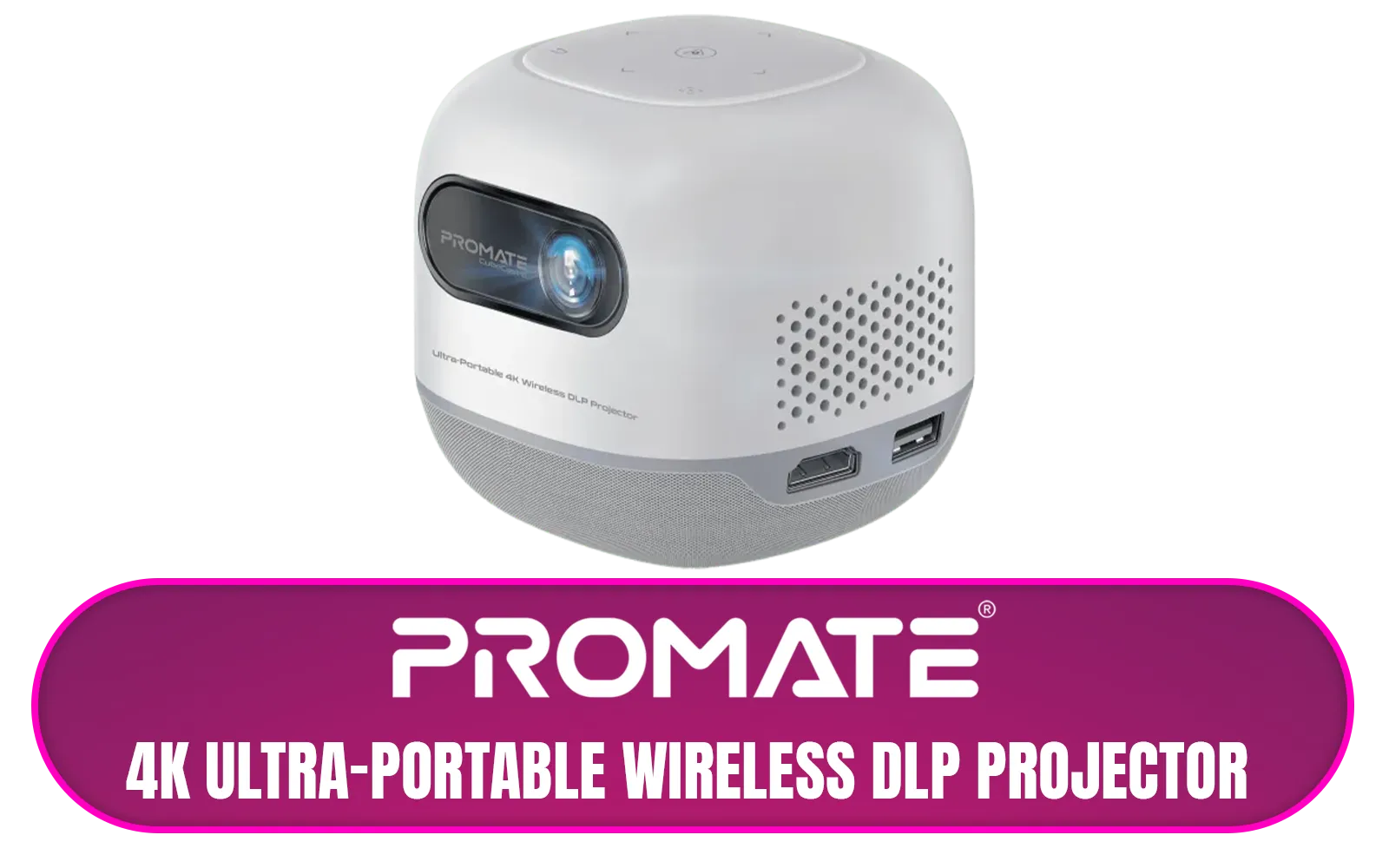
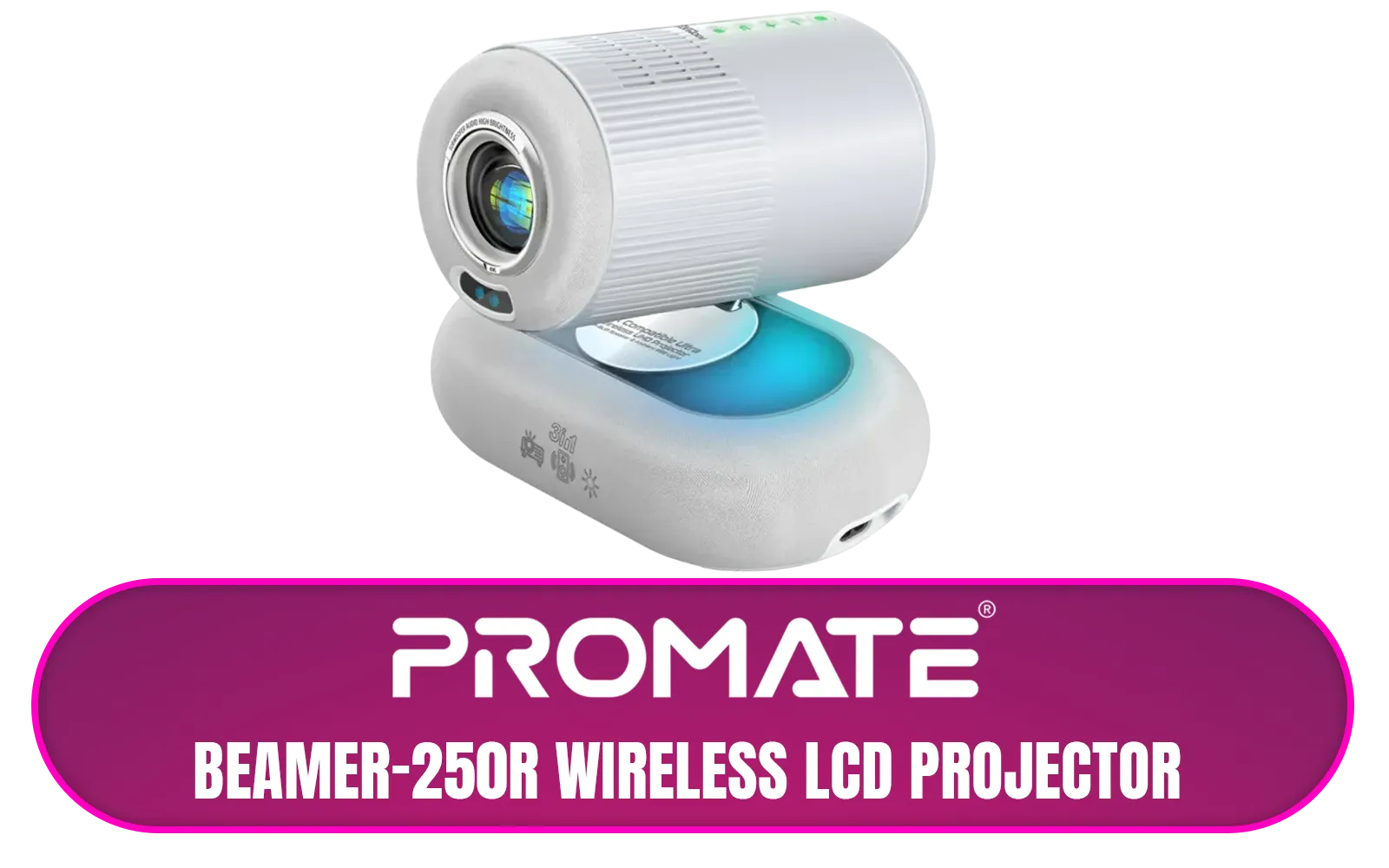
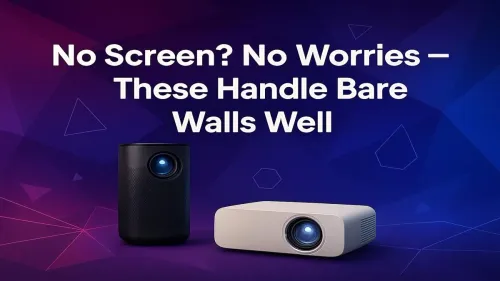
The old-school method never fails. Simply connect your laptop to the projector using an HDMI cable. Your projector will act as a second monitor, and you can play Netflix directly from your web browser. It's a rock-solid way to ensure you can stream Netflix on a smart projector, even if the built-in software is giving you grief. Many modern portable Promate projectors are perfect for this kind of quick and easy setup.
Choosing the Right Projector for Seamless Streaming ✨
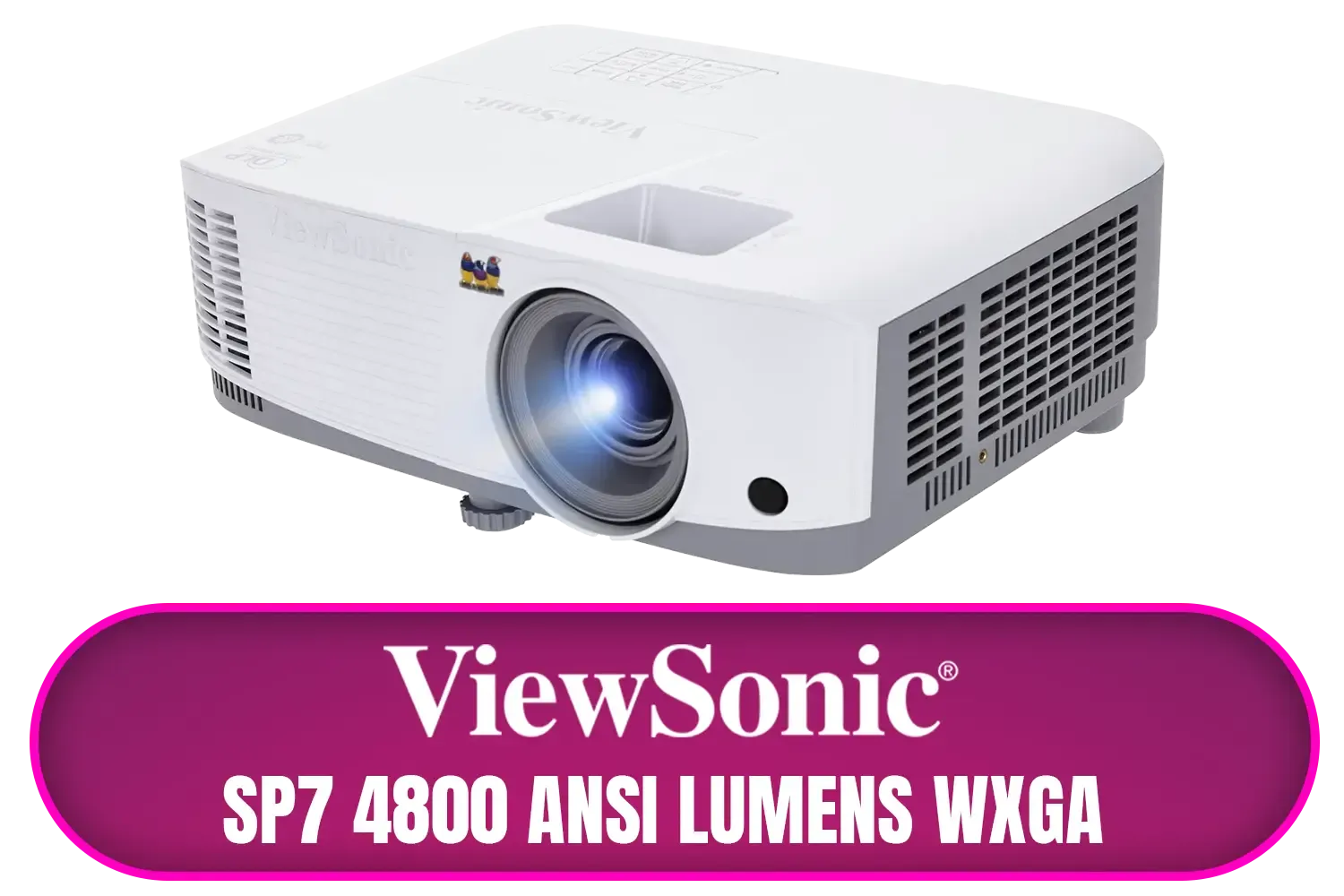
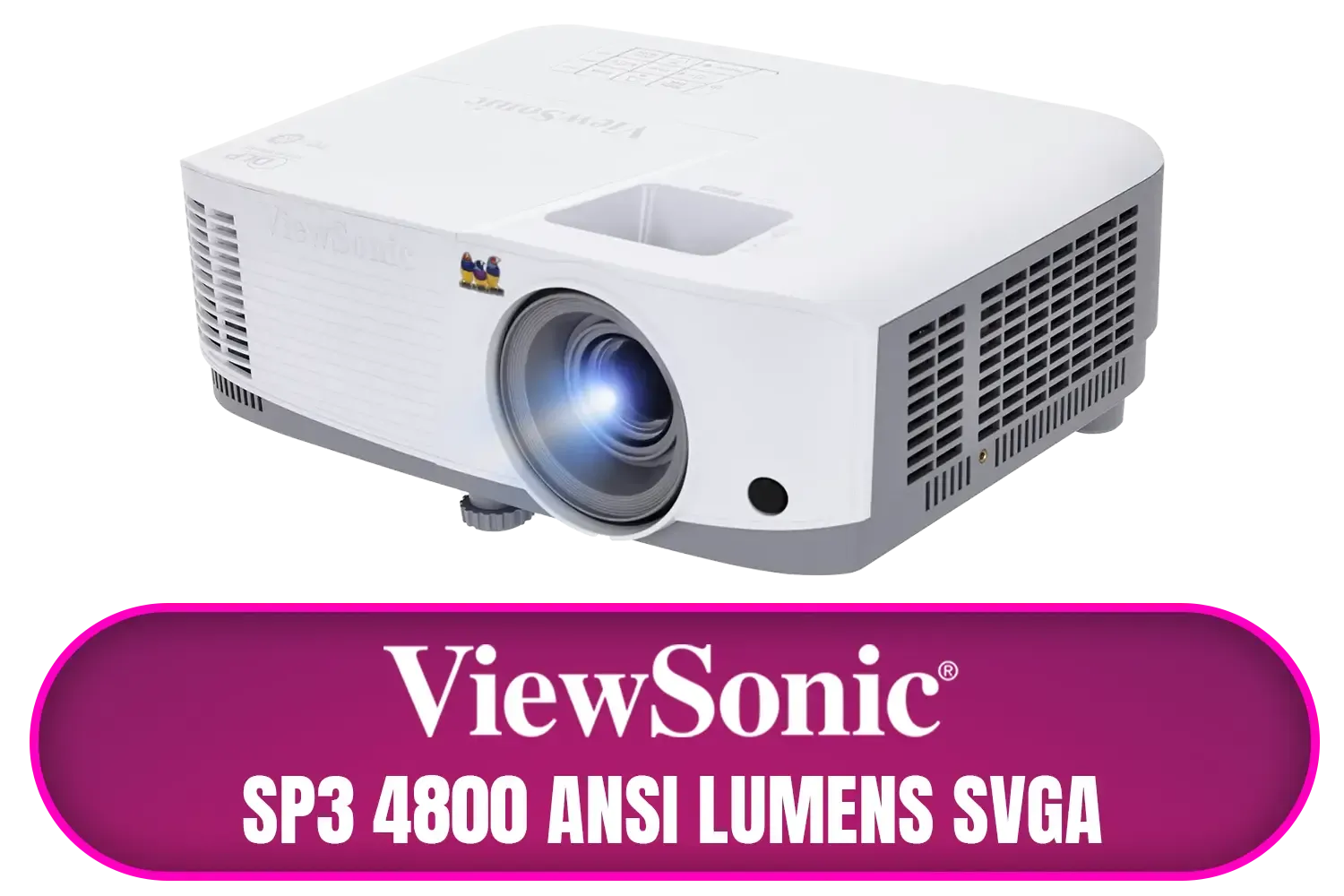
When shopping for a new projector, the most important feature for a smooth streaming experience is the built-in Operating System. Look for models that explicitly state they run Android TV or another certified OS.
Other key specs to consider are:
- Resolution: 1080p (Full HD) is the sweet spot for crisp, clear picture quality.
- Brightness: Measured in lumens. Higher lumens mean the picture will be clearer in rooms that aren't completely dark.
- Connectivity: Ensure it has at least one HDMI port and reliable Wi-Fi.
You don't have to spend a fortune to get a great experience. There are plenty of great projectors under R7000 that tick all the right boxes for an amazing home cinema setup.
Ready for a Cinema-Sized Upgrade?
Stop squinting at small screens. A smart projector transforms your living room into an epic entertainment hub. Explore our massive range of projectors and find the perfect model to bring your movie nights to life.