

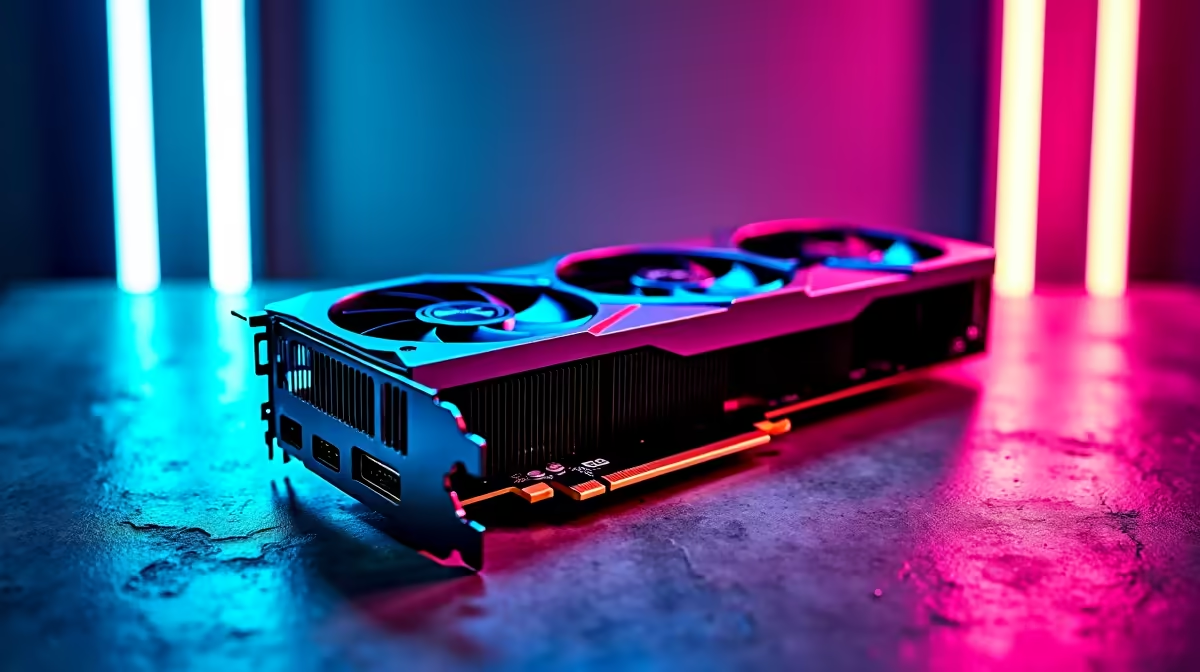
Starfield is one of the most visually demanding open-world RPGs on PC, and getting the right balance between image quality and smooth frame rates is key to a great experience in 2026. With the right settings, even mid-range hardware can deliver a polished, immersive playthrough without constant stutters or jarring frame drops.
Quick Answer
What are the best graphics settings for Starfield in 2026? For most SA gamers, setting Resolution Scale to 85%, enabling FSR or DLSS (depending on GPU), dropping Shadows to Medium, and targeting 1080p or 1440p gives the best balance of quality and performance. High-end rigs can push Ultra at 1440p with upscaling enabled.
🔧 Core Settings That Matter Most
Starfield's engine is CPU and GPU heavy, and not all settings carry equal weight. Focus adjustments here first:
Resolution Scale: Dropping from native 100% to 85% with FSR or DLSS enabled is the single biggest performance gain with minimal visual cost. At 1080p, it makes a larger difference than almost any other setting.
Shadow Quality: Ultra shadows are a significant GPU drain in Starfield's dense city environments like New Atlantis. Drop to Medium or High and you'll recover 10–20% frame rate with barely noticeable visual change.
Volumetric Lighting: Set to Medium. Ultra volumetric lighting has a disproportionate GPU cost, especially in foggy or nebula-heavy scenes.
Crowd Density: Keep at Medium. High crowd density hammers CPU performance in cities - this is one of Starfield's known bottlenecks on both Intel and AMD platforms.
Motion Blur & Depth of Field: Turn both off. These are subjective effects that consume GPU resources without adding gameplay value for most players. Many SA players prefer them off entirely for cleaner visuals.
Indirect Lighting: High is a solid middle ground. Ultra costs significantly more than the visual benefit it delivers.
📊 Performance Targets by Hardware Tier
Here's a practical guide based on common hardware configurations available in South Africa:
Entry-Level (RX 6600 / RTX 3060):
- Resolution: 1080p
- Preset: Medium, with Shadows at Low and Volumetric at Low
- Upscaling: FSR Quality or DLSS Quality
- Target: 45–60 FPS
Mid-Range (RX 6700 XT / RTX 4060 Ti):
- Resolution: 1080p–1440p
- Preset: High, Shadows at Medium
- Upscaling: FSR/DLSS Balanced
- Target: 60–75 FPS
High-End (RX 7900 GRE / RTX 4080 / RTX 5070):
- Resolution: 1440p–4K
- Preset: Ultra, Shadows at High
- Upscaling: DLSS Quality or native at 1440p
- Target: 60–90+ FPS
Starfield benefits heavily from fast RAM - 32GB DDR5 at 6000MHz makes a measurable difference in city streaming stutter.
💡 SA-Specific Tips for Starfield
Monitor Sync: If you're playing on a FreeSync or G-Sync compatible monitor, enable Variable Refresh Rate in Windows 11 and Starfield's display settings. This smooths out minor frame rate dips between 40–60 FPS and makes the game feel much more fluid.
Texture Quality: Keep at Ultra unless you have less than 8GB VRAM. Textures are a VRAM cost, not GPU compute cost, so on modern cards they're essentially free performance-wise.
VSync and Frame Cap: Disable in-game VSync and instead use your GPU control panel or RTSS to cap frames at your monitor's refresh rate minus 3 (e.g., 141 FPS on a 144Hz panel). This eliminates input lag while preventing screen tear.
Game Mode: Enable Windows 11 Game Mode and ensure Hardware-Accelerated GPU Scheduling (HAGS) is on. These two settings together can recover 5–10% performance in CPU-heavy scenes.
Storage: Starfield benefits massively from NVMe SSD storage. If you're still on a SATA SSD or HDD, city loading times and asset streaming will be painful. An NVMe drive eliminates most open-world stutter.
❓ Frequently Asked Questions
Does Starfield support DLSS and FSR? Yes - Starfield supports both AMD FSR and NVIDIA DLSS. DLSS is exclusive to NVIDIA RTX cards and generally delivers sharper results, while FSR works on all GPUs including AMD and older NVIDIA cards. Both provide significant frame rate boosts with minimal quality loss at Quality mode.
Why does Starfield stutter in cities even on high-end hardware? City stuttering in Starfield is largely a CPU thread and asset streaming issue. Lowering Crowd Density to Medium, ensuring you have fast NVMe storage, and enabling DirectX 12 (instead of DirectX 11 if available in your version) are the most effective fixes. 32GB RAM also reduces micro-stutter significantly compared to 16GB.
What resolution is best for Starfield on a 1440p monitor? For most setups, running Starfield at native 1440p with DLSS or FSR set to Quality mode gives the best result. You get close to 4K sharpness with significantly better frame rates. If your GPU is a mid-tier card, dropping to 1080p with upscaling to 1440p is a strong alternative.
Evetech stocks All Graphics Cards and Graphics Card Deals — shop online with fast delivery across South Africa.
Ready to Find Your Perfect Match? Shop at Evetech











