

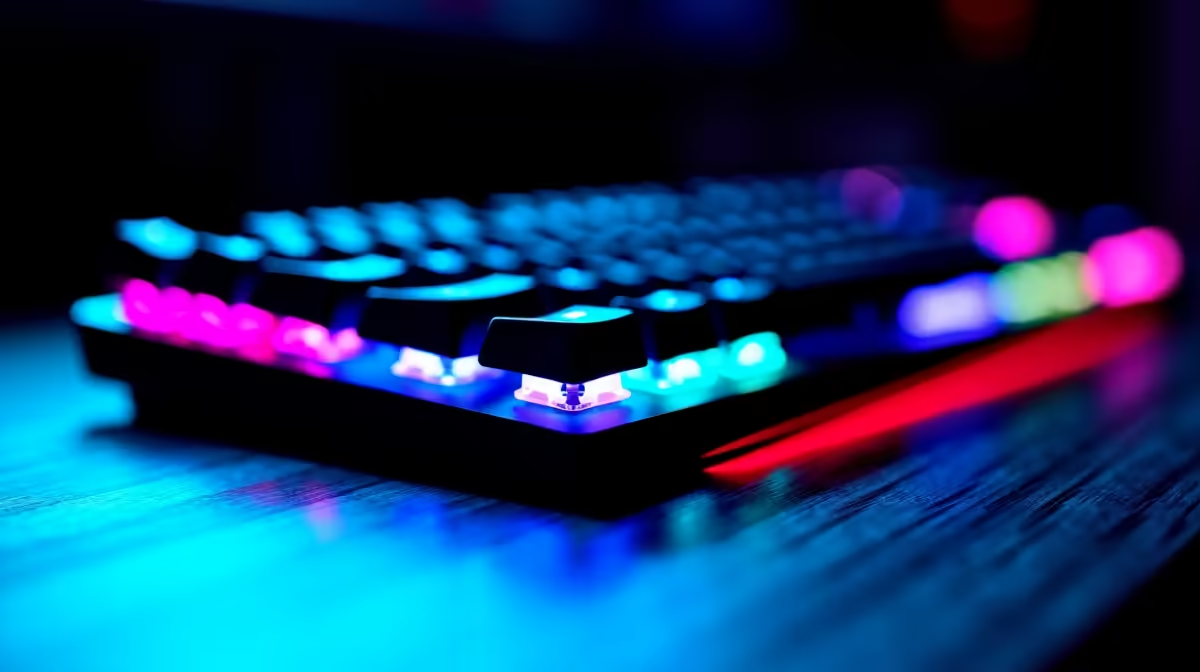
Mechanical keyboards with RGB lighting are one of the most satisfying upgrades you can make to a PC desk setup, but getting the lighting properly configured across multiple devices and software ecosystems is where most SA gamers hit a wall. Between proprietary apps, conflicting software, and sync issues, what should take 20 minutes often stretches to two hours without the right guide.
Quick Answer
To set up and configure a mechanical RGB keyboard, install your keyboard manufacturer's software (Corsair iCUE, Razer Synapse, SteelSeries GG, or Logitech G HUB depending on your brand), create a lighting profile, and optionally link it to game detection for automatic profile switching. For cross-device RGB sync, use the manufacturer's ecosystem software rather than third-party tools for the most reliable results.
🔌 Step 1 - Software Installation and Initial Setup
Download your keyboard manufacturer's RGB software directly from the official manufacturer website - avoid third-party mirrors. Install with your keyboard connected via USB (not a hub) so the software detects it during setup. Most RGB software requires the keyboard to be on a direct motherboard USB port during first-time configuration to correctly flash the onboard profile memory. Once detected, you'll see a visual layout of your keyboard in the software. Before customising anything, update the keyboard's firmware through the software - this prevents lighting glitches and adds compatibility with newer RGB effects.
🎨 Step 2 - Creating and Saving Lighting Profiles
Navigate to the lighting section of your software and create a new profile. Most software offers static colour, reactive (lights up on keypress), wave, breathing, ripple, and per-key assignment. For gaming, reactive or static profiles are best - wave and breathing animations are visually distracting mid-game. Set your profile and save it to the keyboard's onboard memory (usually called "hardware mode" or "onboard storage") - this means your lighting works even on PCs without the software installed, useful for SA LAN setups. Create a second profile for desktop/work use and assign it to a different profile slot.
🔗 Step 3 - Cross-Device RGB Sync
If you own a gaming mouse and headset from the same brand as your keyboard, the manufacturer's software handles sync automatically within its ecosystem. For mixed-brand setups, synchronisation is imperfect - proprietary sync protocols don't communicate across brands. The most reliable approach for multi-brand setups is to match colours manually within each brand's software, targeting the same hex colour code. Avoid third-party RGB aggregators on gaming PCs - they run background processes that can cause input lag and conflict with game overlays.
❓ FAQ
Why is my RGB keyboard showing wrong colours after a Windows update? Windows updates sometimes reset USB power management settings, which affects keyboard lighting profiles. Go to Device Manager, find your USB controllers, right-click each and disable "Allow the computer to turn off this device to save power." Reconnect the keyboard and reload your profile.
Can I use RGB keyboard lighting without software? Yes. Most mechanical RGB keyboards store at least one hardware profile onboard that can be cycled without any software, using Fn key combinations. Check your keyboard's manual for the specific key combo - usually Fn + a function key.
Does RGB lighting affect keyboard performance or battery life? On wired mechanical keyboards, RGB has no impact on input latency or typing performance. On wireless keyboards, high-brightness RGB can reduce battery life by 30–50% compared to lighting off - most wireless keyboards allow reducing brightness or disabling RGB to extend battery.
Check out Graphics Card Deals and Evetech Best Sellers at Evetech — South Africa's home for gaming gear.











