

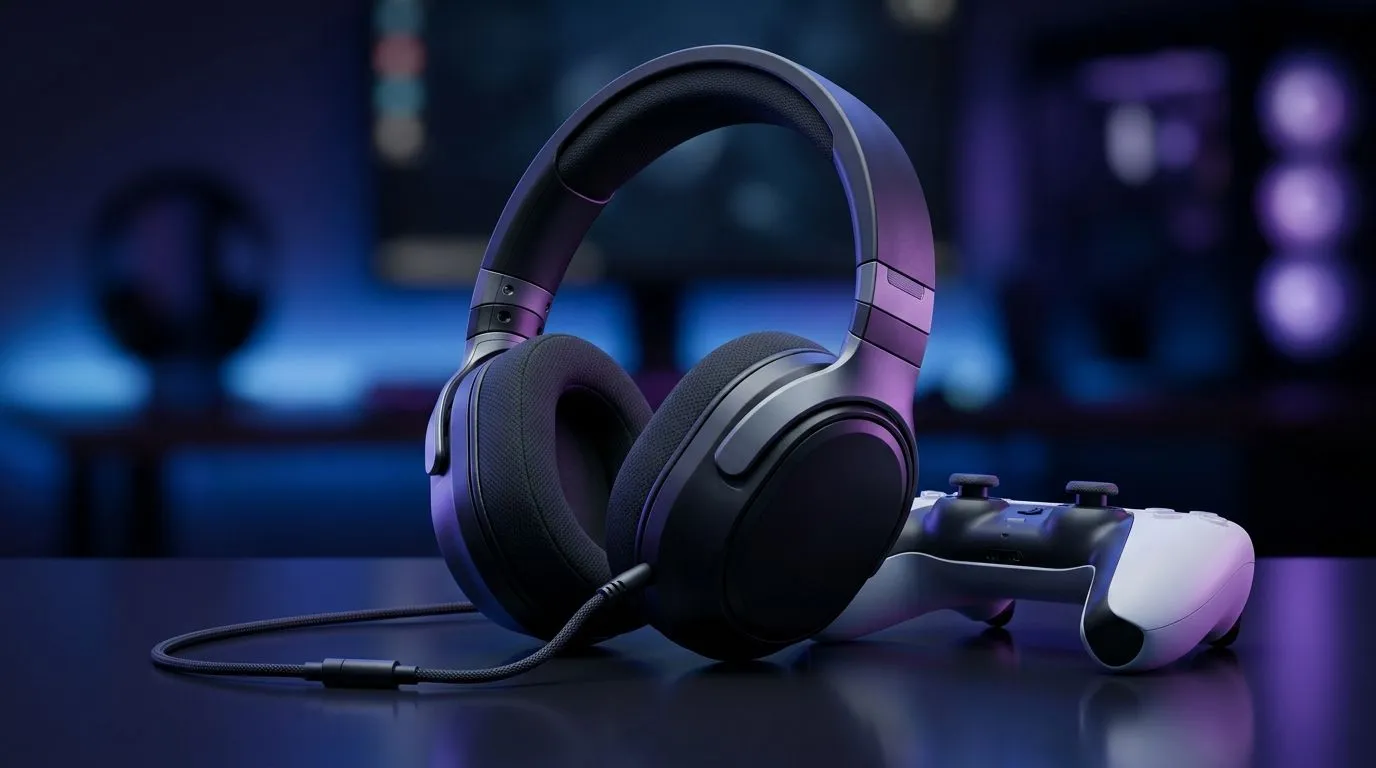
PS5 3D Audio Setup for Wired Gaming Headsets: Nail the Soundstage 🔊
You don’t need a new headset to hear better. With the right PS5 settings and a few smart audio tweaks, wired headsets can deliver a convincing “in front of you” 3D sound feel. For South African gamers, that means clearer footsteps in Tarkov-style moments, better callouts in ranked matches, and less guessing when the action gets chaotic… and your friends start asking, “How are you hearing that?” ✨
This guide walks you through a reliable PS5 3D audio setup for wired gaming headsets, plus the small adjustments that actually matter.
PS5 3D Audio Setup for Wired Gaming Headsets: Start With the Correct Output 🔧
Before you change anything, plug your headset into the controller (or your audio adapter) and confirm the PS5 is seeing it correctly.
Set Headset Audio Output on PS5
- Go to Settings on your PS5.
- Open Sound → Audio Output.
- Set Headphones to USB Headset only if your headset connects via USB.
- For most wired controller connections, choose the option that matches your connection type (controller 3.5mm is common).
Enable 3D Audio for Headphones
Now turn on PS5’s 3D audio processing:
- In Sound settings, enable 3D Audio for Headphones.
If you don’t see the option, your output device selection may be incorrect. Fix that first, then enable the feature again. ⚡
Setup Pro Tip ⚡
On your first match after enabling 3D Audio for Headphones, do a 30-second “sound check” in the training area (aiming, footsteps, or ambient cues). If left-right feels swapped, go back and confirm your headset is set as the correct audio output device, then re-enable 3D Audio.
Wired Headsets: Choose a Model That Fits 3D Audio Best 🎧
3D audio works with many wired setups, but comfort and driver quality make a visible difference over long sessions. When you’re shopping in South Africa, it’s worth checking how the headset fits, how easy it is to drive, and whether it has a clean stereo profile.
If you’re building a “one cable, everything works” desk setup, start by comparing options in Evetech’s headphone range:
- Browse Evetech’s headset catalogue here: https://www.evetech.co.za/components/headphone-headsets-100
- Want a narrower selection that’s still great for wired-style gaming? Explore this page: https://www.evetech.co.za/PC-Components/razer-headphones-headsets-105
And if you’re open to a wireless option that still plays nicely with home gaming (useful for late-night desk-to-sofa switching), here’s a popular choice Evetech stocks:
PS5 3D Audio Setup for Wired Gaming Headsets: Calibrate for Real Gameplay
Once the feature is enabled, the PS5 offers a couple of tweaks that can improve clarity.
Balance and Volume Discipline
Keep your headset volume consistent. If the mix feels “boomy,” reduce headphone volume slightly and re-check footsteps. Too much bass masking is real, especially in game mixes that already lean bass-heavy.
Test Distance Cues
3D audio shines when you can interpret distance. During a match:
- Listen for how the sound changes when you move behind cover.
- If direction feels right but distance feels wrong, don’t jump to expensive hardware. Re-check in-game audio mode (e.g., “headphones” or “stereo”) before changing anything else.
Ready for a Cleaner, Smarter Game Desk Setup? 🚀
If you’re already serious about your aim, you’ll be surprised how much better audio makes your decisions. Try the setup steps above, test in training, and then fine-tune volume and in-game audio mode. The goal is simple: hear enemies sooner, not just “hear more.”
Ready to Find Your Perfect Match? The Mac vs Windows debate is complex, but for maximum power, choice, and value in South Africa, Windows is hard to beat. Explore our massive range of laptop specials and find the perfect machine to conquer your world.











