

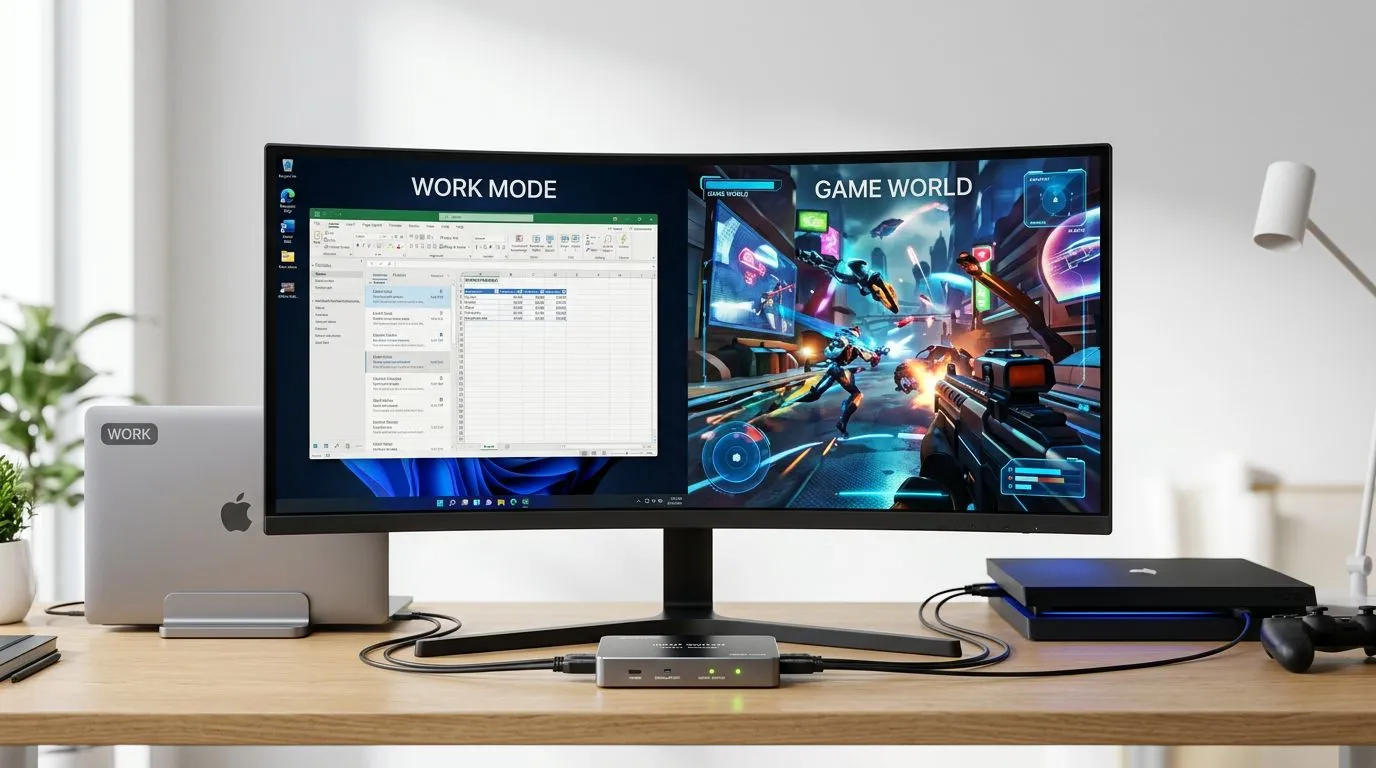
One Monitor Setup for Work Laptop and Gaming Console (SA Gamer-Friendly)
If you’re tired of swapping HDMI cables like it’s a daily chore… you’re not alone. South African gamers love a clean game desk, and tech buyers want value. One monitor can handle your work laptop during the week and your gaming console on weekends. ✨ The trick is picking the right monitor, setting the right input labels, and getting the basics like resolution and refresh rate correct. Let’s make it smooth… not stressful.
Choosing the Right Display for One Monitor Work + Console Use
Before you plug anything in, decide what “best” means for your setup. A single display has to work for both productivity and play, so focus on these areas:
Resolution and scaling that won’t break your workflow
- 1080p is fine for most desks and tighter budgets.
- 1440p looks sharper for text, spreadsheets, and game worlds.
- 4K is great if your laptop and console support it without frustrating scaling.
If you’re shopping for options, start with curated monitor listings:
- Browse the latest best PC monitor deals here: https://www.evetech.co.za/best-pc-monitor-deals/x/047.aspx
- Explore the wider PC monitors range: https://www.evetech.co.za/PC-Components/pc-monitors-89.aspx
Refresh rate matters, but so does how you use it
A gaming console can benefit from higher refresh rates, but not every console mode runs at the same frame rate. For work, high refresh can still feel smoother while scrolling and moving windows.
For console-first gamers, Evetech’s dedicated gaming monitor selection is a good place to compare models:
Curved, portable, or 4K… what fits your desk?
One monitor means one “home base”. Choose based on your space:
- Curved monitors can make wide gaming scenes feel more immersive: https://www.evetech.co.za/buy-curved-monitors/x/1588.aspx
- Portable monitors help if you move between home and office: https://www.evetech.co.za/buy-portable-monitors/x/1590.aspx
- If you want maximum clarity for both work and games, check 5K/4K monitors: https://www.evetech.co.za/buy-5k-4k-monitors/x/1591.aspx
Don’t forget accessories for a clean cable setup
The right monitor stand and cabling can make your setup feel “finished”, not temporary. For practical add-ons:
Set Up Inputs Like a Pro (So Switching Devices Feels Instant) 🔧
Now for the real-world part… connecting your work laptop and your gaming console to the same monitor.
Step-by-step connection flow
- Use the monitor’s input naming (if it supports it). Label HDMI 1 as “Console” and DisplayPort/HDMI 2 as “Laptop”.
- Connect the laptop first, then the console. This order makes it easier to spot which device causes display changes.
- Switch inputs only with the monitor remote or buttons, not by unplugging. Unplugging can lead to handshake delays and weird resolution resets.
Cable choices that reduce headaches
- DisplayPort often behaves well for PC laptops.
- HDMI is usually the easiest path for consoles.
If your laptop supports it, keep the laptop on DisplayPort (if available) and reserve HDMI for the console. It reduces confusion later.
Productivity Pro Tip ⚡
On Windows, use the PowerToys FancyZones utility to create custom snap layouts for your windows. It's a lifesaver for managing multiple apps on an ultrawide monitor, letting you organise your timeline, preview window, and asset folders perfectly for video editing.
Quick resolution checklist (work vs play)
- Your work mode should prioritise crisp text. If things look too large or too tiny, check Windows scaling.
- Your gaming mode should prioritise smooth motion. In-console video settings, aim for the highest supported resolution and refresh mode your console can actually sustain.
Micro-moment: the first day you’ll thank yourself for this
Picture it… Monday morning. You open your laptop, and your desktop is already arranged: emails left, docs centre, calendar on the side. Then Friday night hits, you switch inputs, and the console launches into the game you’ve been waiting for. No cable-rummaging. No “why is it blurry?” panic. 🚀
Audio and Ergonomics: The Small Things That Make It Worth It ✨
One monitor is only half the story. Audio and posture make the experience feel right.
Where does sound go?
- If your monitor has speakers, it’s convenient, but not always great for footsteps and competitive audio.
- If you use a headset, you can keep things simple and consistent.
If you’re using external speakers or a headset, set Windows default playback for your laptop, and set your console audio output to match your monitor or audio device. This prevents the common “silent game” moment.
Eye comfort and desk height
Even when the tech is perfect, comfort matters:
- Keep the top of the screen near eye level.
- Avoid ultra-bright settings for long work sessions.
- Use a consistent brightness profile for both work and play. Your eyes will adapt faster.
How to Choose One Monitor That Actually Covers Both Jobs (Work + Gaming) ✅
Here’s a practical decision framework:
If you mainly work and game casually
Prioritise:
- Resolution that looks sharp for documents
- Comfortable brightness and good colour
- Reliable inputs for laptop + console
If you’re competitive on console
Prioritise:
- Gaming monitor models from Evetech’s selection
- Correct console video modes (don’t chase a refresh rate your console can’t hold)
- Low input delay features where available (check the product listing details)
If you need flexibility at home and office
Prioritise:
- A portable monitor option so your setup isn’t locked to one room
- Simple switching and easy power/cable handling
CALLTOACTION
Ready to Find Your Perfect Match? The Mac vs Windows debate is complex, but for maximum power, choice, and value in South Africa, Windows is hard to beat. Explore our massive range of laptop specials and find the perfect machine to conquer your world.











