

Optimising Apex Legends Settings on RTX 4060 for South African Gamers ⚡
If you’re in South Africa and rocking an RTX 4060, you probably want Apex Legends to run buttery smooth without sacrificing visuals. The RTX 4060 offers impressive value for gamers craving crisp frames and punchy graphics ⚔️. But nailing the best performance settings takes some tweaking — balancing stunning visuals with a lag-free experience. Let’s walk through the ultimate Apex Legends settings on RTX 4060 that keep you competitive and fully immersed.
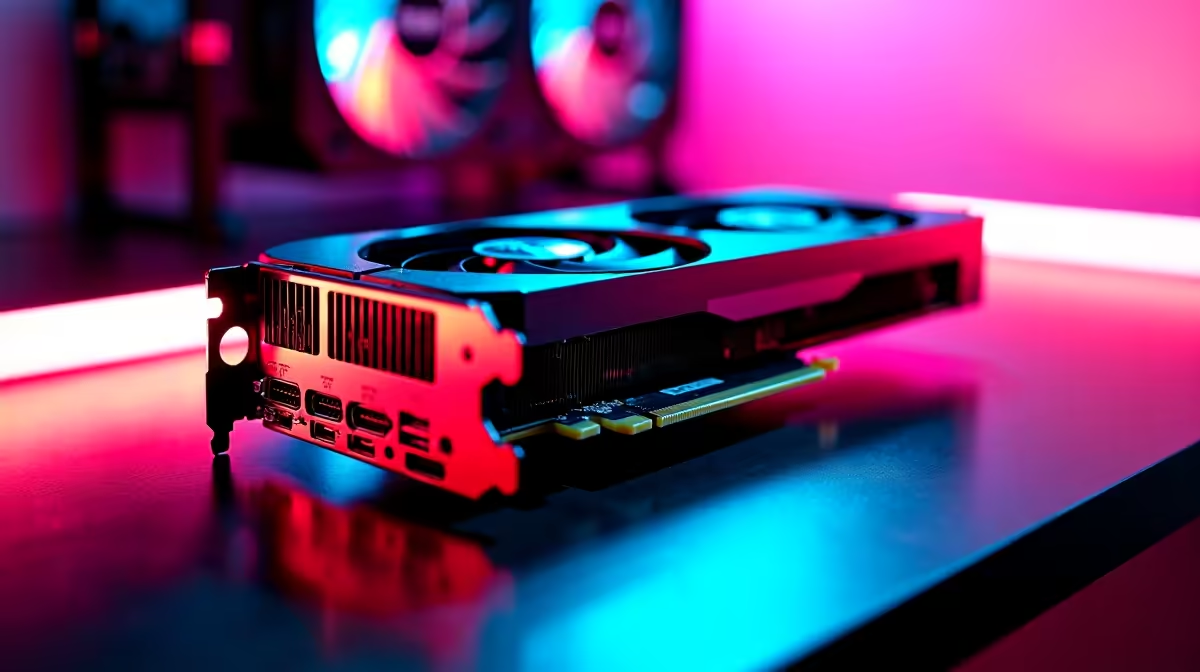
RTX 4060 Overview: Your Key to Apex Legends Performance
The NVIDIA RTX 4060 is a mid-range powerhouse built to handle popular battle royales like Apex Legends with ease. Thanks to its efficient Ampere architecture, it delivers solid 1080p and even 1440p gameplay. But raw power alone isn’t enough; optimising your game settings shapes your advantage.
For South Africans hunting for the right GPU, Evetech’s range of graphics cards offers curated options to fit every build and budget. The RTX 4060’s price-to-performance ratio makes it attractive for players wanting punchy frames without overblowing their ZAR.
Key Apex Legends Settings for Best Performance on RTX 4060
Display and Resolution
Keep your resolution at 1920x1080 or 2560x1440 for the perfect balance on the RTX 4060. Higher resolutions can tank FPS and introduce input lag during competitive games.
In-Game Graphics Settings
- Texture Streaming Budget: Set to Medium or High, depending on your VRAM usage. RTX 4060 has 8GB VRAM, so high textures work well, but monitor your RAM load.
- Anti-Aliasing: Use Adaptive or Medium. Full anti-aliasing looks better but costs FPS.
- Shadow Detail: Low or Medium. It frees GPU power without killing visuals too much.
- Effects Detail: Keep it at Medium for clarity without distraction.
- V-Sync: Turn off for lower input lag.
- Adaptive Resolution FPS Target: Cap it around 120 FPS for consistent smooth gameplay without overheating.
Ray Tracing and DLSS ⚡
The RTX 4060 supports ray tracing, but it’s demanding on performance. Switch ray tracing off or use it selectively in Apex Legends unless you’re aiming for cinematic clips. Instead, enable DLSS (Deep Learning Super Sampling) on Performance mode to boost FPS while maintaining sharp visuals — a must for competitive play.
Pro Tip for Smoother Apex Legends Gameplay
Try capping your FPS slightly below your monitor’s refresh rate (e.g., 140 FPS on a 165 Hz display) to avoid GPU overheating and reduce frame drops.
Building or Buying the Right PC Setup for Apex Legends
For South Africans considering building or upgrading, we recommend checking out Evetech’s unbeatable gaming PC deals to find rigs packed with RTX 4060 GPUs and tuned for Apex Legends performance. Pre-built options also offer excellent out-of-box value and warranties. For instant gaming on the go, browse notebooks with RTX 4060 power.
Additional Tips: Cooling and Drivers Matter
Keeping your RTX 4060 cool boosts performance stability. Ensure your PC’s airflow is optimised — clean fans and spacious cases help. You can also monitor GPU temps with tools like MSI Afterburner.
Don’t forget to update your NVIDIA GeForce drivers. Regular driver updates often bring optimisations specific to Apex Legends, squeezing extra FPS and fixing bugs. Reference Evetech’s specials for occasional discounts on hardware upgrades, cooling solutions, and peripherals.
Final Thought: RTX 4060 and Apex Legends—Balancing Power and Settings
By adjusting Apex Legends settings smartly on your RTX 4060, you unlock reliable frame rates and impressive visuals tailored to your rig and monitor. Whether you tweak anti-aliasing or leverage DLSS, maintaining this balance enhances every firefight and squad push.
Want to maximise your gameplay without breaking the bank? Check out Evetech’s pre-built PC deals with RTX 4060, designed for South African gamers ready to dominate.
Upgrade Your Apex Legends Setup Today! Don’t settle for lag or low FPS. Shop now at Evetech for performance that leaves lag in the dust.











