

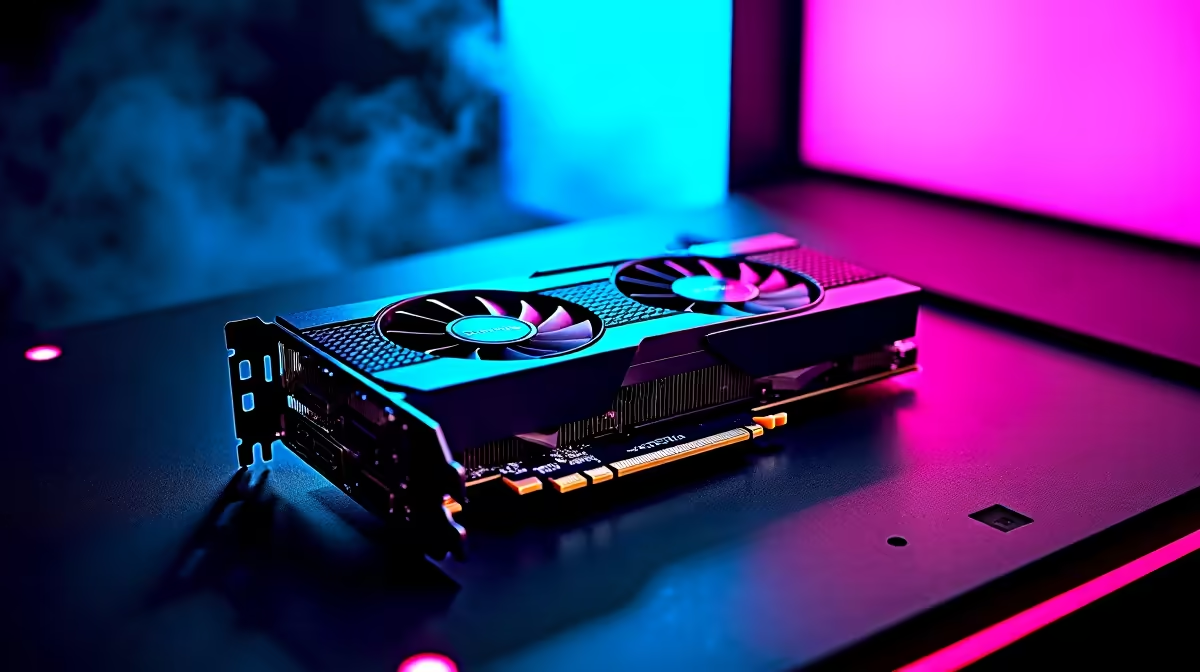
Unlocking Apex Legends Settings on RTX 4080 Super for Peak Performance ⚡
South African gamers, if you’ve upgraded to the Nvidia RTX 4080 Super, you deserve settings that match your powerhouse GPU. Apex Legends’ fast-paced gameplay demands razor-sharp responsiveness and buttery-smooth frame rates. But configuring the best Apex Legends settings on RTX 4080 Super isn’t just about maxing out every setting — it’s about balancing visuals with ultra-fluid performance for that competitive edge. Let’s dive deep into optimising your rig to dominate the arena.
Why Apex Legends Settings Matter with the RTX 4080 Super
The RTX 4080 Super is one of the most powerful graphics cards available, built to stomp through AAA titles without breaking a sweat. Yet, Apex Legends is no ordinary shooter — fast reaction times and consistent FPS are vital. Simply cranking all settings to ultra can cause jitter, input lag, or unwanted frame dips. Optimal settings fine-tune your experience so every pixel matters, without sacrificing that slight edge necessary in high-ranked matches.
Not convinced your PC’s ready? Browse top-tier Evetech graphics cards to ensure your build matches your ambitions. Specialist gamers from Cape Town to Johannesburg rely on Evetech for reliable, top-performance hardware.
Best Apex Legends Graphics Settings on RTX 4080 Super 🚀
Display Mode and Resolution
Set Apex Legends to Fullscreen mode for the lowest input lag and highest refresh rates. Pair that with your native monitor resolution — ideally 1920x1080 or 2560x1440 — to balance crisp visuals with fast FPS.
Field of View (FOV) and Sensitivity
Ramp your FOV up to around 90-110. This widens your peripheral vision, letting you spot enemies faster without distorting the edges too much. Combine with a mouse sensitivity tuned to your playstyle for precision aiming.
Advanced Graphics Adjustments
- Texture Streaming Budget: Set to High or Maximum to leverage the 16GB VRAM on the RTX 4080 Super, enhancing visual fidelity without lag.
- Anti-aliasing: Use TSAA for smoother edges with minimal performance cost.
- Ambient Occlusion & Shadows: Set shadows to Medium or Low. This reduces GPU load drastically while keeping essential depth cues.
- Adaptive Supersampling: Disable it for a more consistent frame rate.
V-Sync and Frame Rate Limit
Disable V-Sync to eliminate input lag. Use Apex’s built-in frame rate limiter and cap FPS slightly above your monitor’s refresh rate to prevent unnecessary GPU strain.
Leveraging Your RTX 4080 Super for Consistency and Fluidity
The RTX 4080 Super’s DLSS 3.0 tech offers AI-powered frame generation, boosting FPS remarkably during intense firefights. Activate NVIDIA Reflex Low Latency mode via your Nvidia Control Panel to reduce system latency for near-instant inputs.
Consider pairing your setup with a low input lag gaming monitor and a high-speed internet connection, such as fibre-based plans across South Africa, for end-to-end lag reduction.
RTX 4080 Super Pro Tip
To keep your rig cool and maintain peak performance, set a custom fan curve in your GPU software, keeping temps under 75°C during marathon sessions. {{/TipBox}}
Building Your Ultimate Apex PC Setup in South Africa 🇿🇦
If you’re still assembling or upgrading your PC, Evetech’s best gaming PC deals offer affordable bundles built for RTX 4080 Super support. Alternatively, explore our pre-built PC deals for rigs optimised out of the box.
Not tied to a desk? Our collection of powerful gaming laptops lets you game anywhere, with RTX 4080 Super-class performance in some models.
Finally, don’t miss the latest Evetech specials for limited-time offers that stretch your rand farther.
Unlock Ultimate Apex Performance Today Your rig deserves the best. Shop now at Evetech for performance that leaves lag in the dust.











