

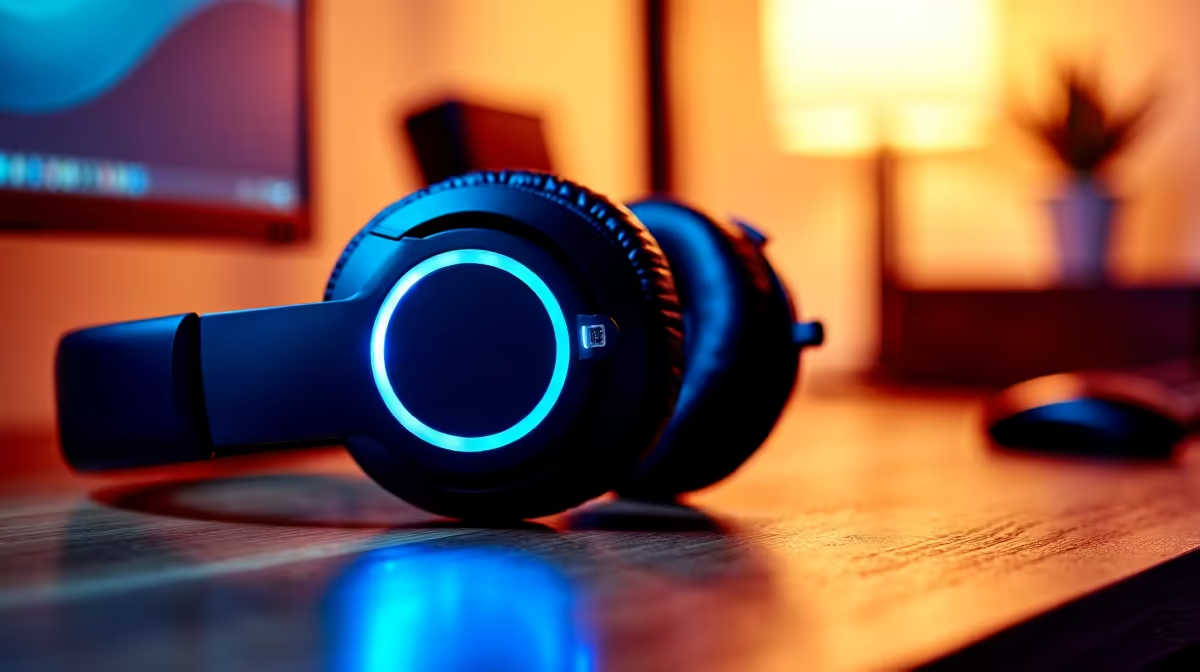
Upgrading your work laptop with a quality headset transforms remote meetings, calls, and focused work sessions - and in South Africa’s increasingly hybrid work environment, the difference between a built-in mic and a dedicated headset is immediately noticeable to every colleague on a Teams or Zoom call. Whether you’re working from home in Sandton or joining meetings from a Stellenbosch startup office, the right headset delivers clearer audio, reduced background noise, and far less listening fatigue over long days.
Quick Answer
How do you upgrade a work laptop with a new headset in South Africa? Choose between USB-A, USB-C, or 3.5mm connection based on your laptop’s ports, install any required software, configure Windows or macOS audio settings, and test on your preferred communication platform. Most modern headsets are plug-and-play with no drivers needed.
🔧 Choosing the Right Headset for Your Work Laptop
Before buying, check your laptop’s available ports. Most modern ultrabooks have USB-C ports, while older business laptops retain USB-A and 3.5mm options. Here’s how each connection type performs for work:
USB-A headsets are the most universally compatible and require no adapters on most laptops. They handle their own digital-to-analogue conversion, bypassing your laptop’s often mediocre onboard audio chip.
USB-C headsets are designed for newer devices and deliver the same audio quality advantage as USB-A, but check if your laptop’s USB-C port supports audio output - not all do, particularly on older models.
3.5mm headsets work on virtually any laptop and require no drivers. They rely on your laptop’s built-in audio chip, which varies widely in quality. Budget-friendly and reliable for voice calls.
Wireless (Bluetooth) headsets offer desk freedom ideal for pacing during calls. Look for models with active noise cancellation (ANC) if you work in a busy household or open office.
For work use, prioritise microphone quality over speaker quality - your colleagues hear your mic far more than you hear your speakers.
📊 Setting Up Your Headset on Windows and macOS
Once connected, both Windows 11 and macOS may need manual audio routing to use the headset for both input and output.
Windows 11 setup:
- Right-click the speaker icon in the system tray
- Open Sound Settings
- Set your headset as the Output device and Input device
- Run the microphone setup wizard to calibrate levels
- In your communication app (Teams, Zoom, Google Meet), verify the headset is selected under audio settings
macOS setup:
- Open System Settings > Sound
- Set headset as Output and Input
- Adjust input volume so the level indicator reacts to your voice without peaking
For USB headsets with dedicated software (common with gaming brands used for work), install the companion app to access equaliser presets, microphone gain control, and sidetone settings.
💡 Optimising Headset Performance for SA Work Conditions
South African work-from-home environments often involve background noise - neighbourhood activity, family members, or street sounds. Maximise your headset’s effectiveness with these adjustments:
Microphone placement: Position the boom mic roughly 2–3cm from the corner of your mouth, not directly in front. This reduces breath noise and plosive sounds (heavy ‘p’ and ‘b’ sounds).
Background noise: If your headset lacks built-in noise cancellation, NVIDIA RTX Voice (free) or Krisp (freemium) run as software filters on Windows and dramatically reduce background noise for your callers.
Wear comfort for long calls: If you regularly have calls lasting more than 2 hours, prioritise over-ear cushioning and headband padding. Ear fatigue from poorly padded on-ear cups is a genuine productivity issue over a full workday.
Cable management: Clip USB cables to your desk edge to prevent accidental yanks. Coiled cables work well for stationary setups but can cause desk clutter.
🔊 Recommended Headset Features by Work Type
Different roles have different audio priorities:
| Role | Priority | Key Feature |
|---|---|---|
| Client-facing (sales, support) | Mic quality | Unidirectional microphone, noise cancellation |
| Developer/designer | Comfort, focus | Closed-back, ANC speakers |
| Manager/executive | All-round quality | Wireless with multi-device pairing |
| Remote teacher/trainer | Mic clarity | Boom mic with hardware mute button |
A hardware mute button on the headset - not just software muting in the app - is one of the most underrated work-from-home features. You can mute instantly without alt-tabbing or hunting for the on-screen button.
❓ Frequently Asked Questions
Will any headset work with my work laptop? Most USB and 3.5mm headsets are plug-and-play on Windows and macOS with no software required. Bluetooth headsets require your laptop to have Bluetooth built-in or a USB Bluetooth adapter. Check your laptop specs before purchasing wireless.
Do I need a separate webcam if I upgrade my headset? Not necessarily - if your laptop’s built-in camera is 720p or better, it’s sufficient for standard video calls. A headset upgrade alone significantly improves your perceived professionalism on calls because audio quality has a greater impact on communication clarity than video resolution.
My headset mic sounds muffled on Teams - how do I fix it? Teams applies automatic noise suppression by default, which can over-process some microphones and create a muffled effect. In Teams settings, go to Devices > Noise suppression and reduce it from “High” to “Low” or “Auto”. This often resolves the issue immediately.
Browse Laptop Specials and All Gaming Headsets at Evetech to find the right laptop for your needs and budget.
Ready to Find Your Perfect Match? Shop at Evetech











