

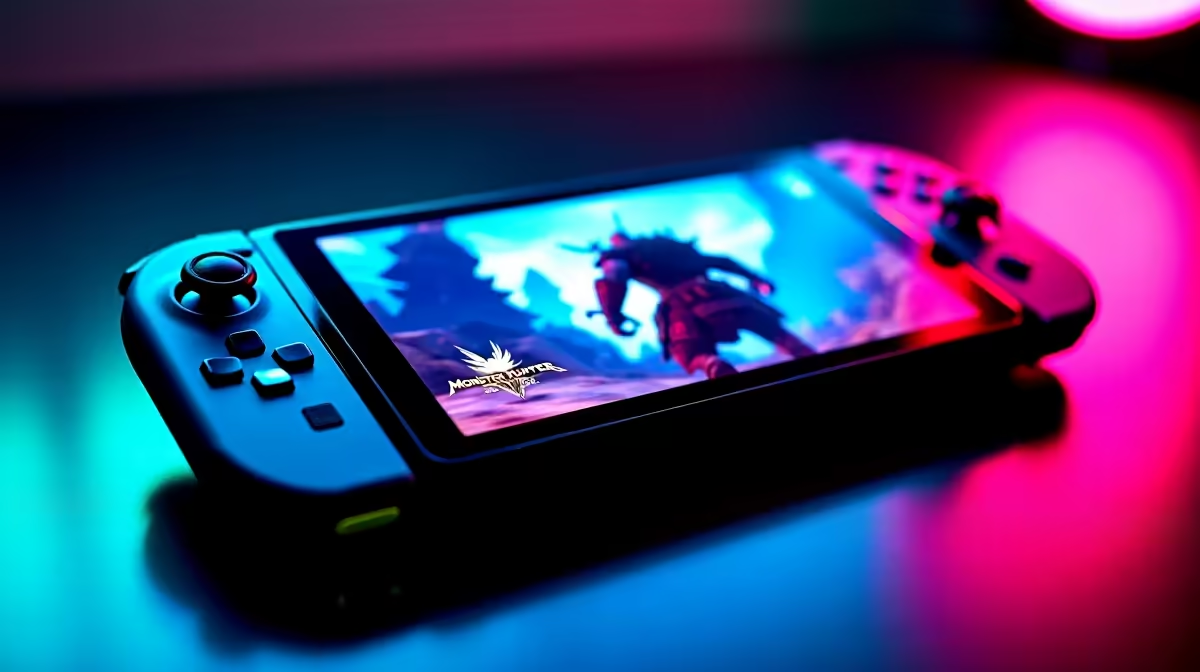
Quick Answer
Monster Hunter Wilds runs on Steam Deck in a playable state but requires settings compromises. On the Steam Deck OLED, expect 30 to 45 FPS at Low to Medium settings targeting 800p. Docked mode with a fan profile tweak and FSR upscaling from 540p to 800p gives the best balance of visual quality and stability. For the best Wilds experience, a dedicated gaming PC remains the superior option.
Monster Hunter Wilds arrived as one of the most demanding PC releases of 2025, built on a complex RE Engine variant that pushes even desktop GPUs hard. Running it on Steam Deck is genuinely possible, but the Deck's AMD RDNA 2 GPU and Zen 2 CPU are working at their absolute limit. If you are committed to playing Wilds portably or docked at your TV, here is exactly what performance to expect and which settings to use.
Steam Deck Performance: Handheld vs Docked Mode
In handheld mode on the Steam Deck OLED (the recommended model for Wilds due to its more efficient display), targeting 30 FPS is the realistic goal. At 800p native with Low settings and FSR set to Ultra Quality upscaling from around 640p, you can achieve 28 to 35 FPS in open-world areas. In combat-heavy zones with multiple monster AI running simultaneously, frame rates can dip to 22 to 25 FPS, which feels choppy.
The original Steam Deck LCD runs about 5% to 8% slower due to its slightly less efficient power profile and the dimmer display making performance issues more visible. The same settings on the LCD model push temps higher and sustain lower FPS averages.
Docked mode changes the equation meaningfully. When docked, the Deck's TDP limits can be pushed to 20W to 25W (from the default 15W), giving the GPU and CPU more thermal headroom. At 720p output to a TV (upscaled by the display), Medium-Low settings with FSR Quality give a visibly better result and average 35 to 45 FPS in most gameplay areas. For a living room couch session, docked mode is the better Wilds experience on Deck.
Best Settings for Monster Hunter Wilds on Steam Deck
Here are the recommended settings for Steam Deck OLED in handheld mode targeting stable 30 FPS:
Resolution: 800x500 (FSR upscaling to 800p). Texture Quality: Low. Shadow Quality: Low. Ambient Occlusion: Off. Anti-Aliasing: TAA Low. Draw Distance: Medium (set too low and monster pop-in becomes distracting). Volumetric Fog: Off. Motion Blur: Off. Grass and Foliage Density: Low. FidelityFX Super Resolution: Ultra Quality.
For the TDP limit, set the power limit to 15W in game mode settings for handheld battery life around 90 minutes, or push to 18W for better performance at the cost of about 60 to 70 minutes of battery. The GPU clock can be set to 1600MHz as a reasonable balance.
For docked mode, push TDP to 20W to 22W, set resolution to 1280x720 native output, and raise Texture Quality to Medium, Shadow Quality to Medium-Low. FSR can be set to Quality or Balanced from a 900p render target. This gives a noticeably better visual experience on a TV screen.
Comparing Steam Deck vs Gaming PC for Monster Hunter Wilds
Monster Hunter Wilds on PC at recommended settings (GTX 1080 minimum, RX 6700 recommended) targets 60 FPS at 1080p. A mid-range gaming PC with an RTX 4060 or RX 7600 handles 1080p High at 60+ FPS with ease, and a 1440p system with an RTX 4070 Super or RX 9070 delivers 80 to 120 FPS at Ultra settings.
The Steam Deck experience is compromised by comparison - lower resolution, lower settings, unstable frame times, and reduced detail in the game's stunning monster environments. If you already own a capable gaming PC, Steam Deck is a secondary option for portable sessions, not a replacement. For South African gamers weighing their options, the premium between a base gaming PC and a Steam Deck is meaningful in ZAR terms, and the performance difference in Wilds is significant.
That said, for travel, university residences, or living room play without a TV-connected PC, the Steam Deck handling Wilds at all is an impressive technical achievement. The game is fully playable, just not at its best.
Tips for Improving Your Wilds Steam Deck Experience
Install ProtonDB-recommended Proton versions - community reports on ProtonDB pinpoint which Proton build runs Wilds most stably. GE-Proton often outperforms standard Proton for demanding titles. Check the Wilds-specific ProtonDB page for the latest community settings.
Enable GPU Memory Clock override to 1600MHz in Steam Deck's performance overlay. This alone can add 3 to 5 FPS in GPU-bound scenarios. Use the frame limiter in Steam's performance overlay set to 30 FPS to prevent hunting between 28 and 38 FPS, which feels worse than a locked 30.
Close all background processes before launching. Steam's cloud sync and any download activity competes for the Deck's limited CPU resources. Put the Deck in airplane mode if you are not using online multiplayer to free up wireless resources.
Frequently Asked Questions
Q: Is Monster Hunter Wilds officially Steam Deck Verified? A: As of early 2026, Wilds carries a Playable (not Verified) rating on Steam Deck. It runs and is enjoyable but requires settings adjustments and has some UI scaling issues not optimized for the 7-inch screen. The community has worked around most issues via ProtonDB tips.
Q: Can I play Monster Hunter Wilds multiplayer on Steam Deck? A: Yes, online multiplayer works on Steam Deck with a stable WiFi connection. Note that SA gaming servers may route internationally, so latency can be an issue. Local WiFi performance on the Deck is good with WiFi 6 support on the OLED model.
Q: Does Monster Hunter Wilds run better on the Steam Deck OLED vs original Deck? A: The OLED model offers roughly 5% to 8% better performance due to a slightly more efficient power profile and the OLED panel requiring less backlight power. The visual experience is also significantly better on the OLED's more vibrant, higher-contrast display.
Q: What frame rate should I target for a playable Wilds experience on Steam Deck? A: Lock to 30 FPS using Steam's frame limiter. Attempting 40 FPS (Steam Deck OLED's native 90Hz at 3:1 divisor) is possible but requires further settings reductions that make the game look noticeably worse. 30 FPS locked with good settings is the more enjoyable experience.
Ready to Find Your Perfect Match? Find a dedicated gaming PC at Evetech for the full Monster Hunter Wilds experience at high settings.











