

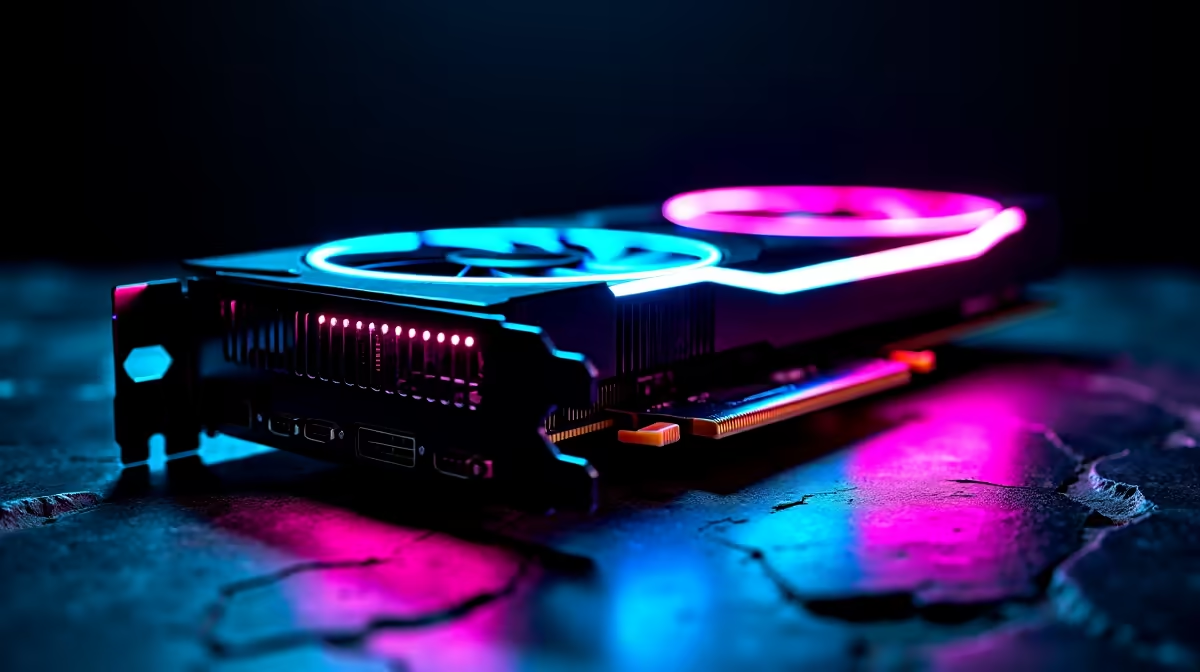
Optimising RTX 5090 Settings for Peak FPS Performance ⚡
South African gamers, if you’ve just secured an RTX 5090, chances are you’re itching to squeeze every frame out of this beast. Getting the best FPS on your RTX 5090 isn’t just about raw power; fine-tuning your settings can dramatically improve your gaming fluidity and response times. In this guide, we explore how to adjust your RTX 5090 settings for the smoothest, most responsive gameplay on a South African rig.
Understanding RTX 5090’s Performance Potential
The RTX 5090 packs next-level GPU technology with enhanced ray tracing and DLSS 3.0 capabilities. However, outperforming your competition means balancing graphical fidelity with FPS. Using presets like Ultra might look stunning, but often drops FPS unnecessarily. Instead, customise settings for your rig’s specs and the games you love.
Don’t forget: your choice of PC components pairs directly with GPU performance. Check out the latest range of graphics cards available at Evetech to complement your RTX 5090 or find a wallet-friendly upgrade partner.
Key Settings to Boost FPS on RTX 5090 🚀
1. Adjust Ray Tracing and DLSS Settings
Ray tracing delivers gorgeous lighting effects but can heavily tax performance. For South African gamers focused on speed, try setting ray tracing to Medium or Off depending on your game. DLSS (Deep Learning Super Sampling) can then compensate by upscaling lower resolutions.
Set DLSS to “Performance” or “Balanced” mode to maximise FPS without a visible drop in quality. Games like Cyberpunk 2077 or Fortnite benefit immensely from this.
2. Optimise In-Game Resolution and Refresh Rate
Stick to your monitor’s native resolution, but tweak settings like shadows and textures to medium. This balances performance with image quality. If you have a high refresh-rate display, ensure your RTX 5090 outputs at matching FPS to avoid screen tearing or input lag.
For those installing a new rig, consider browsing pre-built PC deals tailored for gaming. Evetech’s gaming PCs deliver ready-to-go optimisation for your RTX 5090.
3. NVIDIA Control Panel Tweaks
The NVIDIA Control Panel allows manual adjustments.
- Enable “Maximum Performance” in the Power Management mode.
- Turn off V-Sync if you want to peak FPS, but only if your monitor supports G-Sync or FreeSync.
- Use “Low Latency Mode” set to Ultra for faster input response.
4. Keep Drivers and Software Updated
Evetech reminds our community to download the latest GPU drivers directly from NVIDIA or via GeForce Experience. Updated drivers bring performance fixes and new features ideal for South African broadband and gaming demands.
5. Cooling and Power Delivery Impact FPS ⚡
Your system's cooling and power settings are often overlooked but vital. A clean case with good airflow ensures the RTX 5090 maintains high boost clocks longer, raising sustained FPS. Consider quality PSUs and cooling solutions when building or upgrading.
Quick FPS Boost Tip
Before tweaking, test your current FPS baseline with MSI Afterburner or similar software. Minor changes can impact differently across games. This helps you apply settings that truly improve performance and avoid guesswork.
Finding the Best Deals and Gear in South Africa
Keep an eye on Evetech’s special offers for discounts on components that pair well with your RTX 5090. South African gamers benefit from local stock and ZAR pricing ensuring no nasty import surprises.
If mobility’s your thing, check notebooks with RTX GPUs for sale. Many laptops offer RTX 5090 power with sensible battery and thermals for gaming on the go.
Last but not least, consider bundles and upgraded rigs on Evetech’s gaming PC deals page if you’re building fresh. These packages come optimised and tested to get your FPS soaring right out the box.
Elevate Your Gaming Experience Ready to dominate every frame? Shop now at Evetech for GPUs, rigs and deals that push your RTX 5090 to its limit.











